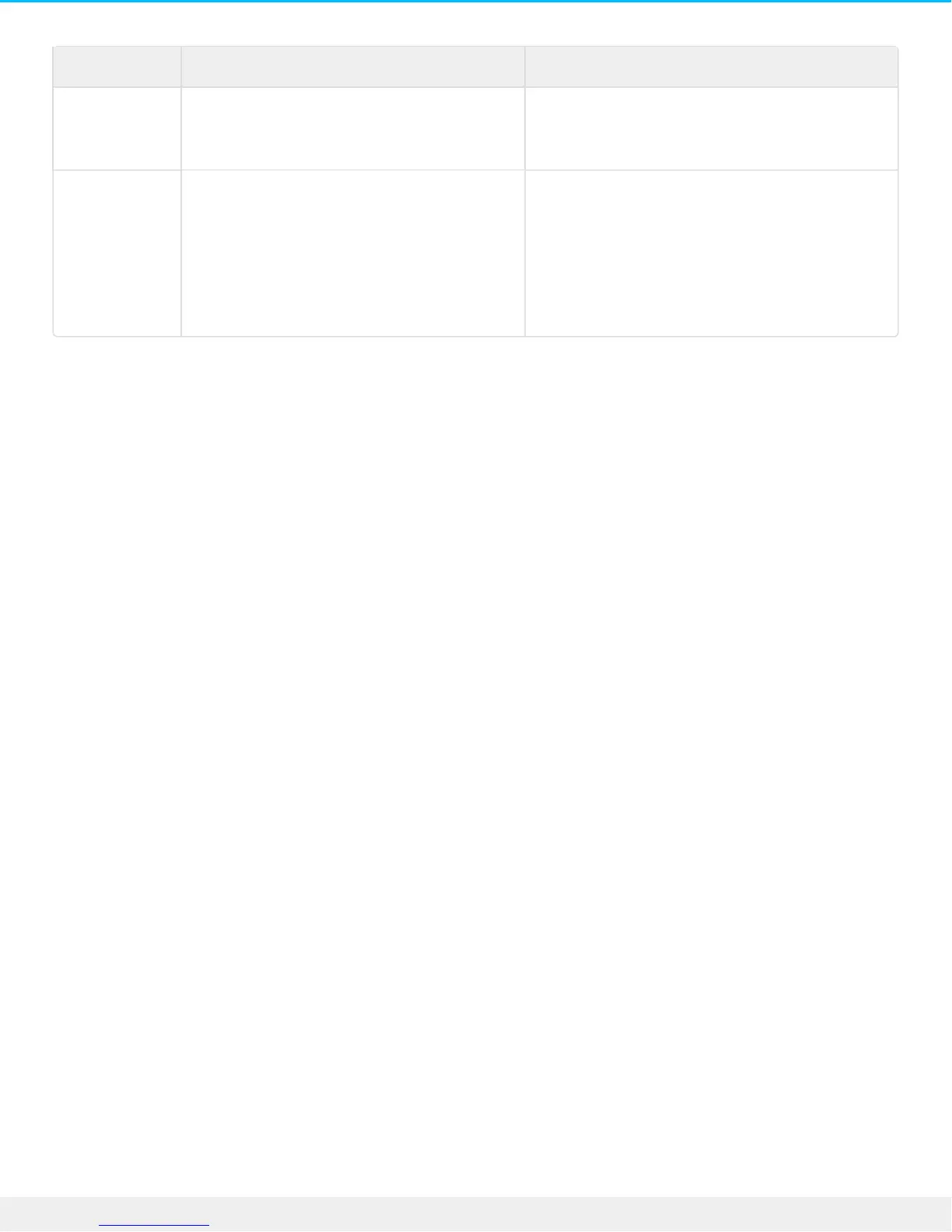
Account type Access Change password
Local access
only
The user enters the password to connect
to her private folder on the home
network.
Log into the Personal Cloud to change the
password.
Seagate
Access
account (local
and remote
access)
The user enters the password to connect
to her private folder on the home
network as well as Sdrive to connect
from remote locations.
To keep passwords consistent between the
Personal Cloud and Seagate Access, update
the password on the Personal Cloud on the
home network.
Log into the Personal Cloud on the home
network and go to Device Manager > Users.
Local and remote access
When first creating an account, the password is synchronized between the Personal Cloud and Seagate
Access. To keep passwords consistent between the Personal Cloud and Seagate Access, update the
password on the Personal Cloud on the home network as instructed below.
Owner
1. Log into Personal Cloud and click Device Manager.
2. Click Users.
3. Find the user you want to change and then click the password.
4. Update the password in the pop-up window.
User
1. Log into Personal Cloud and click Device Manager.
2. Place the cursor over your password and click the pencil icon.
3. Change your password.
Changing the password in Sdrive
Sdrive gives you the option to change your Seagate Access password. However, changing your Seagate
Access password in Sdrive does not update your password on the Personal Cloud. Therefore, if you only
update your password on Sdrive, you must log into your Personal Cloud with the old password.
It is highly recommended that you manage both passwords on your Personal Cloud on the home network.
For further information regarding Seagate Access and Sdrive, see the Seagate Access for Personal Cloud User
Manual.



 To Next Page