Strato HiDrive
Yandex.disk
OneDrive
You have the necessary login and access credentials for your account. You cannot create a backup
without your credentials.
Advanced parameters for backups to cloud storage
The Backup Wizard includes one or more options for your backup. See the explanations below. It is not
mandatory to select one or more options to continue with the backup:
uses encryption during the data transfer. The data is not encrypted once it is
stored on the destination. This option is ideal for offsite backups.
keeps files on the destination even if they are deleted from
the source's folder.
Sync folders
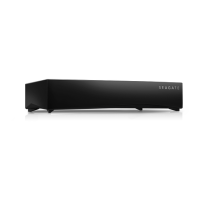
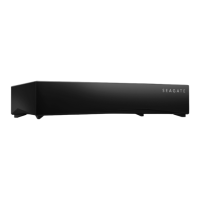
Use Sync to keep data in one or more folders on your Seagate Personal Cloud consistent with a folder in a
cloud storage service. For example, you run a Sync job for Folder A on your Seagate Personal Cloud. It has 25
files when the Sync job is first created with a similarly named folder on OneDrive. Soon after, you copy file
26 to Folder A on your Seagate Personal Cloud. The same file 26 is automatically uploaded to OneDrive to
keep both folders in sync. You can also add files to the folder on OneDrive and they will automatically sync
with Folder A.
Before performing a sync to cloud storage, make certain:
You have an account with one of the following services:
Baidu
Dropbox
Google Drive
OneDrive
You have the necessary login and access credentials for your account. You cannot create a sync without
your credentials.
Create a sync:
1. Launch the Backup Manager app.
2. Choose Sync.
3. Click Add sync job to launch the Sync Wizard and follow it to completion.
Restore a backup
Backups to or from your Seagate Personal Cloud can be restored. You can restore a backup to the original
source folder or choose another folder for your backed up files. Follow the directions below to restore a
backup.
1. Launch the Backup Manager app.



 To Next Page