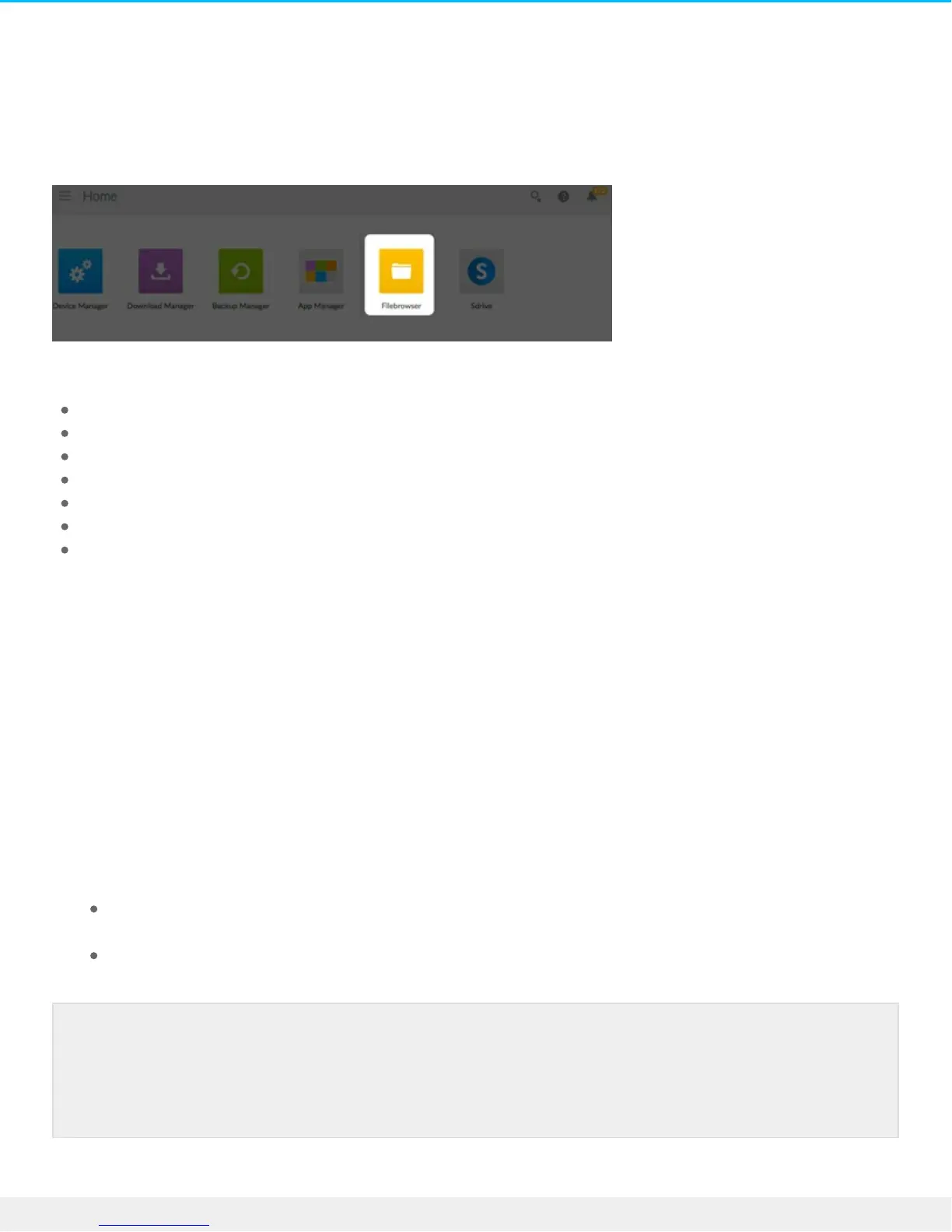
Filebrowser
Use the Filebrowser app to view, share and manage your files on your Seagate storage device. You can:
Upload files
View files
Share files with family, friends and colleagues
Play back audio and video files supported by your web browser
Create folders
Organize content
Ingest from external drives
Upload files
1. Go to the destination folder for your files.
2. Click the Plus Sign on the top right and choose Upload.
3. Select the files you want to upload.
4. Click Open.
Share files
1. Navigate to the item you want to share.
2. Click Share link.You can:
Email the link from the Filebrowser’s native email client or copy the link to your preferred email
client.
Add a password or expiration date by clicking Add password and expiration date.
Viewing or listening to files
Note on the share link : The link to share a file or folder is created when you click Share link.
Even if you do not send the link using the Filebrowser email client or copy it to your email client,
the link has been created. If you mistakenly created the link or you do not want to keep it, click
Remove the link in the Share link pop-up window.



 To Next Page