LOADING AN STL FILE
Yournewlyinstalled3DCreate&Printsoftwareis
designedtobeaseasyandintuitivetouseaspossible.
Itallowsyoutotakeanystlleandprinttheobject(stl
standsforStandardTessellationLanguageandisthe
standardformatfor3Dles).Youcaneithercreatestlles
yourselfordownloadlesthatothershavecreatedfrom
theinternet.
Loading files to print
• Click Load, and then select your file from its location.
• Alternatively, use one of the two sample files by selecting
the File menu, highlighting Examples and picking one of
the two options.
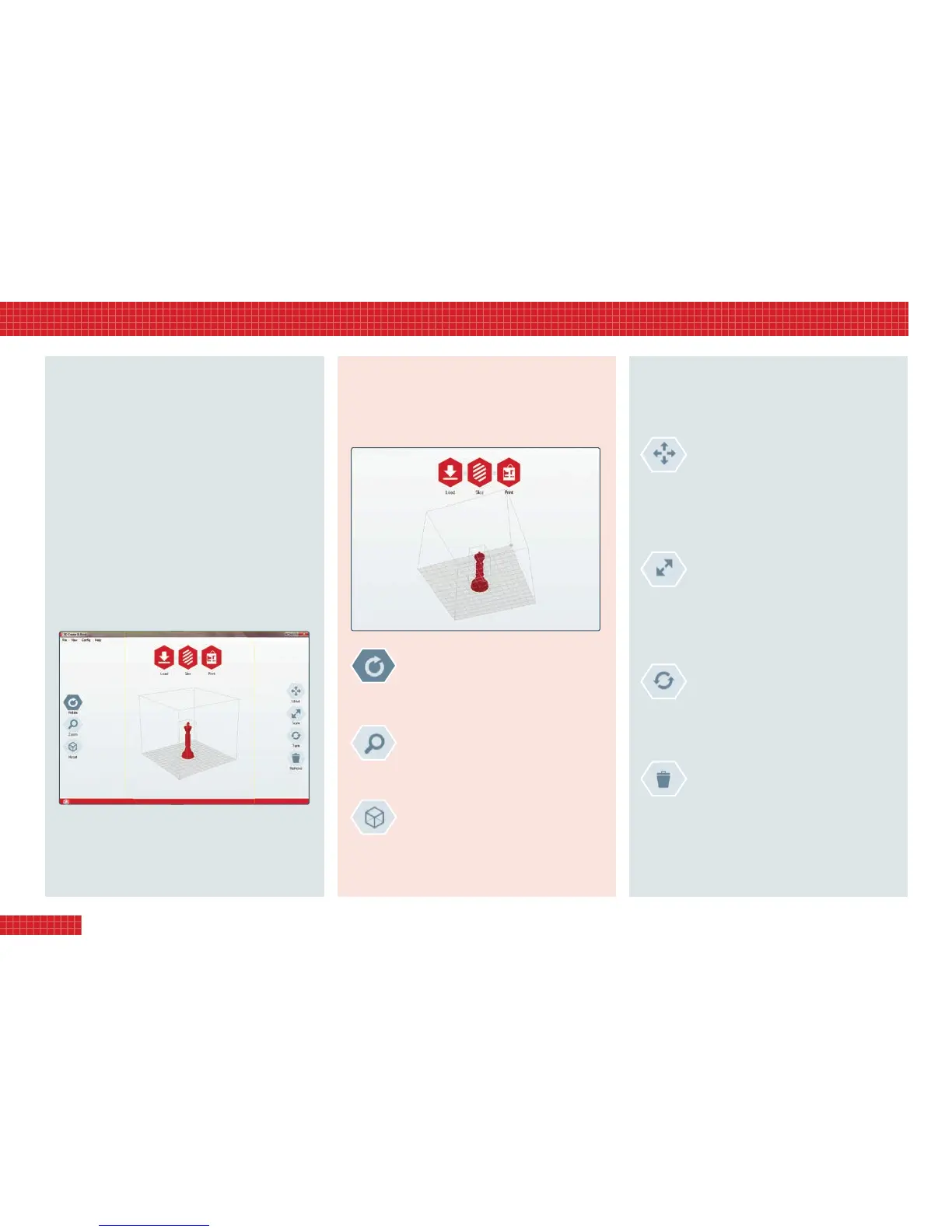
• A virtual image of your file on the build plate will now
drop down into the object control field (below).
Loading multiple files
To add further files to a single print session, simply load them
one after the other. The software will automatically place
them in an appropriate spot on the virtual build plate.
VIEWING THE OBJECT
Youcanviewyourobjectfromanyangle,andzoominon
it,usingthebuttonsdowntheleft-handsideoftheobject
controleld.Note:usingthesebuttonssimplychanges
yourview;itdoesn’talterhowtheobjectprints.
MANIPULATING THE OBJECT
Youcanrescaletheobject,oralterthelocationor
orientationinwhichitprints,byusingthebuttonsdownthe
right-handsideoftheobjectcontroleld.
Note:ifavirtualobjectturnsfromredtogrey,thismeansit
cannotbeprinted(e.g.itistoolarge,orisnowoffthebuild
plate).Reverseyourlastactionuntilitreturnstored.
i0
6. slicing & printing
VISIT www.3dprinter-collection.com TO DOWNLOAD AND INSTALL THE SOFTWARE
SelectRotate,thenclickandgrabtheobject
controleldandmoveitinanydirection–
fromsidetosideorupanddown(seeabove).
rotate View
SelectZoom,thenclickanddragtheobject
eld.Alternatively,zoominandoutatanytime
usingthescrollbuttononthemouse.
Zoom in / out
Torestoreyourviewtoitsoriginalsetting,click
Reset.Foradifferentviewpoint,double-click
Resettobringupanoptionspaneloffering
Front,Back,Left,Right,ToporBottomviews.
reset
moVe object
To move an object to a different location on the
build plate, select Move, then click/hold and drag
it. To move an object more precisely, double-click
Move to bring up a vector panel, then enter your
chosen X and Y coordinates.
scale object
To resize an object by eye, select Scale, then
click/hold and drag the object down to make it
larger or up to make it smaller. To resize precisely,
double-click Scale to bring up a scale factor panel,
then enter your chosen scaling values.
turn object
To turn an object on its vertical axis so it prints
facing another direction, select Turn, then click/
hold and drag the object. For more axis options,
double-click Turn to bring up the control panel.
delete object
To remove an object from the control field, first
make sure it is highlighted (i.e. it is red, not grey),
then click on Remove.


 To Next Page
 Loading...