1
Introduction
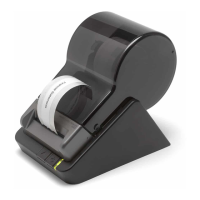
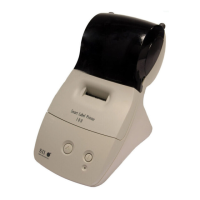
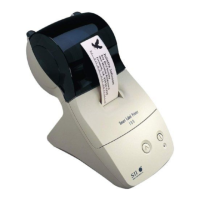
About Your Smart Label Printer
TheSmartLabelPrinteristhebestwaytoinstantlyprintone-at-a-timelabels.Direct
thermalprintingtechnologydoesnotuseink,tonerorribbon,justlabels.TheSLP
producesfast,laserqualityoutputonavarietyoflabelsizeswiththeabilitytoprinttext,
graphics,POSTNETcodesandbarcodes.
WiththewidevarietyofavailableSmartLabels,youcanuseyourSLPtocreatelabelsfor
justaboutanything.Herearesomeexamples:
• Envelopelabels • Barcodelabels
• Filefolderlabels • 3.5"DisketteandZipDiskslabels
• Business/AppointmentCard • 8mmVideo/DATTape
• Namebadgelabels • Videocassettelabels
• SecurityVoucher • CDorDVDlabels
• Shippinglabels • Jewelerylabels
• Storagecontainerlabels • Binderlabels
• Notebooklabels • Shelflabels
Soware Features
TheSmartLabelprogramprovidesarichsetoffeaturestosimplifyyourlabelingneeds.
•WYSIWYGeditordisplayslabelsastheywillprint.
•Printsinbackgroundsoyoucanworkwithotherapplicationswhilelabelsareprinting.
Print labels one at a time or whole mailing lists.
•Object-orienteduserinterfacemakesiteasytoincludetext,pictures,barcodes,etc.
on your label.
•Mixedtextpossiblewithineachtextobject—differentfonttypes,sizesandstyles(bold/
italic/underline)canbeincludedonasingleline.
•Shrink-to-fitandwordwrapensurethataddressesandothertextfitonthelabel.
•Built-indatabasetosavelabelsandformatsinuser-definabledatabasecategories.
•Findfeaturemakesiteasytolocatesavedlabelsbylabelname,databasefieldor
words within the label.
•Contact-basedrecordsupdatedautomaticallyfromlabeladdresses.
Contents
Introduction 1
AboutYourSmartLabelPrinter 1
SowareFeatures 1
Getting Started 2
WhatYouNeed 2
AWordAboutLabels 3
CaringforLabels 3
InstallingtheSLP440or450 4
UnpackingtheSLP 4
Installing the Soware 5
ConnectingtheSLPtoaPowerOutlet 5
ConnectingtheSLPtoyourcomputer 6
Setting up the Printer 7
LoadingaRollofLabels 7
TestingthePrinter 9
Changing Labels and Printer Care 10
Overview 10
CaringforYourPrinter 10
OLineandOnLineMode 11
ChangingaLabelRoll 11
RemovingtheOldRoll 11
LoadingtheNewRoll 11
AdjustingthePositionofLabels 12
RemovingStuckLabels 13
Cleaning the Printer 14
Specications 16
SmartLabelPrinter440 and 450Specications 16
StatusLightIndicators 17
Commonly Asked Questions and Answers 18
Technical Support and Service 19
Ordering Labels and Parts 19
OrderingLabels 19
OrderingParts 19


 To Next Page