4 5
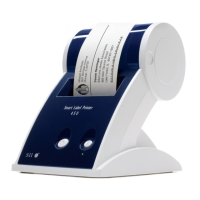
Installing the SLP 440 or 450
Here,you’llfindouthowtounpackandsetupyournewSLP.Aspartofthesetupprocess,
you’llloadarollofstandardaddresslabelsandrunaquicktest.
Unpacking the SLP
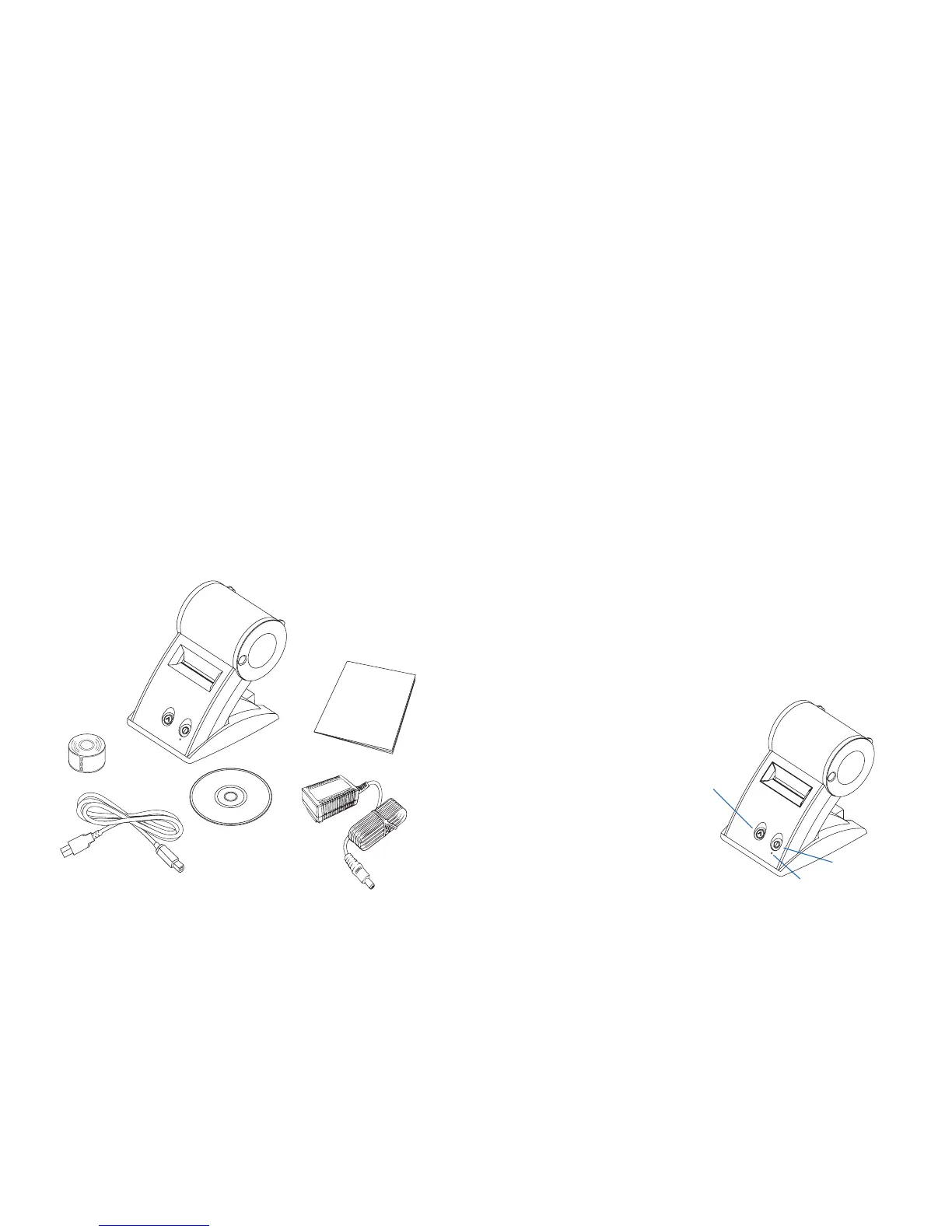
Carefullyremovetheprinteranditscomponentsfromthebox.It’sagoodideatosavethe
boxandpackingmaterialsincaseyouneedtostoreorshiptheprinter.Makesureyou
have all of the following items.
•ASmartLabelPrinter440or450
•SmartLabelsoftwarewithUserGuide
•USBcable
•ACadapter
•StarterrollofSmartLabels
•QuickStartCard
Installing the Soware
Installing the Smart Label Program for MacOS X
1 InserttheSmartLabelCD.Iftheinstallerdoesnotappearautomatically,double-click
theCDonyourdesktoporinthelepaneofanewFinderwindow.
2 Double-clicktheleSIISmartLabelPrinter.mpkg. The installer will appear. Follow the
on-screeninstructions.
3 ForMacOSX10.2:Aerinstallationiscomplete,openPrint CenterandselectyourSLP
printer.MacOSX10.3or10.4willautomaticallysetupyourprinter.
Installing the Smart label Program for Windows
1 InserttheSmartLabelCD.Theinstallationwizardstartsautomaticallyonmostsystems.
If the introductory screen doesn’t appear after a few seconds, do the following:
2 ClicktheWindowsStart button then point to Settings and choose Control Panel.
3 Double-clickAdd/Remove ProgramsthenclicktheInstall button. Follow the install
wizardtoassistwithinstallation.
Please note:Ifyourprinterisnotrecognizedoralllabeltemplatesdonotappear,
youwillneedtoset-upyourprinterwithintheSLPprintersoftware.Pleasesee
SettingupthePrinteronpage7.
Connecting the SLP to a Power Outlet
1 ConnectthesuppliedACadaptertothebackoftheSLPandtoapoweroutlet.
2 The printer powers on automatically when connected
toACpower.Thestatuslightwillashifnolabels
are loaded in the printer.
SmartLabels
QuickStart
SmartLabelSoftware
USBCable
ACAdapter
SmartLabelPrinter
440 or 450
Form Feed button
Statuslight
Power button


 To Next Page