10 11
Changing Labels and Printer Care
Overview
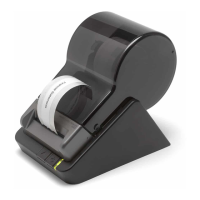
TheSLP440and450usesadvancedthermalprinttechnologytoprovidecrisp,
high-contrastprinting.Therearenoribbonsorcartridgestoreplace.
ForbestresultswerecommendtheuseofSeikoInstrumentsSmartLabels.Otherbrandsmay
notbeengineeredtoprovideoptimum,trouble-freeresultswithyourSmartLabelPrinter;
theymaynotworkwithyourSLPortheymaydamageitandvoidyourwarranty.
Caring for Your Printer
YourSLP440and450isahigh-precisiondevicethat’sdesignedfortrouble-freeoperation.
Justfollowthesefewprecautions:
• Note:TheSLP440 and 450isdesignedforuseonlywithSeikoInstrumentsSmartLabels.
Useofimproperlabelsmaydamagetheprinterandvoidyourwarranty.
• Don’toperatetheprinterinadustyenvironment.
• Keeptheprinteroutofdirectsunlight.
• Ifyouareprintingmorethanonelabelatatime,guidethelabelsoverthefrontofthe
labelcoverastheyexit,makingsurethattheydon’tcurlunderoroverthecoverand
loop through and into the feed slot.
• Turnofftheprinterwhennotinuse.
• Pulloutthepowerplugwhentheprinterisnotinuseforalongtime.
Discarding Old Printers
WhendiscardingoldandusedSmartLabelPrinters,pleasefollowthedisposalorrecycling
regulations in your area.
O Line and On Line Mode
Pressing and releasing the power button toggles the printer between off line and
onlinemode.Anamberstatuslightindicatesthattheprinterisoffline.Thereisno
communication with the computer when the printer is off line.
This feature is a handy way to stop printing so you don’t waste labels while you delete
labels from the print queue.
Changing a Label Roll
This procedure describes how to remove and replace label rolls.
• Youcanloadadifferenttypeoflabelatanytime—youdon’thavetowaituntilallof
the labels have been used.
• Whenyourunoutoflabels,thegreenstatuslightonthefrontoftheSLPflashes.Ifprinting
is in process, a message appears telling you that the printer is out of labels.
Removing the Old Roll
CAUTION:DONOTpullonthelabelstoremovethemfromthe
printer.Thismaycauselabelstogetstuckinsidetheprinter.
1 Tear off any printed labels. If labels aren’t torn off, they may get jammed when you
perform step 2.
2 Pressandholdtheformfeedbutton.ThelabelswillreverseoutoftheSLP.Ifthis
doesnotwork,see"AdjustingyourLabelPosition"onPage12toreleasetheplaten
to remove the labels.
Loading the New Roll
Prepareandloadthenewlabelrollasdescribedin“LoadingaRollofLabels”onpage7.


 To Next Page