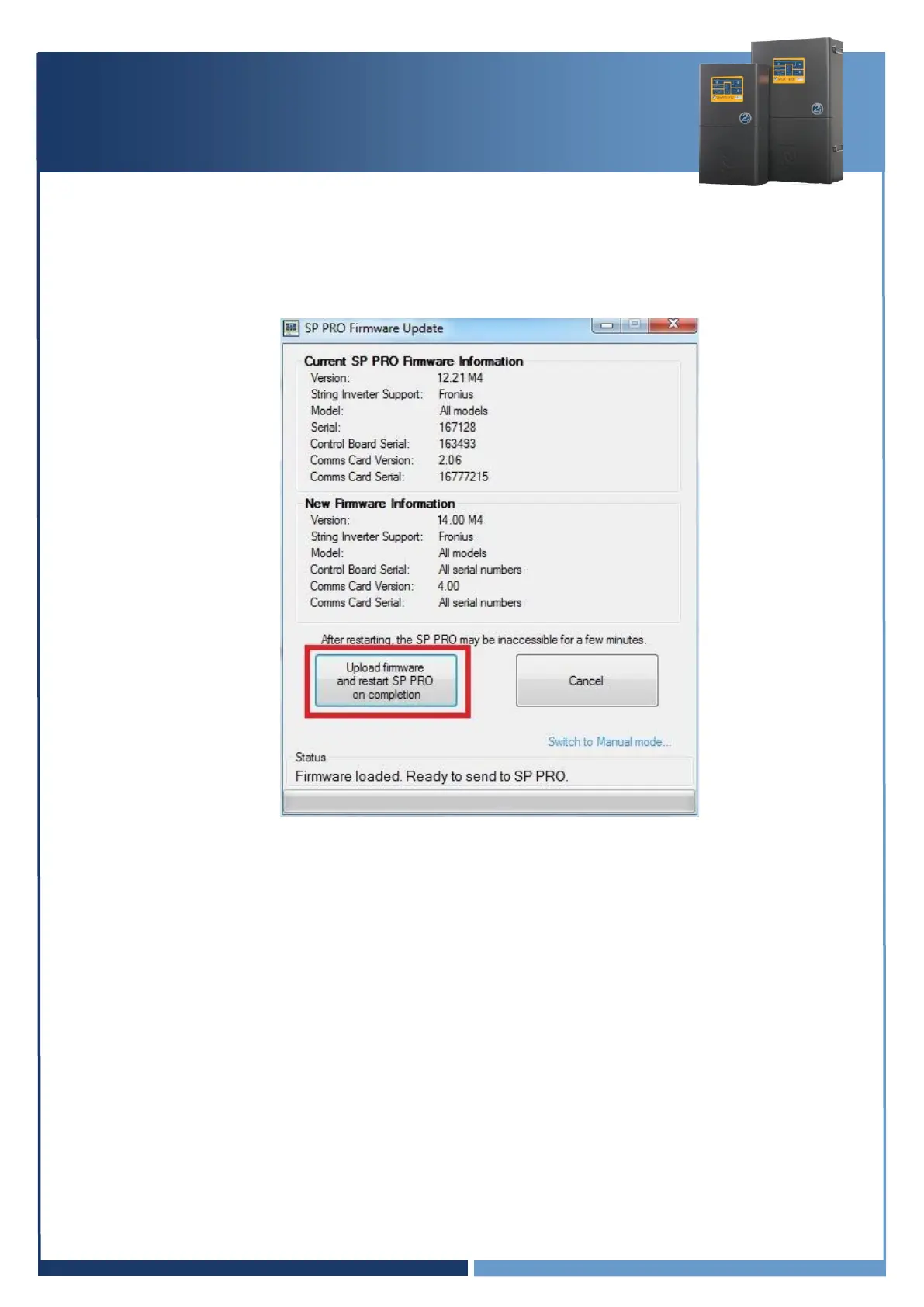
7. In the SP PRO Firmware update screen click Update firmware and restart SP PRO on
completion button.
Note: If firmware is already up to date then the “Update firmware and restart SP PRO
on completion” button will be disabled.
Important:
a. Managed batteries may turn OFF during the firmware update. If this occurs, turn the
batteries ON, close the SP PRO Firmware Update window. Reconnect to the SP PRO and
continue Firmware update (step 7 and 8). Repeat the process until the firmware is
updated.
b. In the case where the SP PRO firmware upload is complete and the batteries turn OFF
while the SP PRO is performing a firmware upgrade, turn the batteries ON and wait until
the front panel LEDs are stable. This may take a few minutes.
8. After the firmware is uploaded to all the SP PROs in the Powerchain system, they will
automatically restart. You will need to wait about 5 minutes for the restart to complete. A wait
time will be displayed in the firmware update screen. Communications with the SP PRO will be
lost during this time.
9. Once the restart timer times out, SP LINK will display the Connection screen.


 To Next Page