EasyManua.ls Logo

Sensi 1F76U-22WFB Series - User Manual

Sensi 1F76U-22WFB Series
10 pages
Print Icon
To Next Page IconTo Next Page
Loading...
SENSI
LITE SMART THERMOSTAT
Installation guide
Models: 1F76U-22WFB series, ST25 series
Version: February 2023 R-5664
Question and Answer IconNeed help?

Do you have a question about the Sensi 1F76U-22WFB Series and is the answer not in the manual?

Summary

App Download and Account Setup

Prerequisites for Installation

List of information and items needed before starting installation.

Download the Sensi App

Instructions to download the Sensi mobile application from app stores.

Create a Sensi Account

Guide to creating a user account for remote thermostat access and features.

Sensi Thermostat Installation Steps

Step 1: Add Thermostat to App

Instructions for adding the Sensi thermostat to the Sensi mobile application.

Step 2: Assess Thermostat Mounting

Determine if the thermostat is already mounted or needs new installation.

Installation for Unmounted Thermostats

Detailed, step-by-step process for installing a thermostat that is not yet mounted.

Installation for Mounted Thermostats

Steps for thermostats already installed, including skipping to later steps.

Removing Old Thermostat and Wiring

Gather Installation Tools

List of necessary tools and package contents for the installation.

Turn Off HVAC Power

Critical safety step to disable power to the heating and cooling system.

Photograph Existing Wiring

Documenting the current wiring setup for future reference or troubleshooting.

Identify Wire Terminals

Guide to selecting and identifying wires attached to old thermostat terminals.

Sensi Base Installation and Connections

Secure Sensi Base to Wall

Mounting the Sensi thermostat base securely onto the wall.

Connect Wires to Terminals

Inserting and tightening wires into the corresponding terminals on the Sensi base.

Scan QR Code for Wi-Fi

Using the QR code to connect the thermostat to the Wi-Fi network.

Install Batteries and Attach Cover

Inserting batteries and fitting the Sensi thermostat cover onto the base.

Finalizing Wi-Fi and Registration

Initiate Wi-Fi Setup

Activating the Wi-Fi setup mode on the Sensi thermostat.

Select Your Wi-Fi Network

Choosing the home Wi-Fi network and entering the password via the app.

Register Your Thermostat

Completing the thermostat registration process with location and account details.

Start Using Sensi

Final step to open the Sensi app's main interface after successful installation.

Troubleshooting Sensi Thermostat Issues

Heating;Cooling Not Turning On

Steps to diagnose and resolve issues where the HVAC system is not operating.

Wi-Fi Connection Problems

Tips and solutions for troubleshooting difficulties connecting to Wi-Fi.

Reconnecting to Wi-Fi Network

Guidance on re-establishing the thermostat's Wi-Fi connection after network changes.

HVAC Configuration and Account Management

HVAC Configuration Menu Reference

Reference chart for HVAC equipment descriptions and configuration options.

Access Thermostat from Other Devices

Instructions on controlling the thermostat from multiple devices via the Sensi account.

Resetting a Forgotten Password

Procedure for recovering or resetting a forgotten Sensi account password.

Advanced Features and Support

Installing Multiple Thermostats

Process for adding and managing additional Sensi thermostats on an account.

Managing Account Information

How to access and update user account details and preferences within the app.

Sensi Technical Support Contact

Contact information and resources for obtaining assistance from Sensi technical support.

HVAC System Wiring Diagrams

Conventional System Wiring

Wiring diagram for conventional single-stage or multi-stage systems without heat pumps.

Heat Pump System Wiring

Wiring diagram for heat pump systems, including reversing valve connections.

Overview

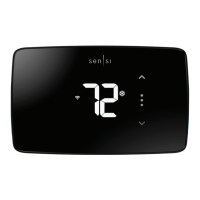
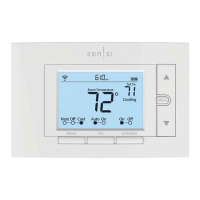
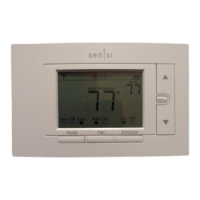
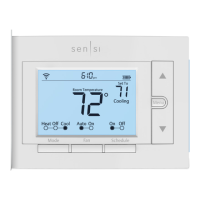
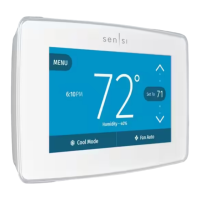
The Sensi Lite Smart Thermostat is a Wi-Fi enabled device designed to control heating and air conditioning systems, offering remote access and smart features through a dedicated mobile application. It is available in models such as the 1F76U-22WFB series and ST25 series.

Function Description:

The Sensi Lite Smart Thermostat allows users to manage their home's climate from anywhere using the Sensi app on a smartphone or tablet. It supports various HVAC system types, including conventional single-stage, multi-stage, and heat pump systems. The thermostat connects to a 2.4GHz Wi-Fi network for remote control and integration with smart home ecosystems. Key functions include setting temperature, scheduling, and monitoring system status. The device features a clear display, physical buttons for local control, and a built-in jumper wire, eliminating the need for external jumper wires from older units.

Important Technical Specifications:

  • Connectivity: Wi-Fi (2.4GHz network required), Bluetooth for initial setup.
  • Power: Requires two AAA batteries for operation, in addition to HVAC system power.
  • Compatibility: Compatible with conventional single-stage, multi-stage, and heat pump systems. Specific configurations are detailed in the HVAC configuration menu, which allows selection of AC or Heat Pump equipment, Gas, Electric, or Boiler/Radiant furnace types, and reversing valve settings (O/B/2H/2C/6/--).
  • Wiring: Supports common wire (24V) connection for continuous power. Wiring diagrams are provided for conventional single-stage/multi-stage systems (without heat pump) and heat pump systems, illustrating connections for R, O/B, Y, G, W/E, and C terminals.
  • Models: 1F76U-22WFB series, ST25 series.

Usage Features:

  • Mobile App Control: The Sensi app (available on App Store and Google Play) is central to the thermostat's operation. Users download the app, create an account, and register their thermostat to gain remote access.
  • Installation Guide: The app provides a step-by-step installation process, guiding users through removing their old thermostat, labeling wires, installing the new Sensi base, connecting wires, and attaching the thermostat cover.
  • QR Code Setup: A QR code on the back of the thermostat or in the "Welcome/Get Started" insert facilitates Wi-Fi network connection via the app, requiring Bluetooth access. A PIN can be used for manual entry if QR code scanning is problematic.
  • Wi-Fi Setup: To connect to Wi-Fi, users press and hold the Mode Button on the thermostat for four seconds until setup and Wi-Fi icons appear, then select their home Wi-Fi network in the app and enter the password.
  • Thermostat Naming and Registration: After Wi-Fi connection, users can name their thermostat and register it by providing location details (street address, city, state, ZIP code, time zone) or using the "Locate Me" option.
  • Contractor Information (Optional): The app allows professional installers to input their phone number if they are a registered Sensi partner.
  • Multi-Thermostat Management: The Sensi app supports adding and controlling multiple Sensi thermostats from a single account.
  • Account Management: Users can access their account area within the app to manage email preferences and update account information.
  • HVAC Configuration: The app guides users to select their furnace type (Gas, Electric, Boiler/Radiant) and identify wired terminals, ensuring correct system configuration.
  • Jumper Wire Elimination: The Sensi Lite thermostat has a built-in jumper wire, simplifying installation by removing the need for external jumper wires from the old unit.
  • Photo Documentation: The app prompts users to take a photo of their old thermostat's wiring before disconnection, which can be helpful for reference or troubleshooting.

Maintenance Features:

  • Troubleshooting Guide: The manual includes a troubleshooting section for common issues such as heating/cooling not turning on and Wi-Fi connectivity problems.
  • Power Issues: If the thermostat screen doesn't turn on after wiring, users are advised to check battery installation, ensure power to the HVAC system, reset breakers, secure furnace/air handler door compartments, and secure wire connections.
  • Wi-Fi Troubleshooting: Tips for Wi-Fi connection issues include ensuring the Sensi app is up-to-date, rebooting the smartphone and router, checking Bluetooth and Location access permissions in phone settings, and trying another smartphone/tablet.
  • Reconnecting to Wi-Fi: Instructions are provided for reconnecting the thermostat to Wi-Fi if the router is replaced or the network password changes, with a reference to the Sensi support article for detailed guidance.
  • Technical Support: Users can visit sensihelp.com or call (888) 605.7131 for support with installation and features.
  • Password Recovery: A "Forgot Password" option on the Sensi app login screen allows users to receive a temporary password via email.

Sensi 1F76U-22WFB Series Specifications

General IconGeneral
BrandSensi
Model1F76U-22WFB Series
CategoryThermostat
LanguageEnglish

Related product manuals