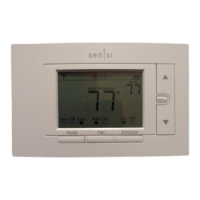
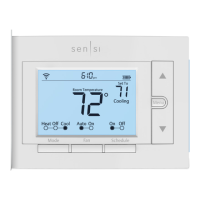
BUTTONS AND ICONS
The Sensi Smart Thermostat can be operated through Wi-Fi using the Sensi app or it can be operated at the actual wall
unit. Advanced features such as thermostat settings, scheduling and email alerts are only available through the Sensi app.
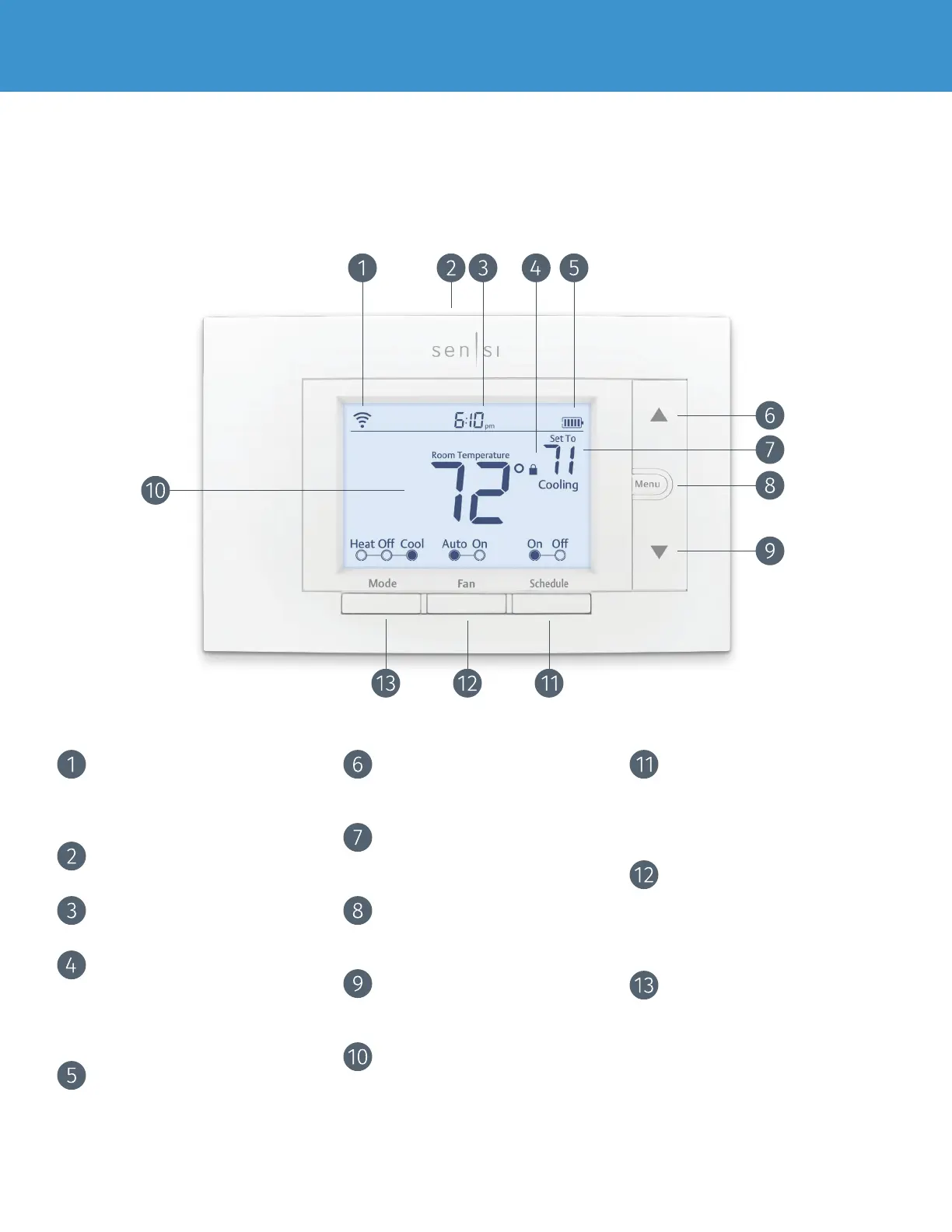
WIFI STATUS ICON
Indicates Wi-Fi connection status.
When you turn Wireless Off on
the thermostat, this is blank.
BACKLIGHT BUTTON
Illuminates the thermostat for 10 seconds
TIME
Displays current time.
KEYPAD LOCKOUT ICON
This icon indicates the thermostat
is locked out. No changes can be
made at the thermostat. (Can only
be enabled from the Sensi app).
BATTERY ICON
When the bars get low, remember to
change the 2 AA Alkaline batteries in
the back of the thermostat face plate.
UP ARROW BUTTON
Adjusts the temperature set point
or thermostat configuration.
CURRENT SET TEMPERATURE
Current set temperature the
thermostat will maintain.
MENU BUTTON
Access thermostat configurations.
(See page 6 for more details).
DOWN ARROW BUTTON
Adjusts the temperature set point
or thermostat configuration.
CURRENT ROOM TEMPERATURE
The room temperature at the thermostat.
SCHEDULE BUTTON
Toggles the schedule On or Off.
(The thermostat runs a program
based on time and temperature set
points when Schedule is On).
FAN BUTTON
Switches fan mode from Auto
or On. Leave the fan mode on
Auto to allow the thermostat to
control the fan as necessary.
MODE BUTTON
Switches system mode between Heat,
Cool, Off or Aux. (Auto Mode is only
available using the Sensi app).
Sensi Smart Thermostat | MANUAL OPERATION GUIDE 3



 To Next Page