Explorer MX-HD Install and Setup Guide
38
700-0159
R003
Updating the Firmware
The firmware version is displayed on the top right corner of every menu. The firmware update must be
obtained from Seon Design. To install a firmware update, a USB memory device must be formatted by a
Windows®-based computer using the FAT file format. Load the Program Update file onto the USB
memory device.
To install a firmware update on the MX-HD:
1 Power up the DVR using the vehicle ignition.
2 Insert the USB memory device with the new firmware version into the USB port on the DVR.
3 After the DVR has started, go to the System Settings menu > Program Update.
4 Click Update.
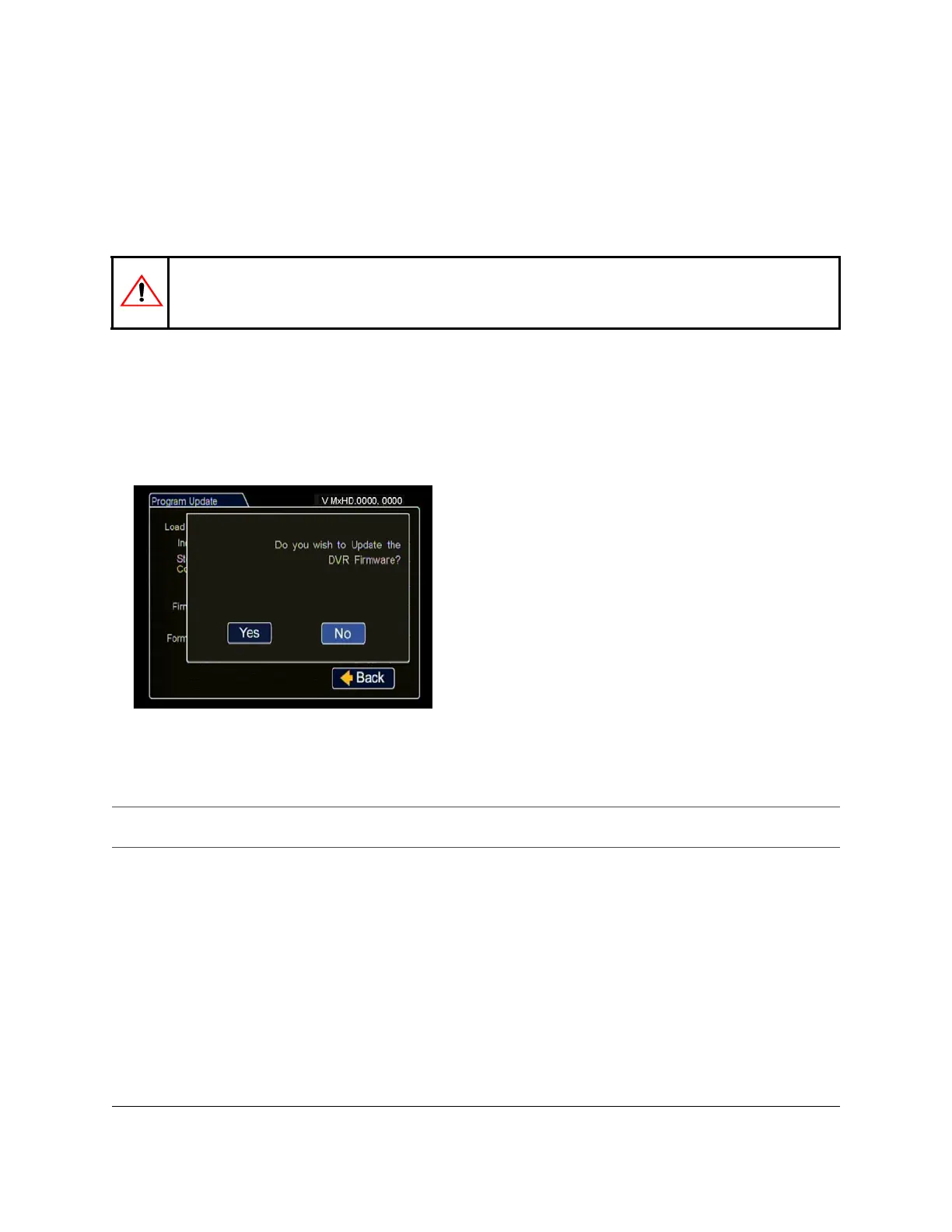
5 In the confirmation window, click Yes to proceed or No to cancel.
6 Once the update is finished, the DVR will automatically restart when the ignition is on.
Remove the USB memory device.
CAUTION: Equipment damage
Do not remove power while updating the DVR firmware. Equipment damage may result.
Figure 53
Updating DVR Firmware Dialog Box
Important: On restarting, the DVR will take up to 3 minutes to load as it completes the upgrade process. Wait until the DVR
finishes loading.



 To Next Page