Doc# E169703 V.1.02 QS - 4
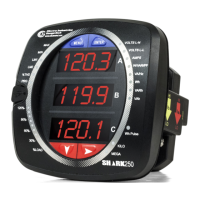
Shark® 250 Meter Quickstart
Electro Industries/GaugeTech
The Leader In Power Monitoring and Smart Grid Solutions
Electro Industries/GaugeTech
The Leader In Power Monitoring and Smart Grid Solutions
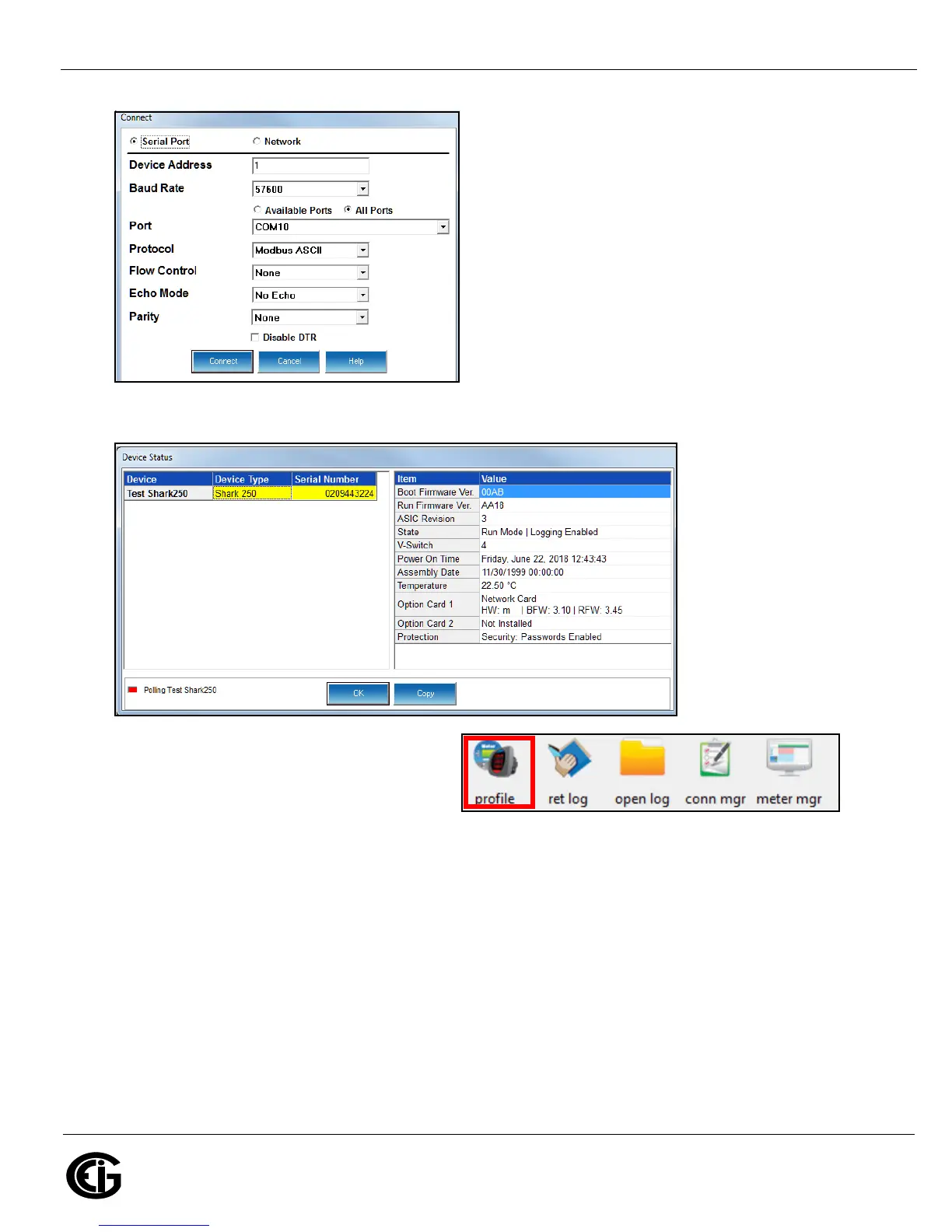
a. Click the Serial Port button.
b. Enter the Device Address (can be from 1-247).
c. Select the Baud Rate of 57600.
d. Click the Available Ports button.
e. Select the USB Com port.
f. Select Modbus ASCII protocol.
g. Keep Flow Control, Echo Mode, and Parity as is
shown here.
h. Click Connect.
5. The Device Status screen opens, displaying information about the meter.
6. Click OK to close the Device Status screen,
and then click the Profile icon in the Icon Bar.
7. The meter’s Device Profile screen opens,
giving you access to the programmable settings for the meter.
NOTE: A few basic settings are explained here. Refer to the Shark® 250 Meter Installation and Opera-
tion Manual and the Communicator EXT
TM
4.0 and MeterManager EXT Software User Manual on the
Shark® Series CD for expanded instructions. You can also view the software manual by clicking the
Help button on a settings screen, or by selecting Help>Contents from the top of the Communicator
EXT
TM
software’s Main screen.




 To Next Page