EasyManua.ls Logo

Sharp AL2020 - User Manual

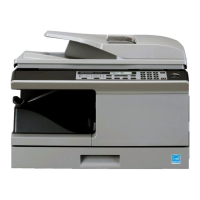
Sharp AL2020
90 pages
Print Icon
To Next Page IconTo Next Page
Loading...
DIGITAL MULTIFUNCTIONAL
SYSTEM
OPERATION MANUAL
Page
INTRODUCTION
SETTING UP THE UNIT
LOADING PAPER
MAKING COPIES
SPECIAL FUNCTIONS
MAINTENANCE
TROUBLESHOOTING
THE UNIT
4
7
14
46
52
57
62
70
INSTALLING THE
SOFTWARE
19
APPENDIX
AL-2020
AL-2040
MODEL
AL-2040
AL-2020

Table of Contents

Other manuals for Sharp AL2020

Questions and Answers

  • B
    Bobby FullerAug 13, 2025
    How to remove dust and smudges from Sharp AL2020 copies?
    • X
      xbarrettAug 13, 2025
      If dust, dirt, or smudges appear on your Sharp All in One Printer copies: * Check if the document glass or SPF is dirty and clean it regularly. * Ensure the original is not smudged or blotchy and use a clean original.
  • B
    Bryan MartinAug 17, 2025
    Why does my Sharp All in One Printer keep misfeeding paper?
    • K
      Kyle ValenciaAug 17, 2025
      Frequent paper misfeeds in your Sharp All in One Printer can occur due to several reasons: * Using non-standard paper. Use standard paper, or if using special papers, feed them through the multi-bypass tray. * Paper being curled or damp. Store paper flat in its wrapper in a dry location. * Pieces of paper inside the unit. Remove all pieces of misfed paper. * Paper guides in the paper tray not set properly. Ensure the guides are correctly set depending on the paper size. * Too much paper in the paper tray or multi-bypass tray. Remove excessive paper from the tray.
  • J
    Jay JohnsonAug 20, 2025
    How to fix a Sharp AL2020 that won't turn on?
    • J
      Justin GonzalezAug 21, 2025
      If your Sharp All in One Printer isn't operating, check the following: * Is the unit plugged in? Ensure the unit is plugged into a grounded outlet. * Is the power switch on? Turn the power switch on. * Is the side cover closed securely? Gently close the side cover. * Is the front cover closed? Gently close the front cover and then close the side cover.
  • A
    Abigail DennisAug 25, 2025
    What to do if Sharp All in One Printer makes blank copies?
    • B
      Brandon FletcherAug 25, 2025
      If your Sharp All in One Printer is producing blank copies, consider these potential causes: * Is the original placed face down on the document glass or face up in the SPF? Place the original face down on the document glass or face up in the SPF. * Is the scan head locking switch locked? Unlock the scan head locking switch.
  • K
    Kelly SmithAug 28, 2025
    How to adjust the copy darkness on a Sharp AL2020?
    • G
      George TorresAug 28, 2025
      If your copies are too dark or too light on your Sharp All in One Printer: * Check if the original image is too dark or too light and adjust the exposure manually. * If the unit is in automatic exposure mode, adjust the automatic exposure level. * If the unit is in photo exposure mode, cancel the photo exposure mode.
  • A
    Alicia MillerSep 1, 2025
    Why do images rub off easily from copies on my Sharp All in One Printer?
    • J
      Jessica RothSep 1, 2025
      If images rub off the copy easily from your Sharp All in One Printer, it could be due to: * Using paper that is too heavy. Use paper within the specified range. * The fusing temperature is not appropriate. In the user programs, set "Fusing temperature setting when the bypass tray is used" (program 29) to "2 (High)". * Paper damp? Replace with dry paper. If the unit is not used for long time, remove the paper from the paper tray and store it in its wrapper in a dry location.
  • E
    Emily WoodwardSep 5, 2025
    How to fix striped copies from Sharp AL2020?
    • K
      Kenneth MurphySep 5, 2025
      If your Sharp All in One Printer is producing striped copies, the transfer charger may need cleaning. Clean the transfer charger.
  • A
    Amy HammondSep 8, 2025
    Why is printing not uniform on my Sharp All in One Printer?
    • C
      Christopher AndrewsSep 8, 2025
      If printing is not uniform between the edges of the paper and the center on your Sharp All in One Printer, the fusing temperature may not be appropriate. In the user programs, set "Fusing temperature setting when the bypass tray is used" (program 29) to "1 (Low)".

Sharp AL2020 Specifications

General IconGeneral
Printing TechnologyLaser
Print Speed (Black)20 ppm
Copy Speed (Black)20 cpm
Copy Resolution600 x 600 dpi
Scanning Resolution600 x 600 dpi
Memory32 MB
FunctionsCopy, Print, Scan
ConnectivityUSB
Scanner TypeFlatbed
InterfaceUSB

Related product manuals