EasyManua.ls Logo

Sharp AR-M201 - Service Manual

Sharp AR-M201
176 pages
Print Icon
To Next Page IconTo Next Page
Loading...
Parts marked with ā€œ ā€ are important for maintaining the safety of the set. Be sure to replace these parts with
specified ones for maintaining the safety and performance of the set.
This document has been published to be used
for after sales service only.
The contents are subject to change without notice.
SERVICE MANUAL
CONTENTS
SHARP CORPORATION
CODE: 00ZAR203E/S2E
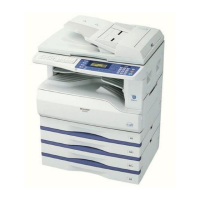
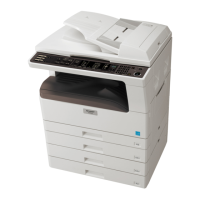
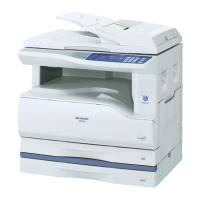
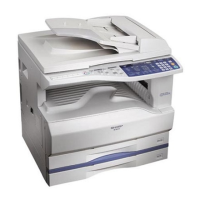
DIGITAL MULTIFUNCTIONAL
SYSTEM/DIGITAL COPIER
AR-203E
AR-203E X
AR-M200
AR-M201
MODEL AR-5420
(The descriptions of the AR-203E X are same as
those of the AR-203E unless otherwise specified.)
[1] GENERAL . . . . . . . . . . . . . . . . . . . . . . . . . . . . . . . . . . . . . . . . . . . 1 - 1
[2] SPECIFICATIONS . . . . . . . . . . . . . . . . . . . . . . . . . . . . . . . . . . . . . 2 - 1
[3] CONSUMABLE PARTS . . . . . . . . . . . . . . . . . . . . . . . . . . . . . . . . . 3 - 1
[4] EXTERNAL VIEWS AND INTERNAL STRUCTURES . . . . . . . . . 4 - 1
[5] UNPACKING AND INSTALLATION . . . . . . . . . . . . . . . . . . . . . . . . 5 - 1
[6] COPY PROCESS . . . . . . . . . . . . . . . . . . . . . . . . . . . . . . . . . . . . . 6 - 1
[7] OPERATIONAL DESCRIPTIONS . . . . . . . . . . . . . . . . . . . . . . . . . 7 - 1
[8] DISASSEMBLY AND ASSEMBLY . . . . . . . . . . . . . . . . . . . . . . . . . 8 - 1
[9] ADJUSTMENTS . . . . . . . . . . . . . . . . . . . . . . . . . . . . . . . . . . . . . . 9 - 1
[10] SIMULATION, TROUBLE CODES . . . . . . . . . . . . . . . . . . . . . . . 10 - 1
[11] MAINTENANCE. . . . . . . . . . . . . . . . . . . . . . . . . . . . . . . . . . . . . . 11 - 1
[12] USER PROGRAM . . . . . . . . . . . . . . . . . . . . . . . . . . . . . . . . . . . . 12 - 1
[13] ELECTRICAL SECTION . . . . . . . . . . . . . . . . . . . . . . . . . . . . . . . 13 - 1
[14] FIRMWARE DOWNLOAD PROCEDURES . . . . . . . . . . . . . . . . . 14 - 1

Table of Contents

Other manuals for Sharp AR-M201

Questions and Answers

  • L
    larry93Aug 23, 2025
    What to do if my Sharp Copier is not printing after selecting it?
    • M
      mjacobsAug 23, 2025
      If your Sharp Copier isn't printing even after you've selected it in the print window, the issue might be that the printer driver hasn't been installed properly. To resolve this, check the printer driver installation by going to the Control Panel, then to Printers and Other Hardware, and finally to Printers and Faxes. See if the "SHARP AR-XXXX" printer driver icon is there. If it is, but you still can't print, try deleting the existing driver and reinstalling it.
  • P
    Patrick FordSep 4, 2025
    What does 'LOAD XXXX PAPER INTO TRAY' mean on Sharp AR-M201 Copier?
    • S
      sramirezSep 4, 2025
      If your Sharp Copier displays 'LOAD XXXX PAPER INTO TRAY', it means the paper size setting doesn't match the paper loaded in the tray. Load paper that matches the size setting, and then press the [START] key.
  • T
    Tyler MitchellSep 3, 2025
    Why Sharp AR-M201 Copier makes blank copies?
    • J
      James PayneSep 3, 2025
      If your Sharp Copier is producing blank copies, make sure you're placing the original face up in the RSPF or face down on the document glass.
  • R
    Ryan SellersSep 1, 2025
    Why are Sharp AR-M201 Copier copies too dark or too light?
    • X
      xfuentesSep 1, 2025
      If copies from your Sharp Copier are too dark or too light, select AUTO with the [EXPOSURE] key, or manually adjust the exposure using the [ ] or [ ] keys. If AUTO was selected, you may also need to adjust the automatic exposure level.
  • M
    Michelle CrawfordAug 31, 2025
    What to do if Sharp Copier says 'FRONT OR SIDE COVER OPEN'?
    • L
      Linda MarshAug 31, 2025
      If your Sharp Copier displays 'FRONT OR SIDE COVER OPEN. CLOSE COVERS', it means the cover is open. Ensure that you close the cover.
  • R
    rodriguezmelissaAug 29, 2025
    Why my Sharp Copier does not operate?
    • J
      Jonathan SmithAug 29, 2025
      If your Sharp Copier is not operating, consider the following possibilities: 1. Ensure the machine is plugged into a grounded outlet. 2. Check that the power switch is turned ON. 3. If the power save indicator is blinking, allow the machine to finish warming up. 4. Make sure the front cover or the side cover is completely closed. 5. If the machine is in auto power shut-off mode (only the power save indicator is lit), press the [START] key to resume normal operation.
  • A
    Alexander AtkinsAug 27, 2025
    What to do if Sharp Copier does not print because of a copy job?
    • L
      lisa26Aug 27, 2025
      If your Sharp Copier is not printing, it may be because a copy job is currently in progress. Wait until the copy job is finished before attempting to print.
  • M
    Molly HerreraAug 26, 2025
    What does 'TONER CARTRIDGE IS NEAR EMPTY' mean on Sharp Copier?
    • A
      asmithAug 26, 2025
      If your Sharp Copier displays 'TONER CARTRIDGE IS NEAR EMPTY', it means that you should prepare a new cartridge.
  • T
    Terry MartinezAug 25, 2025
    What to do if my Sharp AR-M201 Copier is not printing due to paper size?
    • M
      Molly OneillAug 25, 2025
      If your Sharp Copier isn't printing and you suspect it's related to paper size, there are a few things to check: * First, make sure that the size of paper loaded in the tray and the machine's paper size setting agree. * Second, if the specified size of paper has not been loaded, load the specified size of paper in the paper tray. * Finally, when "FORCED OUTPUT" is set to "OFF" and there is no paper in the machine that is the same size as the print image, load paper in the bypass tray as instructed by the message in the display and press the [START] key to begin printing.

Summary

General

Major Functions

Details the configurations and descriptions of various functions provided by the copier models.

Specifications

Basic Specifications

Outlines fundamental physical and dimensional details of the copier models.

Operation Specifications

Details the specifications related to operational aspects like paper feed, scanning, and image forming.

Consumable Parts

Supply System Table

Lists consumable items like toner cartridges, developers, and drum kits with their product names and packing forms.

External Views and Internal Structures

Appearance

Provides visual representations and labeling of the external components of the copier.

Internal

Illustrates the internal layout and identifies key internal parts and mechanisms of the copier.

Unpacking and Installation

Copier Installation

Guides on proper placement and environmental considerations for installing the copier unit.

Cautions on Handling

Provides essential safety warnings and precautions to be observed when handling the copier.

Checking Packed Components and Accessories

Details the procedure for verifying that all expected components and accessories are present upon unpacking.

Copy Process

Functional Diagram

Presents a visual representation of the internal workflow and processes involved in copying.

Operational Descriptions

Outline of Operation

Provides a basic overview of the copier's operational flow, covering copy, printer, and scanner functions.

Scanner Section

Details the components and working principles of the copier's scanner unit, including optical and drive systems.

Disassembly and Assembly

High Voltage Section

Details the procedures for disassembling and assembling the high voltage components for service.

Adjustments

Optical Section

Covers adjustments related to the optical system, including magnification ratio and image position.

Simulation, Trouble Codes

Entering the Simulation Mode

Explains how to access the simulation mode for diagnostics and adjustments.

Maintenance

Maintenance Table

Lists maintenance tasks, parts, and their required actions (check, clean, adjust, lubricate) based on usage intervals.

User Program

Functions That Can Be Set With User Programs

Outlines various functions and parameters that can be customized by users through the program settings.

Electrical Section

Block Diagram

Presents the overall electrical architecture and component interconnections of the system.

Firmware Download Procedures

Initial Setting (Serial Number Setting Procedures)

Details the initial setup required on the PC, including serial number assignment, before firmware download.

Sharp AR-M201 Specifications

General IconGeneral
BrandSharp
ModelAR-M201
CategoryCopier
LanguageEnglish

Related product manuals