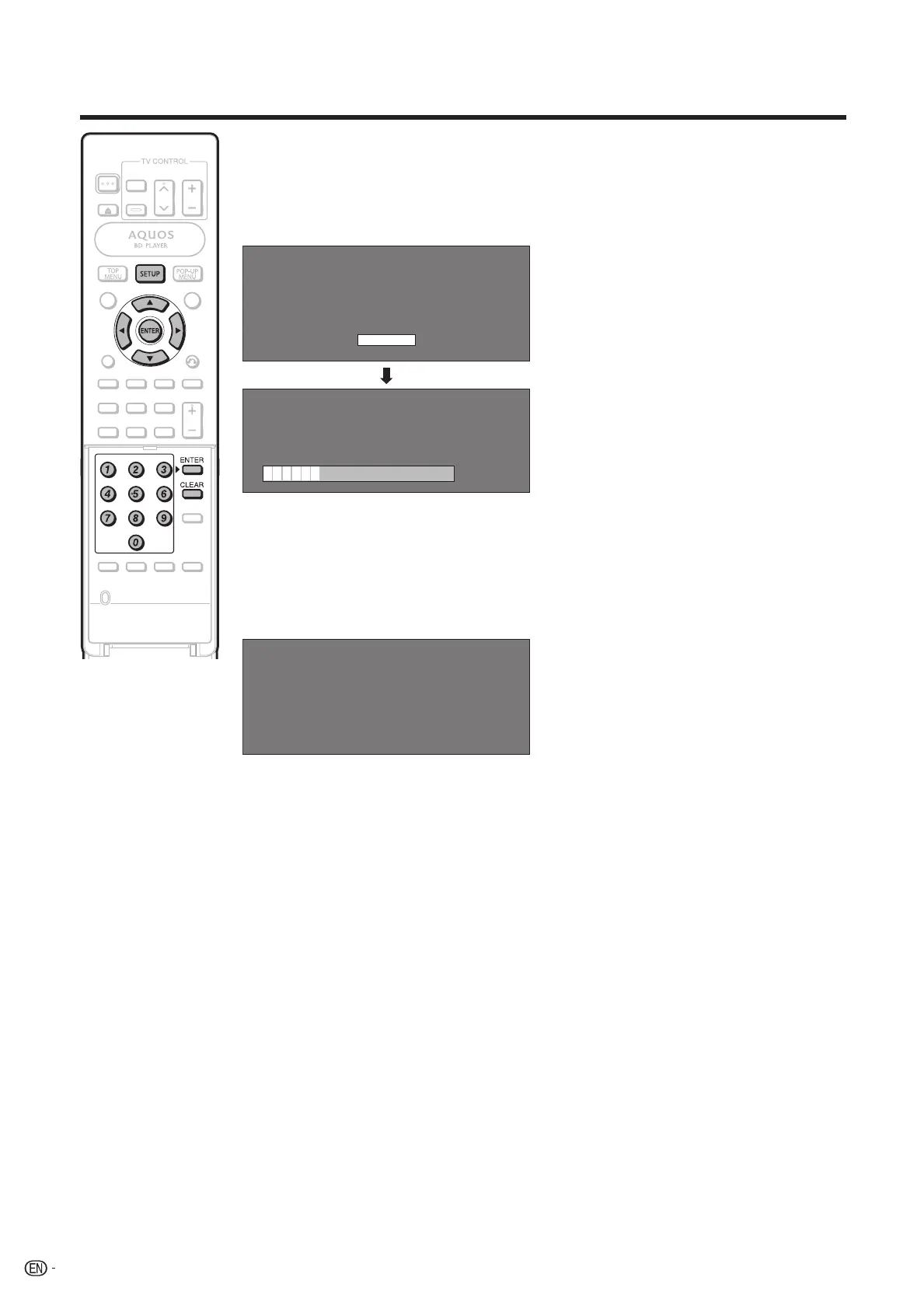
Press ENTER to start updating.
• The screen becomes dark for a
while until the update screen can be
displayed. Please wait for the update
screen to appear. Do not unplug the
AC cord.
8
THE PICTURE WILL TEMPORARILY GO DARK UNTIL
THE SOFTWARE UPDATE DISPLAY APPEARS.
WAIT SEVERAL MINUTES AND DO NOT UNPLUG THE AC CORD.
OK
NOW UPDATING
DO NOT UNPLUG AC CORD.
UPDATE VERSION **1234567-2
*
30%
When the software is successfully
updated, a screen is displayed
indicating that the update process
is completed.
After this screen is displayed, the
unit automatically turns off and then
turns on again.
9
SOFTWARE UPDATE IS COMPLETE.
UPDATE VERSION **1234567
• If the update has failed, check the fi le
in the USB device and try Software
Update again.
10 The message “SYSTEM
SOFTWARE WAS SUCCESSFULLY
UPDATED” is displayed, and then
press ENTER .
11 Remove the USB memory device.
46
SETTINGS
BD-HP20U_en_e.indd 46BD-HP20U_en_e.indd 46 2007/12/06 10:08:522007/12/06 10:08:52


 To Next Page