EasyManua.ls Logo

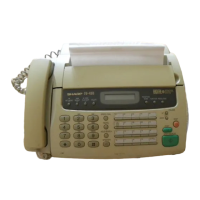
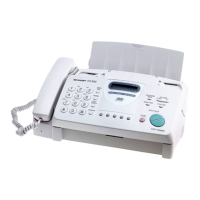
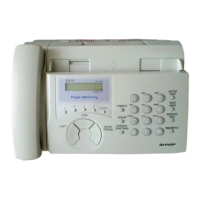
Sharp FO-71 - User Manual

Sharp FO-71
162 pages
Print Icon
To Next Page IconTo Next Page
Loading...
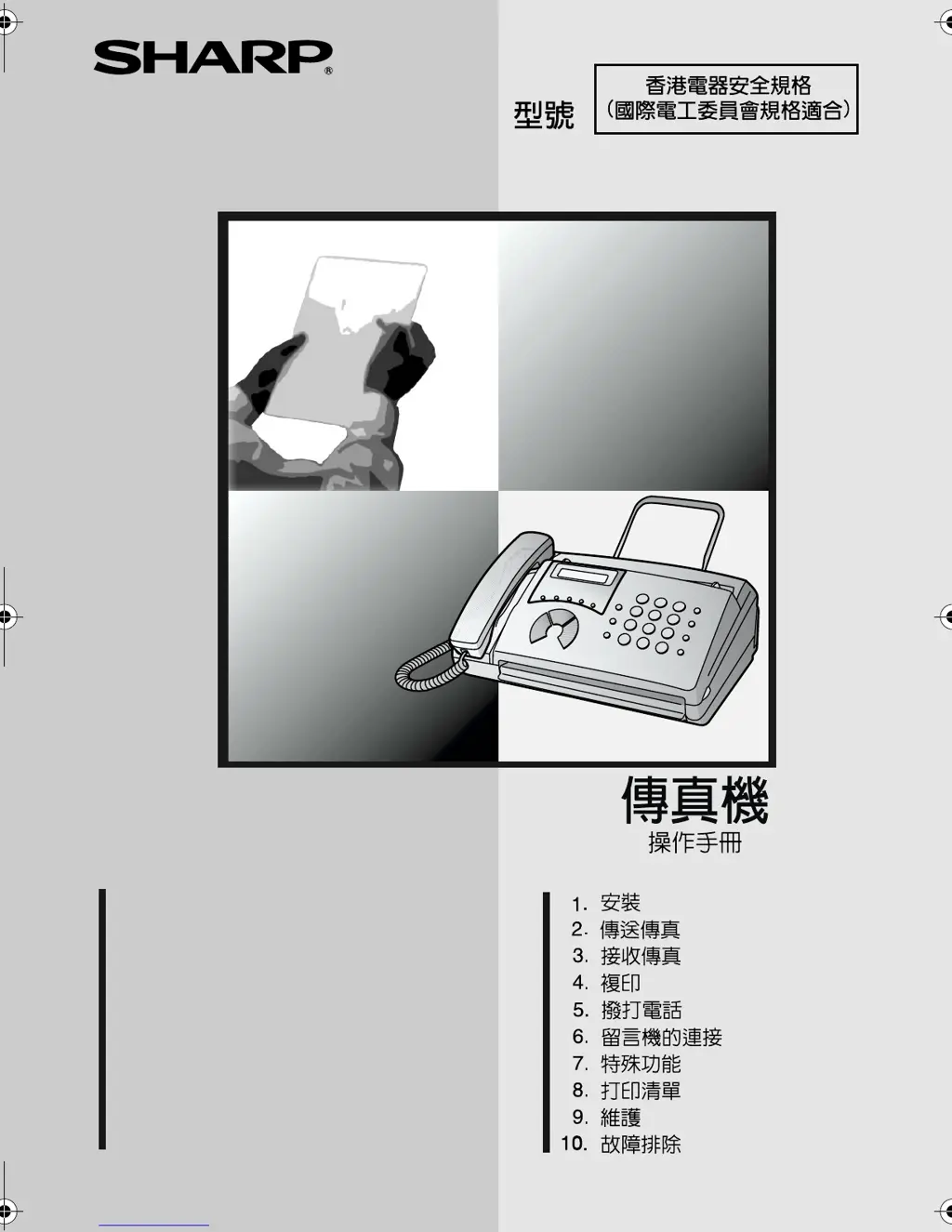
MODEL
OPERATION MANUAL
FACSIMILE
1. Installation
2. Sending Faxes
3. Receiving Faxes
4. Making Copies
5. Making Telephone Calls
6. Answering Machine Connection
7. Special Functions
8. Printing Lists
9. Maintenance
10. Troubleshooting
FO-11/FO-51/FO-71
FO-11/FO-51/FO-71


Table of Contents

Other manuals for Sharp FO-71

Questions and Answers

  • L
    Lisa RamosSep 9, 2025
    Why is the received document faint on my Sharp Fax Machine?
    • R
      Rachael MoyerSep 9, 2025
      If your Sharp Fax Machine prints a faint received document, ask the sender to send documents with higher contrast. If it's still too low, your fax machine may need service. Try making a copy or printing a report to check your machine’s printing ability. Also, make sure you're using the recommended thermal paper.
  • W
    williamsjonathanAug 23, 2025
    What to do if Sharp FO-71 Fax Machine displays LINE ERROR?
    • J
      jessicahayesAug 23, 2025
      If the Sharp Fax Machine displays 'LINE ERROR', retry the transaction. If the error continues, ensure the cord from the TEL. LINE socket to the wall is no longer than two meters. Also, confirm that no modem devices share the line, the other fax machine functions correctly, and your telephone line is free of noise. Try a different telephone line. If problems persist, the fax machine may require service.
  • H
    Heather HarperAug 25, 2025
    Why does Sharp FO-71 Fax Machine interrupt voice calls on extension phone?
    • J
      joseph70Aug 25, 2025
      If voice calls are interrupted by the fax on your Sharp Fax Machine, especially when using an extension phone, it might be because the reception mode is set to A.M. To prevent this on a tone dial extension, press any three keys on the extension phone after answering.
  • G
    Gina MartinezAug 26, 2025
    How to fix poor copy quality and dark lines on Sharp FO-71?
    • S
      susanmartinezAug 27, 2025
      If your Sharp Fax Machine has poor copy quality or shows dark vertical lines, the scanning glass might be dirty. Clean the scanning glass.
  • E
    Elizabeth RogersAug 27, 2025
    What to do if Sharp Fax Machine power is on, but no transmission takes place?
    • N
      Nathaniel JonesAug 28, 2025
      If your Sharp Fax Machine is on but no transmission occurs, check that the receiving machine has paper and that the telephone line cord is plugged into the TEL. LINE socket, not the TEL. SET socket. Also, if the receiving machine is in manual mode without an attendant, reception won't be possible. Check the display for error messages and pick up the handset to check for a dial tone.
  • A
    Amanda JacksonAug 29, 2025
    Why no reception occurs when polling is attempted on Sharp FO-71 Fax Machine?
    • K
      Kristin KimAug 29, 2025
      If your Sharp Fax Machine isn't receiving when polling is attempted, ensure you haven't run out of paper. Also, check that the transmitting machine is in automatic reception mode. If the transmitting machine uses polling security, verify that your fax number is entered in both machines.
  • S
    stephanie12Sep 18, 2025
    Why automatic document feeding does not work on Sharp Fax Machine?
    • K
      Kathy BurkeSep 18, 2025
      If the automatic document feeding on your Sharp Fax Machine isn't working for transmission or copying, check the size and weight of the document.
  • A
    Amy GardnerSep 19, 2025
    Why does Sharp FO-71 print in strips?
    • B
      Brett GregorySep 22, 2025
      If your Sharp Fax Machine prints received documents or copies in strips, make sure the operation panel is completely closed by pressing down on both sides.
  • A
    awagnerSep 7, 2025
    Why nothing appears in the display of my Sharp Fax Machine?
    • G
      garciajudySep 8, 2025
      If nothing appears on the display of your Sharp Fax Machine, ensure the power cord is properly plugged into a power outlet. You can also test the outlet by connecting another electrical appliance to see if it receives power.
  • T
    thompsonsarahSep 4, 2025
    Why are received images distorted on Sharp FO-71 Fax Machine?
    • M
      michaelyoungSep 5, 2025
      If the received images from your Sharp Fax Machine are distorted, it could be due to noise on the telephone line. Ask the sender to resend the document. Try making a copy or printing a report on your fax machine. If the copy or report is also distorted, your fax machine may need service.

Summary

Introduction

Product Features and Specifications

Overview of the fax machine's capabilities and technical details.

Detailed Technical Specifications

Comprehensive list of parameters including dimensions, power, and performance.

Important Safety Information

General Safety Precautions

Crucial guidelines for safe operation, installation, and handling to prevent hazards.

Operation Panel Overview

Key Identification and Functions

Identifies and describes major keys like Rapid Dial, Function, and Volume.

Control Key Explanations

Detailed explanation of control keys like START, STOP, COPY/HELP, SPEAKER, etc.

1. Installation

Unpacking Checklist and Setup Points

List of items to check after unpacking and important setup considerations.

Connecting the Handset

Step-by-step guide for attaching the telephone handset.

Removing Packing Paper

Instructions for removing protective packing materials.

Connecting the Power Cord

How to plug the machine into a power source.

Connecting the Telephone Line Cord

Guide for plugging the fax into a phone line.

Moving and Reconnecting the Fax

Procedures for relocating the fax machine.

Connecting an Extension Phone

Optional connection of an additional phone to the fax line.

Loading the Thermal Paper

Step-by-step instructions for loading the thermal paper roll.

Replacing and Handling Thermal Paper

Steps for changing paper rolls and proper handling.

Entering Your Name and Fax Number

Instructions for inputting personal and device identification details.

Setting the Date and Time

How to set the current date and time for accurate logging.

Setting the Reception Mode

Configuring how the fax handles incoming calls.

Adjusting Speaker and Ringer Volume

How to set the volume levels for the speaker and the telephone ringer.

2. Sending Faxes

Document Specifications and Loading

Document size, weight, restrictions, and loading procedures.

Document Loading and Removal

Procedures for placing documents in the feeder and safely removing them.

Adjusting Image Quality Settings

Options for setting resolution and contrast for outgoing faxes.

Sending by Normal Dialling

Procedure for dialling and sending faxes manually.

Sending by Automatic Dialling Overview

Overview of using stored numbers for automated fax transmission.

Storing and Managing Auto-Dial Numbers

Programming numbers, making changes, and clearing entries.

Dialling Methods: Rapid Key, Speed Dial, Direct Keypad

Instructions for sending faxes using different dialling methods.

Searching and Redialling Numbers

How to find stored numbers and use the redial feature.

3. Receiving Faxes

Reception Modes: TEL;FAX, A.M., FAX

How the machine handles different call types and configurations.

Reception Mode: TEL

How to answer calls and receive faxes in TEL mode.

Answering on Extension Phone

Procedures for answering calls via an extension phone.

Optional Reception Settings

Settings like Fax Signal Receive and Substitute Reception to Memory.

Remote Fax Activation Number

Setting a number to activate reception remotely.

4. Making Copies

Copying Procedure

Simple instructions for making photocopies using the fax machine.

5. Making Telephone Calls

Basic Call Operations

Using the fax as a regular phone for making and receiving calls.

Advanced Call Features

Using chain dialling, searching, redial, and hold functions.

6. Answering Machine Connection

Connecting and Using an Answering Machine

How to connect and configure an external answering machine with the fax.

Answering Machine Mode Operations

Explains how the fax functions when an answering machine is active.

Optional AM Mode Settings

Settings for Quiet Detect Time, Start Time, and AM Failure.

7. Special Functions

Caller ID Functionality

Setup and operation of Caller ID for incoming calls.

Priority Call and Call Blocking

Setting special rings for priority calls and blocking unwanted numbers.

Duplex Ringing and Polling

Features for differentiating calls and requesting transmissions from other fax machines.

8. Printing Lists

Printing Number and Junk Lists

Information on printing Telephone Number and Anti Junk Number Lists.

Transaction Report Details and Options

Explanation of the transaction report and how to configure its printing.

9. Maintenance

Cleaning Internal Components

Instructions for cleaning the scanning glass and rollers.

Cleaning External Surfaces

How to clean the outer casing of the fax machine.

10. Troubleshooting

Line and Dialling Problems

Guidance for resolving issues like line errors and dialling problems.

Transmission and Reception Issues

Solutions for problems related to sending and receiving faxes.

Copying and AM Connection Problems

Solutions for issues with copying, AM connection, and general errors.

Display Messages and Audible Signals

Explanations for displayed messages and audible signals.

Clearing Paper Jams

Detailed steps for removing jammed documents and printing paper.

Quick Reference Guide

Sending Faxes Summary

Concise overview of fax sending procedures for various methods.

Receiving Faxes Summary

Concise overview of setting reception modes and answering calls.

Sharp FO-71 Specifications

General IconGeneral
Automatic Document Feeder10 sheets
Print TechnologyThermal Transfer
TypePlain Paper Fax
CompatibilityG3
Print Resolution203 x 98 dpi
Paper SizeA4

Related product manuals