EasyManua.ls Logo

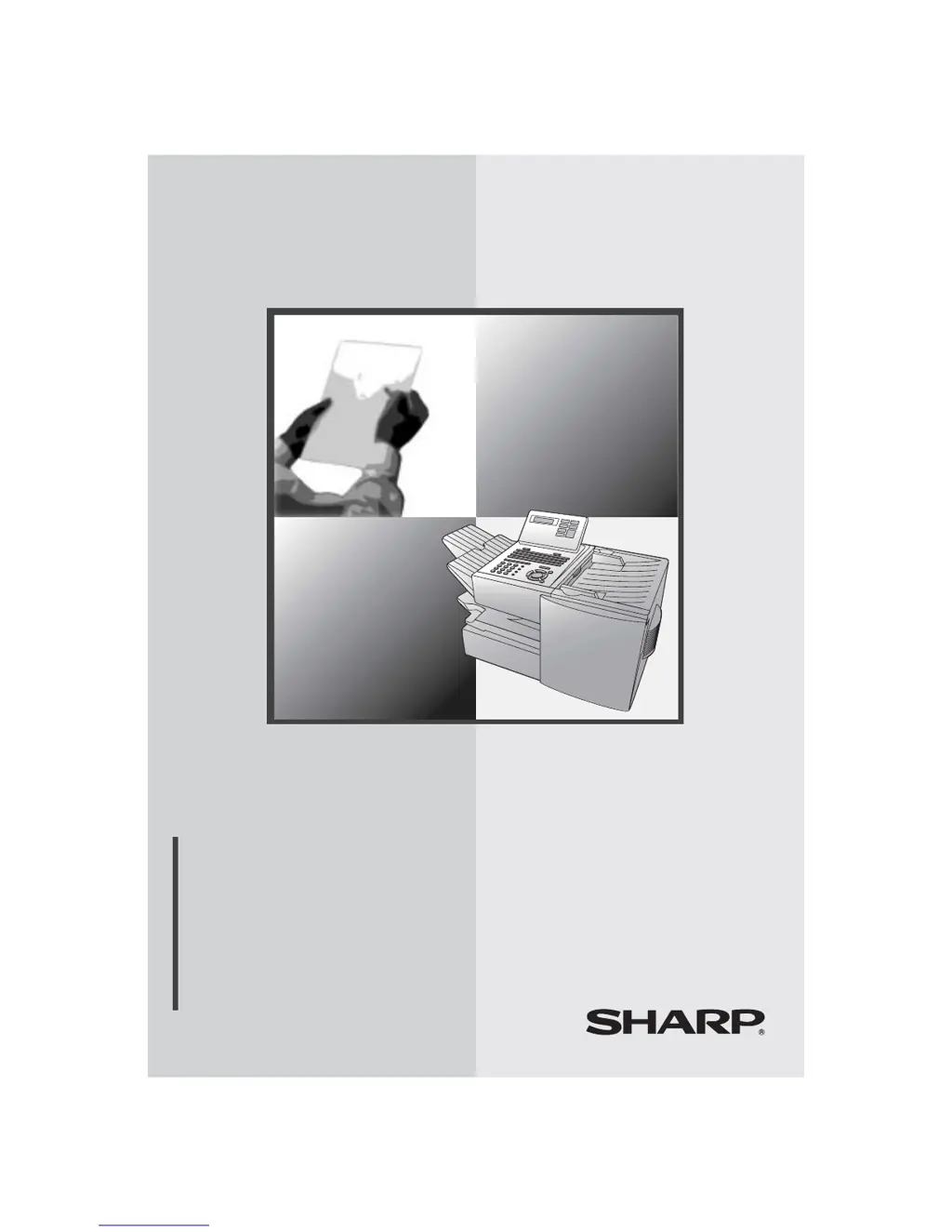
Sharp FO-4450 - User Manual

Sharp FO-4450
144 pages
Print Icon
To Next Page IconTo Next Page
Loading...
MODEL
FO-4450
OPERATION MANUAL
FACSIMILE
1. Installation
2. Sending Documents
3. Receiving Documents
4. Making Copies
5. Special Functions
6. Optional Settings
7. Printing Lists
8. Maintenance
9. Troubleshooting

Table of Contents

Other manuals for Sharp FO-4450

Questions and Answers

  • O
    ohernandezAug 19, 2025
    How to make Sharp All in One Printer receive documents automatically?
    • T
      Tonya OliverAug 19, 2025
      To ensure your Sharp All in One Printer receives documents automatically, verify that the reception mode is set to AUTO. If you have a distinctive ring service, ensure the Distinctive Ring function matches the correct ring pattern. If you don't have this service, set Distinctive Ring to OFF SETTING.
  • M
    Michael LongAug 21, 2025
    What to do if the power is on but no transmission takes place on my Sharp All in One Printer?
    • M
      Michelle HowardAug 21, 2025
      If the Sharp All in One Printer power is on, but no transmission occurs, verify the receiving machine has paper. Ensure the telephone line cord is plugged into the TEL. LINE jack, not the TEL. SET jack. If the receiving machine is in manual mode without an attendant, reception is impossible. For non-Sharp models, confirm G3 compatibility. Check the display for error messages and press the SPEAKER key to check for a dial tone.
  • D
    Dr. Jeffery MartinAug 25, 2025
    What to do if nothing appears on the display of my Sharp All in One Printer?
    • S
      stephaniejohnsonAug 25, 2025
      If nothing appears in the display of your Sharp All in One Printer, ensure the power cord is properly plugged into a power outlet and the power switch is turned on. To verify the outlet's functionality, connect another electrical appliance to it.
  • S
    shanethompsonAug 26, 2025
    Why is dialing not possible on my Sharp All in One Printer?
    • J
      James AustinAug 26, 2025
      If dialing is not possible on your Sharp All in One Printer, ensure the power cord is properly plugged into a power outlet. Also, verify that the telephone line is correctly connected to both the TEL. LINE jack and the wall jack. Finally, confirm that the fax machine is set to the correct dialing mode for your telephone line.
  • M
    Michael JacksonAug 28, 2025
    Why is the received document faint on my Sharp All in One Printer?
    • O
      okirkAug 28, 2025
      If the received document is faint on your Sharp All in One Printer, ask the sender to transmit higher contrast documents. If the contrast remains low, your fax machine might need servicing. You can also make a copy or print a report to assess your machine’s printing capability. Additionally, the toner cartridge may need replacing.
  • J
    James LopezAug 30, 2025
    Why are received images distorted on my Sharp All in One Printer?
    • M
      Matthew JimenezAug 30, 2025
      If received images are distorted on your Sharp All in One Printer, and ECM mode (Option Setting 9) is off, line noise may be the cause. Ask the sender to resend the document. If the other machine has ECM mode, ensure it's enabled on both fax machines. Create a copy or print a report; if it's also distorted, your fax machine may need service. A damaged drum cartridge could also be the cause, so try a new one.
  • M
    millerjonathanSep 2, 2025
    Why is a distorted image received from my Sharp All in One Printer?
    • J
      Joshua RamosSep 2, 2025
      If a distorted image is received from your Sharp All in One Printer, and ECM mode (Option Setting 9) is turned off, noise on the telephone line might be the cause. Try sending the document again. If making a copy of the document on your fax machine also results in a distorted image, your fax machine may need servicing.
  • K
    karen34Sep 4, 2025
    How to fix poor copy quality or black lines on copies from my Sharp All in One Printer?
    • T
      Terry SanchezSep 4, 2025
      If the copy quality is poor or black lines appear on your Sharp All in One Printer copies, dirt or material on the scanning glass may be the cause. Clean the scanning glass.
  • C
    Christopher MartinezSep 6, 2025
    What to do if my Sharp All in One Printer does not respond when pressing keys?
    • Y
      youngmariaSep 6, 2025
      If your Sharp All in One Printer does not respond when you press any keys, and no beep sound is heard, turn off the power switch and then turn it on again after a few seconds.
  • C
    Collin KingSep 8, 2025
    Why do dots appear on received documents and copies from my Sharp All in One Printer?
    • M
      millerdillonSep 8, 2025
      If dots appear at regular intervals on received documents and copies from your Sharp All in One Printer, the drum cartridge may be damaged. Replace it with a new one.

Summary

Operation Panel Overview

Middle Panel Controls

Details of the middle section, including the keypad and function keys.

Upper Panel Controls

Overview of the upper section of the fax machine's control panel.

Lower Panel Controls

Description of the lower section of the fax machine's control panel.

Installation

Unpacking Checklist

List of items to check after unpacking the fax machine.

Connections

Instructions for connecting power and telephone lines.

Installing Cartridges

Steps for installing toner and drum cartridges.

Loading Paper

Instructions for loading paper into the tray and cassette.

Name and Fax Number Setup

How to program your name and fax number for outgoing faxes.

Date and Time Setup

Procedures for setting the machine's date and time.

Volume Adjustment

How to adjust speaker and ringer volumes.

Sending Documents

Transmittable Documents

Details on document size, weight, and restrictions for transmission.

Loading Documents

How to load documents into the automatic document feeder.

Resolution and Contrast Adjustment

How to set resolution and contrast for document transmission.

Dialing Methods

Guides for Normal, Automatic, Rapid Key, Speed Dial, and Direct Keypad dialing.

Auto-Dial Number Management

How to program, store, and search for auto-dial numbers.

Job Status and Cancellation

How to check fax job status and cancel operations.

Redialing and Retransmission

Information on automatic redialing and memory retransmission features.

Receiving Documents

Reception Modes

How to set the fax machine to AUTO or MANUAL reception.

AUTO Reception

How the fax receives calls automatically based on ring count.

MANUAL Reception

Procedures for handling calls in manual reception mode.

Memory Reception

How faxes are received to memory when printing is unavailable.

Making Copies

Basic Copying

Steps for making single or multiple copies of documents.

Managing Copy Jobs

How to view and cancel copy jobs stored in memory.

Special Functions

Broadcasting and Group Management

How to send faxes to multiple destinations and manage groups.

Confidential Operations

Procedures for sending and receiving confidential documents securely.

Polling and Security

How to poll other fax machines and manage polling security.

Timer Operations

How to schedule fax operations for a later time.

Batch Transmission

How to store multiple fax jobs for transmission at a set time.

Programs and Keys

How to program and use Program Keys for automated operations.

Duplex Scanning

How to scan and transmit two-sided documents efficiently.

Print Hold

How to hold received faxes in memory before printing.

Department Control

How to restrict machine access and track usage by department.

Blocking Unwanted Faxes

How to block reception from specified fax numbers.

Telephone Billing

How to use fax data for telephone billing purposes.

Distinctive Ring

How to set up the fax to answer distinctive ring patterns.

Optional Settings

Accessing and Changing Settings

General procedure to access and modify optional settings.

Key Optional Settings Overview

Overview of important settings like Resolution, Reception Rings, and Telephone Billing.

Distinctive Ring and Verification Stamp

Configuration for distinctive ring patterns and document verification stamping.

Printing Lists and Reports

Printing Document Lists

How to print lists such as Activity, Destination, and Program lists.

Transaction Report

Information on the transaction report and its headings.

Maintenance

Cleaning Glass and Rollers

How to clean the scanning glass and rollers for optimal image quality.

Replacing Verification Stamp Ink

Steps for replacing the ink cartridge in the verification stamp unit.

Troubleshooting

Problems and Solutions

Common problems and their solutions, covering line, dialing, and reception issues.

Display Messages

Explanations of various messages that appear on the fax machine's display.

Clearing Paper Jams

Step-by-step instructions for removing jammed documents or paper.

Sharp FO-4450 Specifications

General IconGeneral
BrandSharp
ModelFO-4450
CategoryFax Machine
LanguageEnglish

Related product manuals