EasyManua.ls Logo

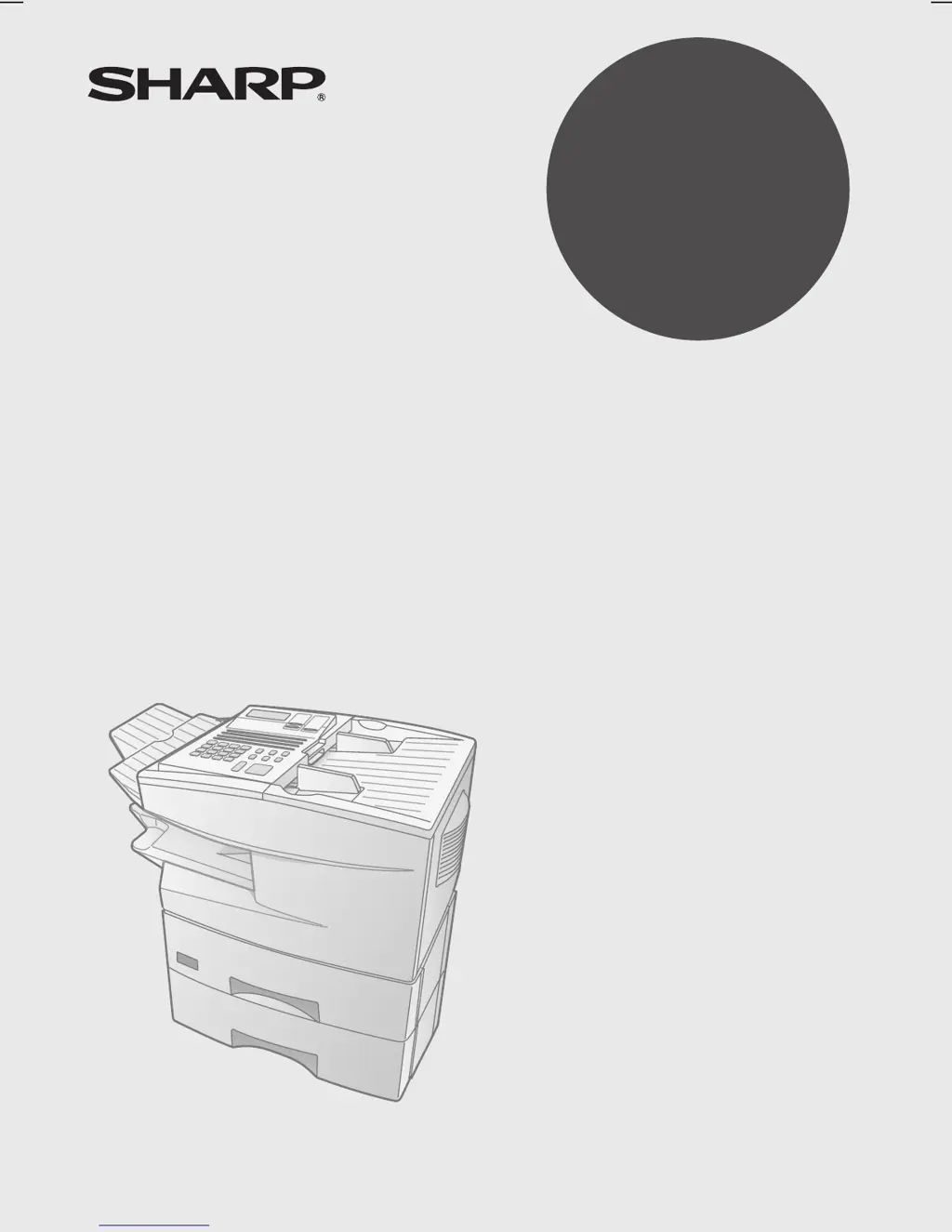
Sharp FO-5800 - User Manual

Sharp FO-5800
364 pages
Print Icon
To Next Page IconTo Next Page
Loading...
OPERATION MANUAL
MODE D'EMPLOI
FACSIMILE
TÈLÈCOPIEUR
MODEL
MODÈLE
FO-5800
1. Installation
2. Sending Documents
3. Receiving Documents
4. Making Copies
5. Special Functions
6. Option Settings
7. Printing Reports and Lists
8. Maintenance
9. Troubleshooting
FO-5800 FACSIMILE
1. Installation
2. Transmission de documents
3. Réception de documents
4. Copie
5. Fonctions spéciales
6. Réglages optionnels
7. Imprimer rapports et listes
8.
Entretien
9.
Dépannage

Table of Contents

Questions and Answers

  • D
    Donna WhiteSep 14, 2025
    What does 'MEMORY FULL ERROR' mean on my Sharp Fax Machine?
    • R
      Rebecca YatesSep 14, 2025
      If the Sharp Fax Machine displays 'MEMORY FULL ERROR', an internal memory error occurred. You may need to resend one or more pages of the document being transmitted when the error occurred.
  • C
    Christopher WilliamsAug 25, 2025
    What to do if my Sharp Fax Machine displays 'REPLACE TONER'?
    • K
      Kelli DavidsonAug 25, 2025
      If your Sharp Fax Machine displays 'REPLACE TONER', it means the toner cartridge needs to be replaced. Please replace the toner cartridge.
  • D
    Denise DeanAug 25, 2025
    What to do if my Sharp FO-5800 Fax Machine shows 'PAPER JAM'?
    • J
      jonathanhansonAug 26, 2025
      If the Sharp Fax Machine displays 'PAPER JAM', it means the printing paper is jammed. Refer to the section on Clearing Paper Jams to resolve this issue.
  • W
    William MoodyAug 26, 2025
    What to do if my Sharp FO-5800 Fax Machine displays 'DRUM LIFE OVER'?
    • D
      Douglas JacobsAug 26, 2025
      If the Sharp Fax Machine displays 'DRUM LIFE OVER', this indicates that the drum cartridge must be replaced. Replace the drum cartridge.
  • P
    Pamela WalkerSep 14, 2025
    What does 'MEMORY FULL ERROR START=OK,STOP=CANCEL' mean on my Sharp Fax Machine?
    • R
      Rita KnightSep 15, 2025
      If the Sharp Fax Machine displays 'MEMORY FULL ERROR START=OK,STOP=CANCEL', the memory is full. Press the START key to send only the pages already scanned, or the STOP key to cancel the entire transmission.
  • T
    Tyler GrahamSep 23, 2025
    What does 'SIZE ERROR' mean on my Sharp Fax Machine?
    • L
      Laurie NelsonSep 23, 2025
      If the Sharp Fax Machine displays 'SIZE ERROR' followed by the paper source in parentheses, the paper loaded in that source is not all the same size.
  • K
    Kevin ChenSep 7, 2025
    Why is the copy quality poor and there are black spots on my Sharp Fax Machine?
    • M
      Michael FlemingSep 7, 2025
      If the quality of copies from your Sharp Fax Machine is poor and/or black spots appear, any dirt or material on the scanning glass will cause spots to appear on copies and transmitted faxes. Clean the scanning glass.
  • J
    Joseph SmithSep 8, 2025
    Why are there dots on my Sharp FO-5800 Fax Machine's received documents?
    • T
      Timothy BakerSep 8, 2025
      If dots appear at regular intervals on received documents and copies from your Sharp Fax Machine, the drum cartridge may be damaged. Replace the drum cartridge.
  • G
    grace72Sep 23, 2025
    What does 'RX DOCUMENT TRAY OFF' mean on my Sharp Fax Machine?
    • C
      Carla WaltonSep 23, 2025
      If the Sharp Fax Machine displays 'RX DOCUMENT TRAY OFF', the received document tray is not attached. Attach it.
  • G
    Greg HarrisAug 31, 2025
    Why is my Sharp Fax Machine on but not receiving?
    • J
      Jessica LeeAug 31, 2025
      If your Sharp Fax Machine is on but no reception takes place, ensure that the wall jack is connected to the TEL. LINE jack, and not the TEL. SET jack.

Summary

1. Installation

Connections

Details how to connect the power cord, telephone line, and optional devices to the fax machine.

Installing the Print Cartridges

Step-by-step guide for installing or replacing the toner and drum cartridges.

Loading Printing Paper

Instructions for loading letter or legal paper into the paper tray and cassettes.

Entering Your Name and Fax Number

How to program the sender's name and fax number for outgoing transmissions.

2. Sending Documents

Loading the Document

Instructions on how to properly load documents into the document feeder for sending.

Adjusting the Resolution and Contrast

How to select optimal resolution and contrast settings for document transmission.

Sending a Fax by Normal Dialing

Step-by-step guide for sending faxes using manual dialing and speakerphone.

Programming Auto-Dial Numbers

Process for storing and assigning numbers to Rapid Keys or Speed Dial for automatic dialing.

Sending a Fax by Automatic Dialing

Instructions for sending faxes using programmed numbers like Rapid Key or Speed Dial.

3. Receiving Documents

Using AUTO Reception Mode

Configures the fax to automatically answer all incoming calls and receive faxes.

Using MANUAL Reception Mode

Requires manual answering of calls via an extension phone to receive faxes or voice.

5. Special Functions

Broadcasting

Sending a single document to multiple destinations simultaneously.

Confidential Operations

Securely transmitting and receiving documents via memory mailboxes with passcodes.

Relay Request

Using another fax machine to forward documents to multiple destinations.

Polling

Requesting documents from another fax machine without operator assistance.

Timer Operations

Scheduling operations like transmissions to occur automatically at a set time.

Batch Transmission

Storing multiple documents for automatic transmission to one location at a set time.

Entering and Using Programs

Storing sequences of operations into Program Keys for quick recall.

Department Control

Limiting fax machine usage by requiring department codes for authorization.

Blocking Reception of Unwanted Faxes

Preventing faxes from specific numbers from being received to save paper.

6. Optional Settings

Setting 20: ANTI-JUNK FAX

Blocks reception of faxes from specified numbers.

8. Maintenance

Cleaning the Scanning Glass and Rollers

Instructions for cleaning the glass and rollers to ensure transmitted image quality.

9. Troubleshooting

Line error

Solutions for errors related to telephone line connectivity and quality.

Dialing and transmission problems

Troubleshooting steps for issues with dialing and sending faxes.

Reception and copying problems

Solutions for problems related to receiving faxes and making copies.

Messages and Signals

Explains common display messages and audible signals from the fax machine.

Clearing Paper Jams

Procedures for removing jammed documents and printing paper.

Sharp FO-5800 Specifications

General IconGeneral
Printing MethodThermal Transfer
Copier FunctionYes
PollingYes
Delayed TransmissionYes
Print TechnologyThermal Transfer
Power SupplyAC 220-240V, 50/60Hz
TypePlain Paper Fax
Out-of-Paper ReceptionYes
Paper SizeA4

Related product manuals