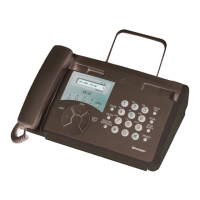
What to do if my Sharp FO-5800 Fax Machine shows 'PAPER JAM'?
- JjonathanhansonAug 26, 2025
If the Sharp Fax Machine displays 'PAPER JAM', it means the printing paper is jammed. Refer to the section on Clearing Paper Jams to resolve this issue.
What to do if my Sharp FO-5800 Fax Machine shows 'PAPER JAM'?
If the Sharp Fax Machine displays 'PAPER JAM', it means the printing paper is jammed. Refer to the section on Clearing Paper Jams to resolve this issue.
What to do if my Sharp FO-5800 Fax Machine displays 'DRUM LIFE OVER'?
If the Sharp Fax Machine displays 'DRUM LIFE OVER', this indicates that the drum cartridge must be replaced. Replace the drum cartridge.
What to do if my Sharp Fax Machine displays 'CHECK TRAY/CASSETTE'?
If the Sharp Fax Machine displays 'CHECK TRAY/CASSETTE', it indicates a paper jam in the tray or one of the cassettes, or that a cassette is not installed correctly. Please, check the tray and cassettes.
How to fix a Sharp FO-5800 Fax Machine with nothing on the display?
If nothing appears on the display of your Sharp Fax Machine, ensure the power cord is properly plugged into the power outlet and the power switch is turned on. You can also connect another electrical appliance to the outlet to verify if the outlet has power.
Why is my Sharp FO-5800 not receiving faxes automatically?
If your Sharp Fax Machine is not receiving documents automatically, ensure that the reception mode is set to AUTO. If you have a distinctive ring service, verify that the Distinctive Ring function is set to the correct ring pattern. If you do not have this service, ensure Distinctive Ring is set to OFF SETTING.
Why is my Sharp FO-5800 on but not transmitting?
If your Sharp Fax Machine is on but no transmission takes place, ensure the receiving machine has paper. Also, check that the telephone line cord is plugged into the TEL. LINE jack and not the TEL. SET jack. If the receiving machine is in manual mode without an attendant, reception won't be possible. If it’s not a Sharp model, ensure it is G3 compatible. Check the display for error messages and press the SPEAKER key to check for a dial tone.
Why are the received documents from my Sharp FO-5800 faint?
If the received document from your Sharp Fax Machine is faint, ask the sender to send higher contrast documents. If the contrast remains too low, your fax machine may need service. You can also make a copy or print a report to check your machine’s printing ability. The toner cartridge may also need replacement.
What to do if my Sharp FO-5800 says 'NO PAPER'?
If the Sharp Fax Machine displays 'NO PAPER' followed by the paper source in parentheses (UPPER or LOWER), it means that the indicated paper source is out of paper. Please, refill the paper.
How to troubleshoot dialing issues with my Sharp FO-5800?
If you are unable to dial from your Sharp Fax Machine, ensure the power cord is properly plugged into a power outlet and that the telephone line is properly connected to both the TEL. LINE jack and the wall jack. Also, make sure the fax machine is set to the correct dialing mode for your telephone line.
What to do if my Sharp FO-5800 keys are not responding?
If your Sharp Fax Machine is not responding when you press any of its keys, and if a beep sound is not made when you press the keys, turn off the power switch and then turn it on again several seconds later.
Details how to connect the power cord, telephone line, and optional devices to the fax machine.
Step-by-step guide for installing or replacing the toner and drum cartridges.
Instructions for loading letter or legal paper into the paper tray and cassettes.
How to program the sender's name and fax number for outgoing transmissions.
Instructions on how to properly load documents into the document feeder for sending.
How to select optimal resolution and contrast settings for document transmission.
Step-by-step guide for sending faxes using manual dialing and speakerphone.
Process for storing and assigning numbers to Rapid Keys or Speed Dial for automatic dialing.
Instructions for sending faxes using programmed numbers like Rapid Key or Speed Dial.
Configures the fax to automatically answer all incoming calls and receive faxes.
Requires manual answering of calls via an extension phone to receive faxes or voice.
Sending a single document to multiple destinations simultaneously.
Securely transmitting and receiving documents via memory mailboxes with passcodes.
Using another fax machine to forward documents to multiple destinations.
Requesting documents from another fax machine without operator assistance.
Scheduling operations like transmissions to occur automatically at a set time.
Storing multiple documents for automatic transmission to one location at a set time.
Storing sequences of operations into Program Keys for quick recall.
Limiting fax machine usage by requiring department codes for authorization.
Preventing faxes from specific numbers from being received to save paper.
Blocks reception of faxes from specified numbers.
Instructions for cleaning the glass and rollers to ensure transmitted image quality.
Solutions for errors related to telephone line connectivity and quality.
Troubleshooting steps for issues with dialing and sending faxes.
Solutions for problems related to receiving faxes and making copies.
Explains common display messages and audible signals from the fax machine.
Procedures for removing jammed documents and printing paper.
Details how to connect the power cord, telephone line, and optional devices to the fax machine.
Step-by-step guide for installing or replacing the toner and drum cartridges.
Instructions for loading letter or legal paper into the paper tray and cassettes.
How to program the sender's name and fax number for outgoing transmissions.
Instructions on how to properly load documents into the document feeder for sending.
How to select optimal resolution and contrast settings for document transmission.
Step-by-step guide for sending faxes using manual dialing and speakerphone.
Process for storing and assigning numbers to Rapid Keys or Speed Dial for automatic dialing.
Instructions for sending faxes using programmed numbers like Rapid Key or Speed Dial.
Configures the fax to automatically answer all incoming calls and receive faxes.
Requires manual answering of calls via an extension phone to receive faxes or voice.
Sending a single document to multiple destinations simultaneously.
Securely transmitting and receiving documents via memory mailboxes with passcodes.
Using another fax machine to forward documents to multiple destinations.
Requesting documents from another fax machine without operator assistance.
Scheduling operations like transmissions to occur automatically at a set time.
Storing multiple documents for automatic transmission to one location at a set time.
Storing sequences of operations into Program Keys for quick recall.
Limiting fax machine usage by requiring department codes for authorization.
Preventing faxes from specific numbers from being received to save paper.
Blocks reception of faxes from specified numbers.
Instructions for cleaning the glass and rollers to ensure transmitted image quality.
Solutions for errors related to telephone line connectivity and quality.
Troubleshooting steps for issues with dialing and sending faxes.
Solutions for problems related to receiving faxes and making copies.
Explains common display messages and audible signals from the fax machine.
Procedures for removing jammed documents and printing paper.
| Printing Method | Thermal Transfer |
|---|---|
| Copier Function | Yes |
| Polling | Yes |
| Delayed Transmission | Yes |
| Print Technology | Thermal Transfer |
| Power Supply | AC 220-240V, 50/60Hz |
| Type | Plain Paper Fax |
| Out-of-Paper Reception | Yes |
| Paper Size | A4 |
Loading...