EasyManua.ls Logo

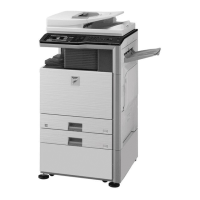
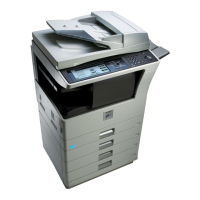
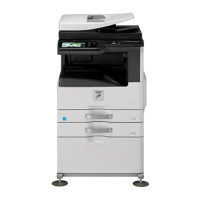
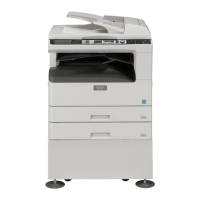
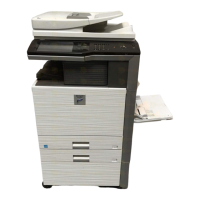
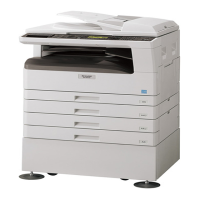
Sharp MX-M200D - User Manual

Sharp MX-M200D
108 pages
Print Icon
To Next Page IconTo Next Page
Loading...
Be sure to become thoroughly familiar with this manual to
gain the maximum benefit from the product.
Before installing this product, be sure to read the
cautions and installation requirements sections.
Be sure to keep all operation manuals handy for reference
including this manual, the "Operation manual (for general
information and copier)" and operation manuals for any
optional equipment which has been installed.
MODEL
DIGITAL MULTIFUNCTIONAL
SYSTEM
OPERATION MANUAL
(for general information and copier)
PART 1: GENERAL INFORMATION
BEFORE USING THE PRODUCT
TROUBLESHOOTING
AND MAINTENANCE
PERIPHERAL DEVICES
AND SUPPLIES
PART 2: COPIER OPERATION
COPY FUNCTIONS
CONVENIENT COPY
FUNCTIONS
APPENDIX
SYSTEM SETTINGS GUIDE
12
24
40
45
64
73
75
Page
MX-M160D
MX-M200D

Table of Contents

Other manuals for Sharp MX-M200D

Questions and Answers

  • P
    patty45Sep 4, 2025
    What causes wrinkles or missing images on copies from my Sharp All in One Printer?
    • K
      kirbykimberlySep 5, 2025
      Wrinkles or missing images on copies from your Sharp All in One Printer can be due to: * Using paper outside the specified size or weight range. Use copy paper within the specified range. * Using curled or damp paper. Replace it with dry copy paper.
  • E
    Ethan ChaneyNov 25, 2025
    What to do if my Sharp All in One Printer is misfeeding paper?
    • T
      Tanya LeeNov 25, 2025
      If your Sharp All in One Printer is experiencing paper misfeeds, consider the following: * Refer to the section on removing misfeeds to clear the paper jam. * Ensure the paper you are using is within the specified size and weight range. * Replace curled or damp paper with dry paper. * Make sure the paper is loaded properly. * Remove any remaining pieces of paper from the machine. * Reduce the amount of paper in the tray if it exceeds the indicator line. * Fan the paper before loading it to prevent sticking. * Adjust the bypass guides to match the paper width. * Pull out the bypass tray extension when using larger paper sizes. * Clean the bypass paper feed roller if it is dirty. * Load 5-1/2" x 8-1/2" (A5) size paper in tray 1 or the bypass tray, not in tray 2 or the ...
  • P
    Paul JohnsonSep 18, 2025
    What to do if the socket outlet is not compatible with the plug of my Sharp MX-M200D?
    • J
      Jessica WoodSep 18, 2025
      You can either cut off the molded plug (if this type is fitted) or remove it by undoing the screws if a rewireable plug is fitted. Then, fit an appropriate type, observing the correct wiring code.
  • L
    Linda GoodmanSep 16, 2025
    What to do when the fuse needs to be replaced in my Sharp MX-M200D All in One Printer?
    • V
      Vanessa ChangSep 17, 2025
      When replacing the fuse, ensure that you use a BSI or ASTA approved fuse to BS1362 marked or and of the same rating as the one you removed from the plug.
  • C
    Charles Williams DVMSep 14, 2025
    Why is power on, but copying is not possible on my Sharp All in One Printer?
    • M
      Michael ColeSep 15, 2025
      If the power is on but copying is not possible on your Sharp All in One Printer, the COPY indicator might be off. Press the [COPY] key to set the machine to copy mode.
  • K
    kevinwellsSep 13, 2025
    Why does a light in the room flicker when using my Sharp All in One Printer?
    • C
      Crystal WatkinsSep 13, 2025
      If a light in the room flickers when you are using your Sharp All in One Printer, it may be because the same outlet is being used for both the light and the printer. Connect the printer to a dedicated power outlet that is not shared with other electrical appliances.
  • M
    Mike KimSep 10, 2025
    Why does my Sharp MX-M200D stop copying before finishing?
    • D
      deleonkarenSep 10, 2025
      A copy job on your Sharp All in One Printer might stop before it is finished because: * The paper output tray is full. Remove the copies from the tray and press the [OK] key to resume copying. * The tray is out of paper. Load paper.
  • J
    Joseph CooperSep 8, 2025
    Why can't I set a tray's paper size setting on my Sharp MX-M200D All in One Printer?
    • D
      Deborah ArnoldSep 8, 2025
      If you are unable to set a tray's paper size setting on your Sharp All in One Printer, it could be due to: * The COPY indicator is off. Press the [COPY] key to select copy mode. * A copy, print job, or received fax is currently being printed. Set the paper size after copying or printing is complete. * The machine has temporarily stopped due to a paper misfeed. Remove the misfeed and then set the paper size. * An interrupt copy job is in progress. Set the paper size after the interrupt copy job is finished.
  • D
    doyletimothySep 6, 2025
    Why are my Sharp MX-M200D All in One Printer copies blank?
    • M
      Mary SimmonsSep 6, 2025
      If your Sharp All in One Printer is producing blank copies, ensure that the original is placed face up in the RSPF or face down on the document glass.
  • C
    Casey RoyAug 21, 2025
    Why is my Sharp All in One Printer not detected on the network?
    • S
      Stephen ThomasAug 21, 2025
      If the IP address of your Sharp All in One Printer is not configured, ensure it is correctly configured as explained in 'System Settings' in the 'Network Printer' manual on the CD-ROM. Also, in Windows, if the printer and your computer are not on the same local area network, the printer will not be detected. If they are on different sub-networks, click the [Specify condition] button and enter the printer's name (host name) or IP address to search for it. On a Macintosh, if multiple AppleTalk zones exist, select the zone to which the printer is connected from the menu.

Summary

Part 1: General Information

BEFORE USING THE PRODUCT

Essential initial setup and operation.

TROUBLESHOOTING AND MAINTENANCE

Procedures for resolving issues and upkeep.

PERIPHERAL DEVICES AND SUPPLIES

Information on optional equipment and consumables.

Part 2: Copier Operation

COPY FUNCTIONS

Detailed guide to basic and advanced copying features.

CONVENIENT COPY FUNCTIONS

Special functions for enhanced copying tasks.

APPENDIX

Technical specifications and supplementary information.

SYSTEM SETTINGS GUIDE

Configuration options for machine operation.

Sharp MX-M200D Specifications

General IconGeneral
BrandSharp
ModelMX-M200D
CategoryAll in One Printer
LanguageEnglish

Related product manuals