EasyManua.ls Logo

Sharp PA-3000 - Margins and Tabs

Sharp PA-3000
28 pages
Print Icon
To Next Page IconTo Next Page
To Previous Page IconTo Previous Page
Loading...
b
X
B
REL
)
copE||
+
W
CODE||
+
ALLTC
IMPACT
SETTING
The
force
of
impact
of
the
typewriter
can
be
set
to
either
standard
or
heavy.
The
heavy
setting
can
be
used
when
you
are
making
carbon
copies.
When
the
power
is
turned
on,
the
typewriter
assumes
the
standard
setting.
To
Set
the
Printing
Impact:
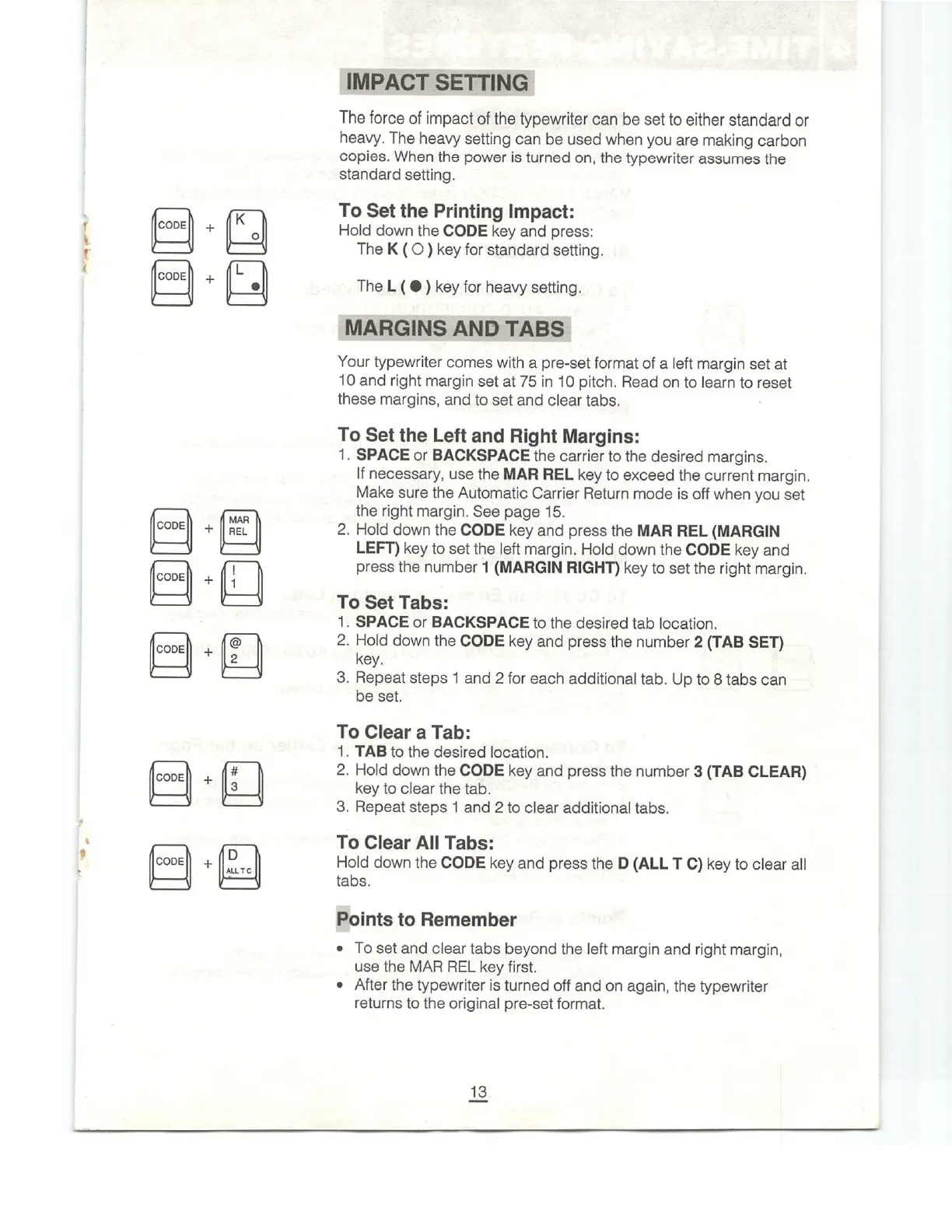
Hold
down
the
CODE
key
and
press:
The
K
(
O )
key
for
standard
setting.
The
L
(
@)
key
for
heavy
setting.
MARGINS
AND
TABS
Your
typewriter
comes
with
a
pre-set
format
of
a
left
margin
set
at
10
and
right
margin
set
at
75
in
10
pitch.
Read
on
to
learn
to
reset
these
margins,
and
to
set
and
clear
tabs.
;
To
Set
the
Left
and
Right
Margins:
1.
SPACE
or
BACKSPACE
the
carrier
to
the
desired
margins.
If
necessary,
use
the
MAR
REL
key
to
exceed
the
current
margin.
Make
sure
the
Automatic
Carrier
Return
mode
is
off
when
you
set
the
right
margin.
See
page
15.
2.
Hold
down
the
CODE
key
and
press
the
MAR
REL
(MARGIN
LEFT)
key
to
set
the
left
margin.
Hold
down
the
CODE
key
and
press
the
number
1
(MARGIN
RIGHT)
key
to
set
the
right
margin.
To
Set
Tabs:
1.
SPACE
or
BACKSPACE
to
the
desired
tab
location.
2.
Hold
down
the
CODE
key
and
press
the
number
2
(TAB
SET)
key.
3.
Repeat
steps
1
and
2
for
each
additional
tab.
Up
to
8
tabs
can
be
set.
To
Clear
a
Tab:
1.
TAB
to
the
desired
location.
2.
Hold
down
the
CODE
key
and
press
the
number
3
(TAB
CLEAR)
key
to
clear
the
tab.
3.
Repeat
steps
1
and
2
to
clear
additional
tabs.
To
Clear
All
Tabs:
Hold
down
the
CODE
key
and
press
the
D
(ALL
T
C)
key
to
clear
all
tabs.
Points
to
Remember
e
To
set
and
clear
tabs
beyond
the
left
margin
and
right
margin,
use
the
MAR
REL
key
first.
»
After
the
typewriter
is
turned
off
and
on
again,
the
typewriter
returns
to
the
original
pre-set
format.

Related product manuals