17
XL-DV60
Preparation for Use
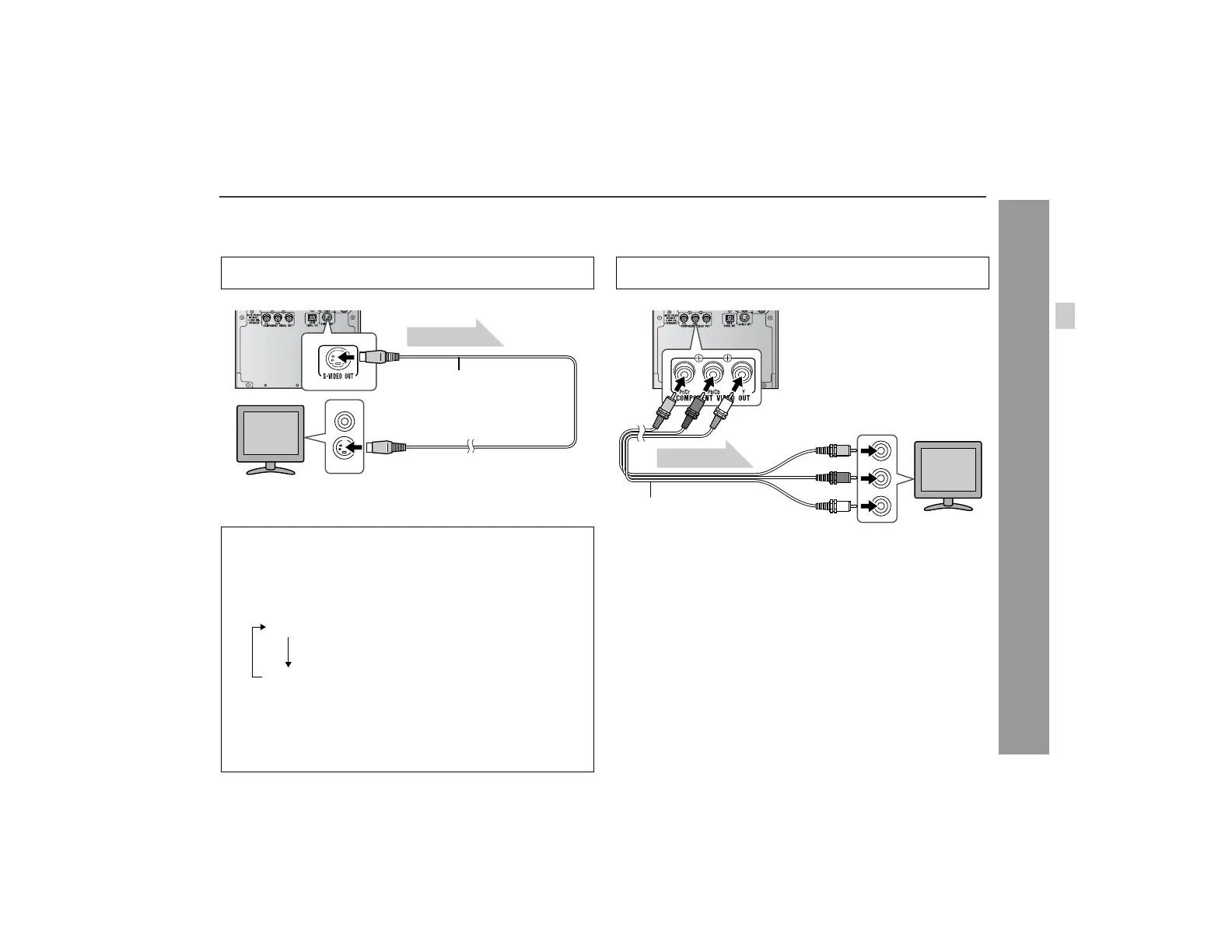
Connecting to a TV with an S-video input jack:
If your TV is equipped with an S-video input jack, you can enjoy higher
quality images by connecting it with an S-video cable (not supplied).
Note:
When the video and S-video cables are both connected, the images
from the S-video input jack appears on your TV.
Connecting to a TV with component video input jacks:
If your TV is equipped with component video input jacks, purchase a
component video cable to enjoy higher quality images.
Notes:
! If your TV has different indications for the component video inputs
(Y, B-Y and P-Y), connect jacks with its matching color.
! Some component video jacks designed for the high-vision sys-
tem are not compatible with DVD. Do not connect this unit to
those component video input jacks. (Images may appear dis-
torted or may not appear due to the system difference.)
What is progressive scanning?
The conventional TV system displays 30 frames of still images per
second to perform a series of movements (interlaced scanning).
Whereas, progressive scanning displays one frame every 1/60th of
a second (60 frames per second) to ensure less flickers and high-
density images.
Set the video mode to "Interlace" (default setting). For the proce-
dure, refer to "Changing the video mode".
Changing the video mode:
1 Insert a DVD disc (steps 1 - 6, pages 22 - 23).
2 While in the stop mode, press the SHIFT button and DIRECT/
VIDEO MODE button on the remote control.
Each time these buttons are pressed, the mode will change in
the following order:
Caution:
To enjoy images on a TV, make sure to select the right items
for the following four: video cable, TV's video input jack, and
this unit's video output jack and video mode. Otherwise, im-
ages do not appear properly.
TV
To S-video
input jack
Video signal
S-video cable
(commercially available)
Interlace
Progressive
Select this for a non-progressive scan TV
(use a video cable, S-video cable, or component
video cable).
Select this for a progressive scan TV
(use a component video cable).
For a progressive scan TV, set the video mode to "Progressive".
Select "Interlace" for a non-progressive scan TV.
TV
To component
video input jacks
Video signal
Component video cable
(commercially available)


 To Next Page