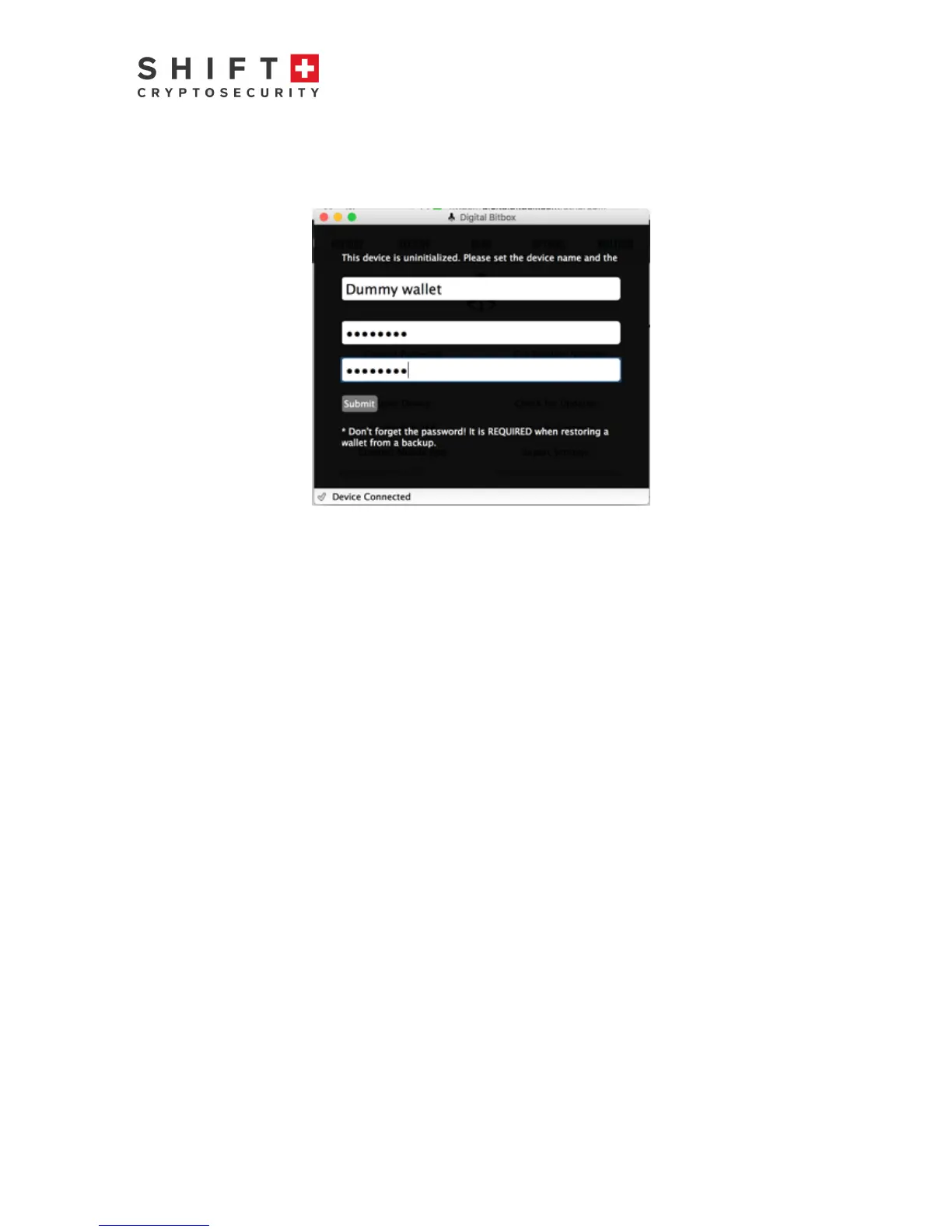
Instructions for restoring a new or reset BitBox: Insert the micro SD backup card. Create
a “dummy” wallet (a temporary wallet so that you can access the desktop app). For the
password, enter the password of the wallet you want to recover (important!).
Figure 13: First step in restoring your wallet - create a dummy wallet
Once logged in to your “Dummy Wallet”, go to “Options --> Manage backups…”. From the
available backups (PDFs), select the wallet you want to restore, for example:
Daves_wallet-2018-01-11-16-10-01.pdf
You will be prompted to enter the password used when first creating the wallet you want
restored. Be sure to enter it correctly: an incorrect password will generate a wallet different
from your original wallet (Tip: this is an additional plausible deniability feature in the case
someone forces you to recover your wallet from backup).
Click on “Restore”. You will be prompted to touch the LED for 3+ seconds to confirm. This will
restore the wallet you created on 11 January 2018 named “Daves wallet”. Note you can only
load one wallet at a time on your BitBox (including the associated “Hidden Wallet).
Your wallet is now restored.



 To Next Page