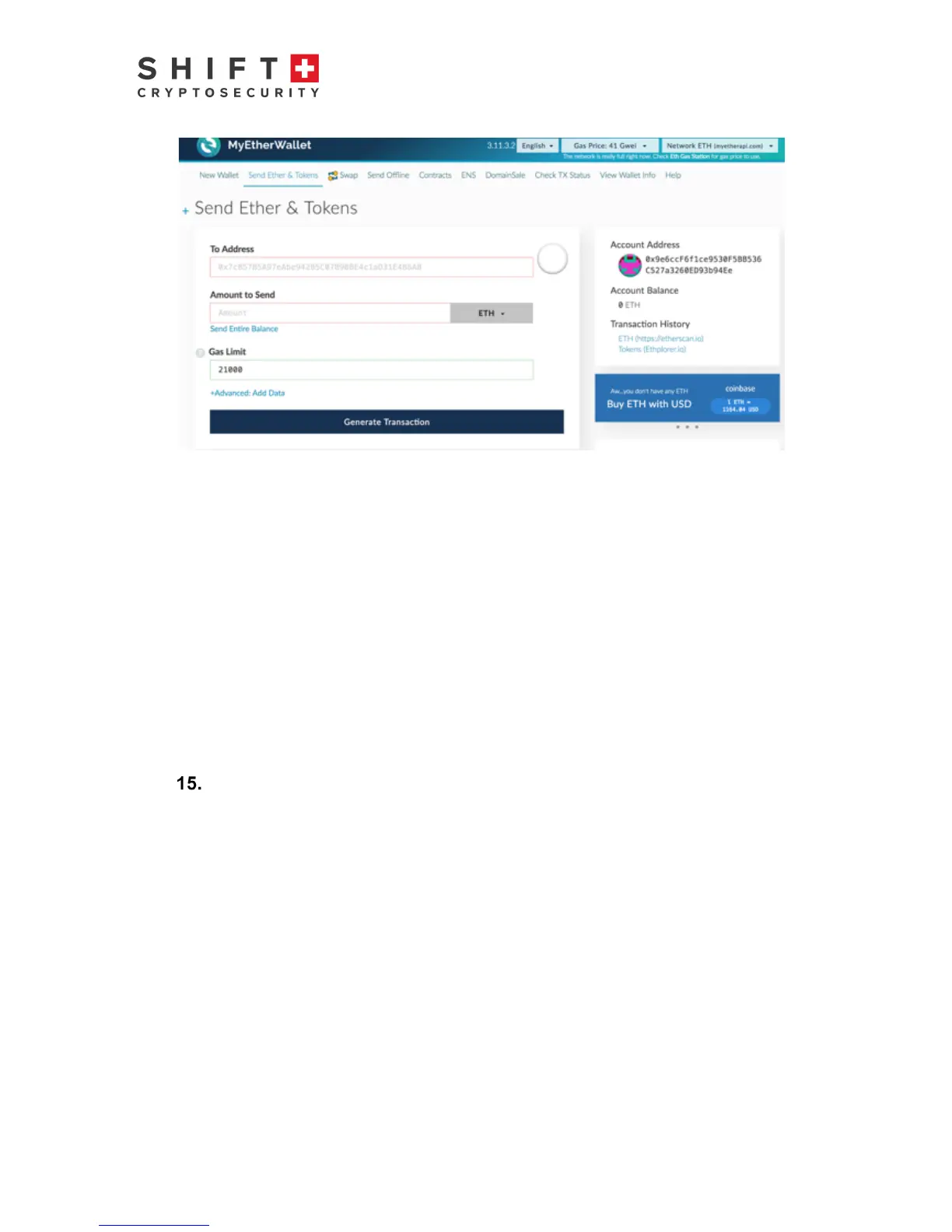
Figure 16: Your Etherwallet on myetherwallet.com; accessed using the BitBox
To send Ether, enter a send address of the person you want to send Ether to and follow the
instructions. A transaction will be generated and signed but not yet sent to the network. Scroll
down and press the button “Generate Transaction” to send the transaction.
Note: If 'Full Two-Factor Authentication (Full 2FA)' is enabled using the desktop app, Ether
can be received but CANNOT be sent. This is also the situation for hidden wallets, where full
2FA is always enabled by default.
To view your transaction history:
Click on “Transaction History”
à
ETH to view your complete Ethereum transaction history.
Click on “Transaction History”
à
Tokens to view your ERC20 tokens transaction history.
ATTENTION: Do NOT generate a new wallet on MyEtherWallet by pressing “New Wallet”.
This will NOT create a wallet on your Digital BitBox, and coins sent there will NOT be
accessible via your BitBox.
Sending ERC20 tokens
The process for sending ERC20 tokens is the same as for sending Ether. In this case, while
you are logged into your Ether wallet, scroll down to the box on the right side of the window
and click “Show All Tokens”. A pulldown menu will appear where you may choose the ERC20
Token you would like to send.



 To Next Page