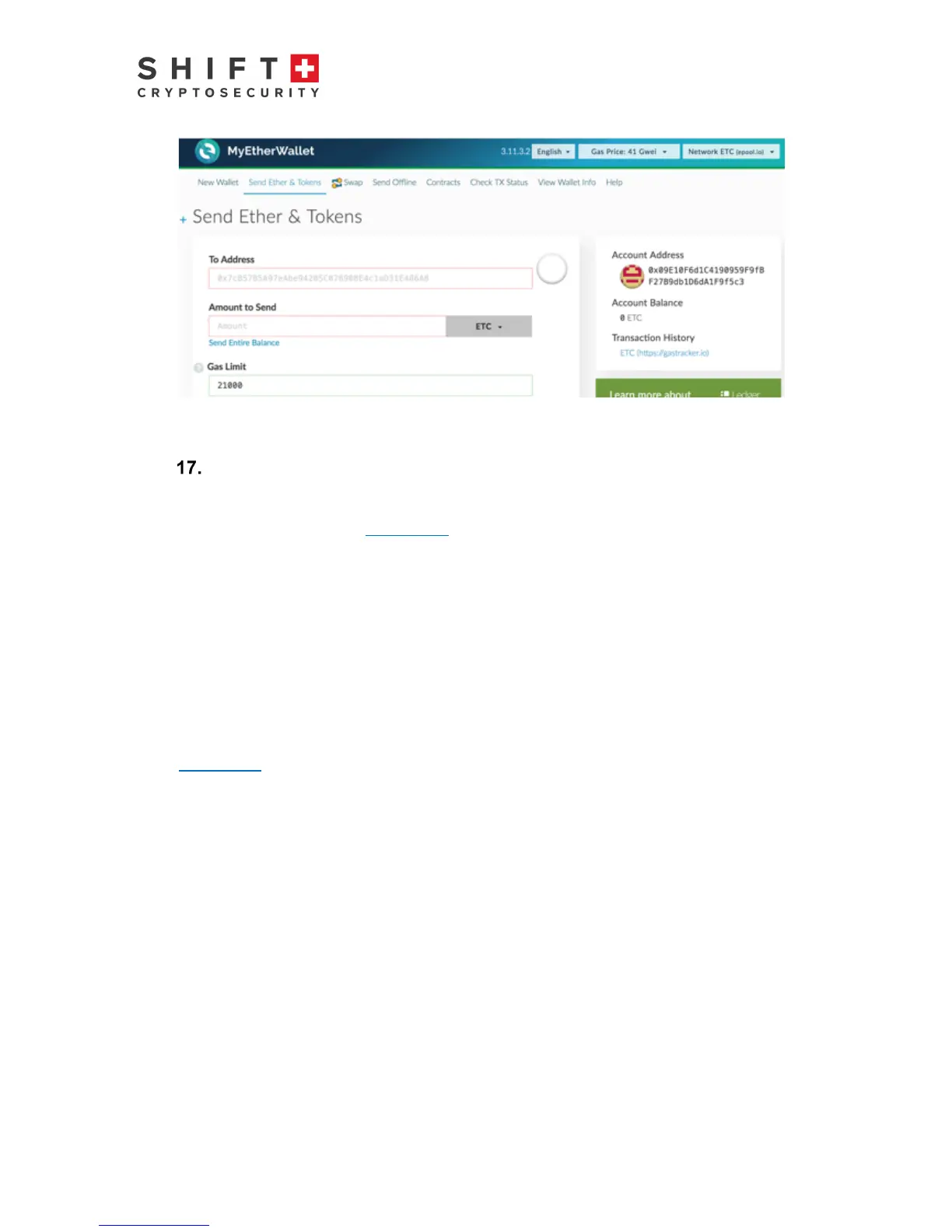
Figure 19: Accessing your Ethereum Classic Wallet
Upgrading the BitBox firmware
Upload firmware to your Digital BitBox using the Options menu item Upgrade Firmware,
available in the desktop app. If you have problems after upgrading the firmware, check that
you are also using the latest desktop app. When upgrading on Linux operating systems, be
sure you are using desktop app version 2.2.2 or later.
To upgrade, log into your BitBox and select:
Options
à
Check for Updates: this will indicate if your firmware is the latest or not.
If not, first download the latest firmware, store it on your computer, then click on:
Options
à
Upgrade Firmware
Navigate to the downloaded firmware and double-click.
Downloads contain firmware signed using our company keys. The signatures are checked
inside the Digital BitBox bootloader at every plug in. Invalid or modified firmware cannot run.
Source code is available on GitHub. If you wish, you can verify that the Digital BitBox is
running the same code by building the firmware on your own and uploading it.



 To Next Page