When properly inserted, the text on the Micro SD card will be facing towards you, with
the USB pads / beveled side of the BitBox also facing up and towards you. The plug fits
into any standard USB-A socket. The LED will flash if the BitBox was inserted in the
correct orientation.
Download and install the desktop app
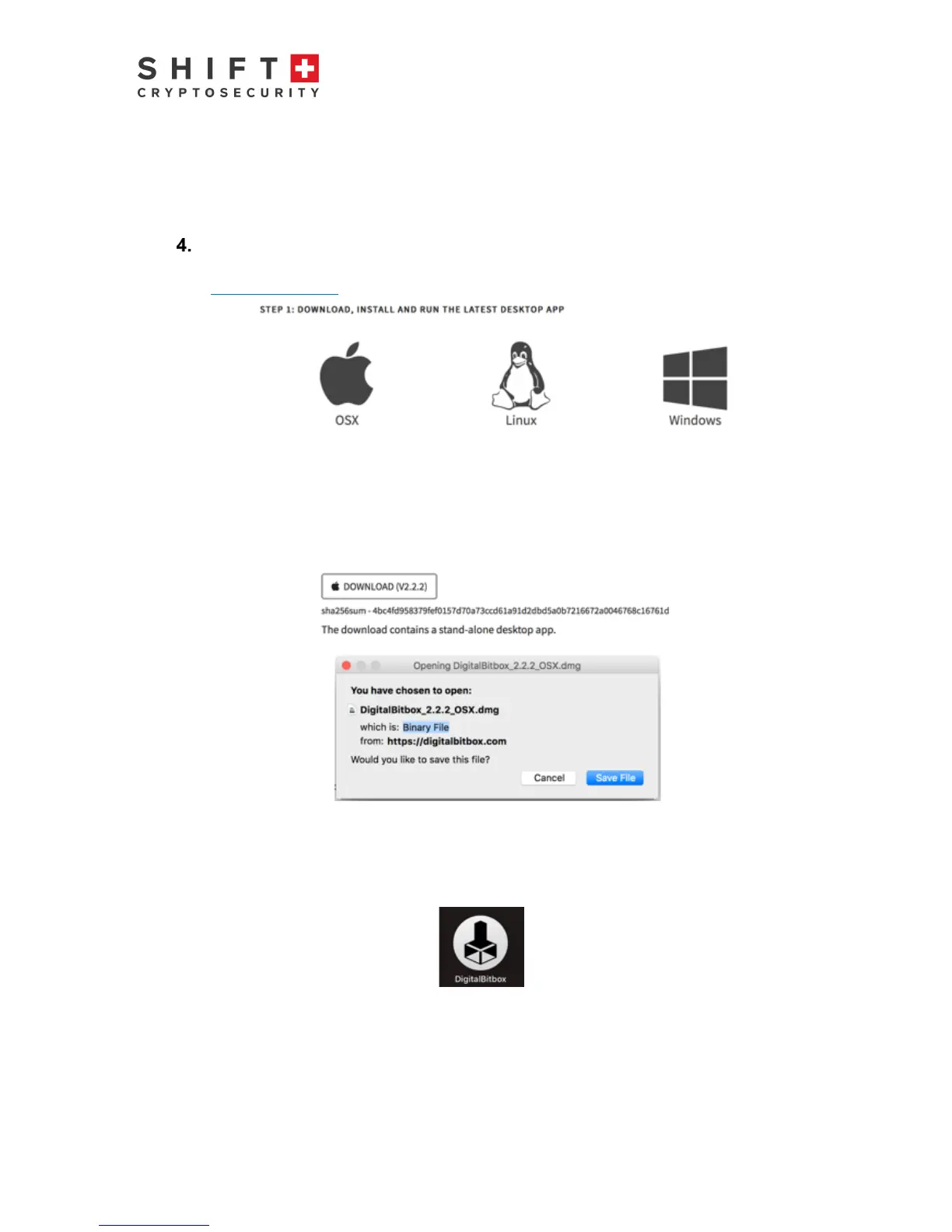
Download, install and run the desktop app from this location
digitalbitbox.com/start
Figure 2: Supported operating systems
For the desktop app, Windows, Mac and Linux platforms are supported. The software
version number is indicated in the download button. For second-factor authentication of
crypto-currency transactions via smartphone, Android and iOS are supported.
Advanced tip: the sha256sum hash is also provided for verification purposes.
Figure 3: Desktop App Download Dialogue (for Mac)
Save the file and run it (example for Mac shown above). Once installed, start the
desktop app by clicking on the icon.
Figure 4: Desktop App Icon



 To Next Page