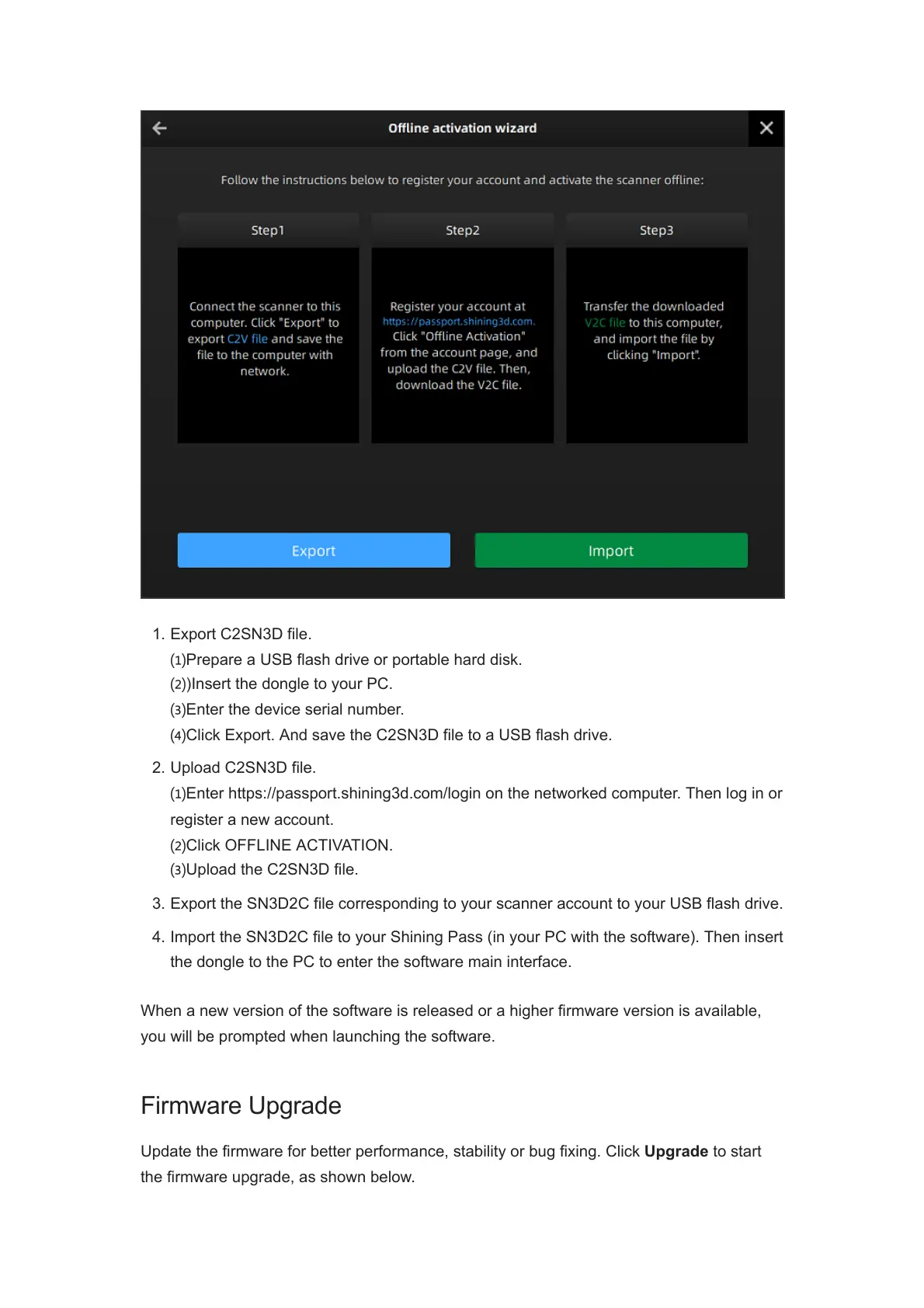
1. Export C2SN3D file.
⑴Prepare a USB flash drive or portable hard disk.
⑵)Insert the dongle to your PC.
⑶Enter the device serial number.
⑷Click Export. And save the C2SN3D file to a USB flash drive.
2. Upload C2SN3D file.
⑴Enter https://passport.shining3d.com/login on the networked computer. Then log in or
register a new account.
⑵Click OFFLINE ACTIVATION.
⑶Upload the C2SN3D file.
3. Export the SN3D2C file corresponding to your scanner account to your USB flash drive.
4. Import the SN3D2C file to your Shining Pass (in your PC with the software). Then insert
the dongle to the PC to enter the software main interface.
When a new version of the software is released or a higher firmware version is available,
you will be prompted when launching the software.
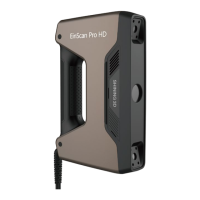
Firmware Upgrade
Update the firmware for better performance, stability or bug fixing. Click Upgrade to start
the firmware upgrade, as shown below.




 To Next Page