39
2. Creating Pallettes
It is possible to save custom palettes, either with the Creator or using the software.
01) Click on “Palette.”
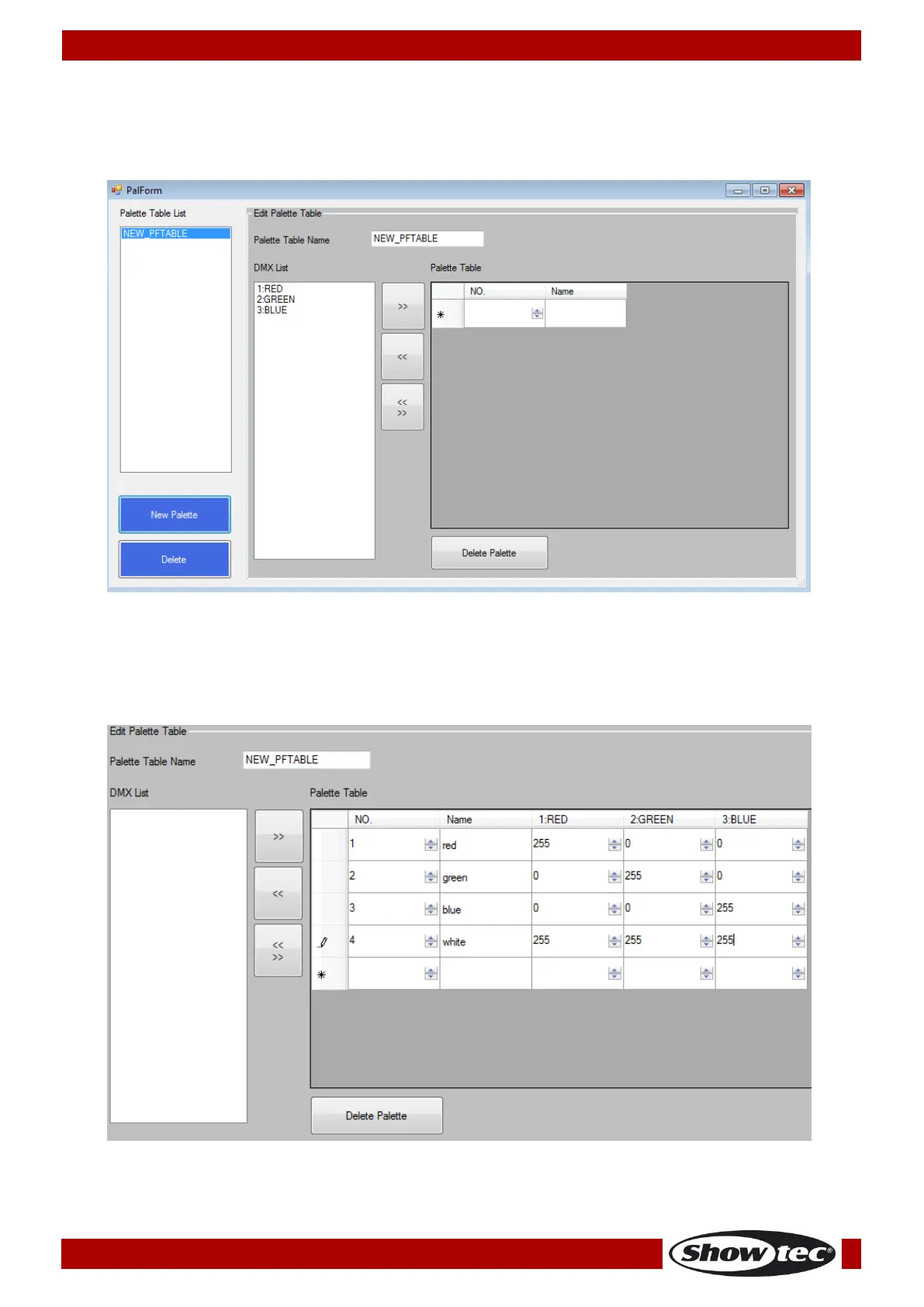
02) Click on “New Palette.” The following window will appear:
03) Go to Palette Table Name field and name your palette table. If you want to delete the palette, click
on “Delete Palette.”
04) Go to DMX List and, one by one, select and export the desired channel functions to Palette Table by
clicking on the “>>” button.
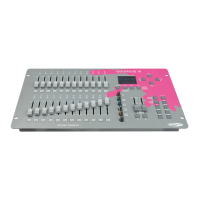
05) Go to “NO.” cell to set the palette button number, then go to “Name” cell to type in the name of
the function. Subsequently, set the DMX channel values. See the picture below.
06) When finished, close the window.
07) Click on <Save As> to save your new R20 fixture file.
08) Repeat steps 1-8 to create more palettes.


 To Next Page