Colour monitor S7
A26361-K877-Z100-4-5E19 English - 11
Monitor settings using the OSD menu
You can use the buttons on the control panel to set the screen display via an integrated OSD menu
(On-Screen-Display).
i
The OSD menu is available in different languages (default setting: English).
MENU DOWN UP AUTO POWER
MENU
You use this button to switch the OSD menu on and to select the highlighted
function.
DOWN
UP
You use these buttons to mark the symbol for a function and can then make
the settings for the selected function.
The buttons allow also the volume adjustment while audio playback.
AUTO
With the AUTO button you can start the auto-adjustment for the current
resolution. To do this, you must press the button briefly. During the auto-
adjustment the display Auto Adjusting is shown.
VOLUME
By pressing the DOWN/UP buttons directly you can adjust the volume
without pressing the MENU button before
To set the OSD menu, perform the following steps:
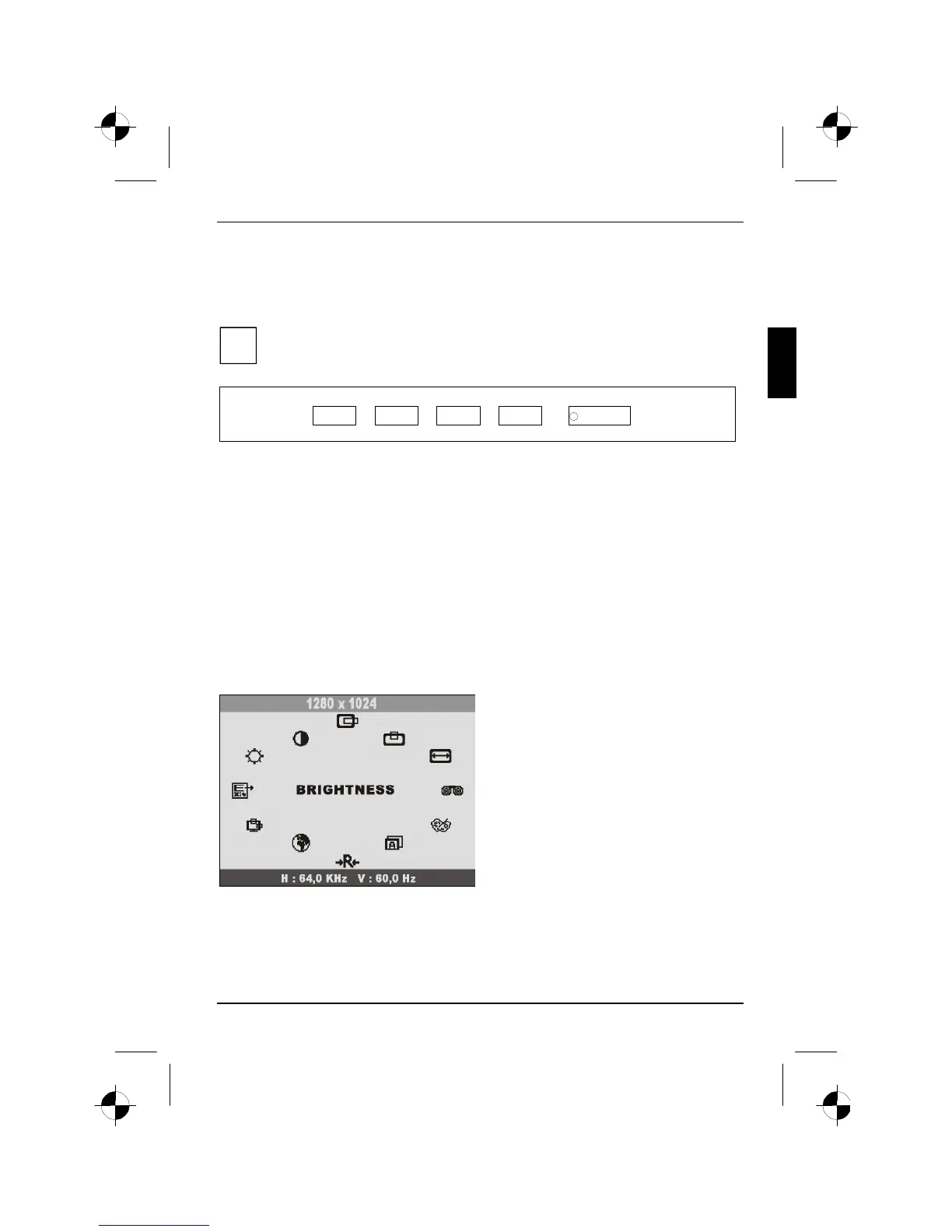
Ê Press the MENU button to activate the OSD menu.
The main menu appears on the screen with icons for the setting functions.
The last icon set is marked (in this case
BRIGHTNESS).
Ê If necessary, use the DOWN or UP button
to mark an other icon.
Ê Press the MENU button to activate the
highlighted icon.
Ê Use the DOWN or UP button to make the
desired setting.
Ê Select the EXIT symbol to exit the OSD
menu.
All changes are stored immediately.






 To Next Page