25.4.01 u35gb.fm U35 /SL45- English, A31008-H4800-A2-3-7619
9
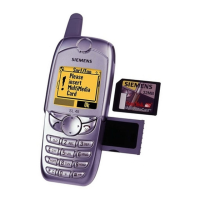
MultiMediaCard™
With the MultiMediaCard™, your
phone acquires a very large memory.
It enables you to store numerous
addresses, MP3 music files or voice
memos. You may also use the
MultiMediaCard™ like a floppy-disk
to save any other desired files.
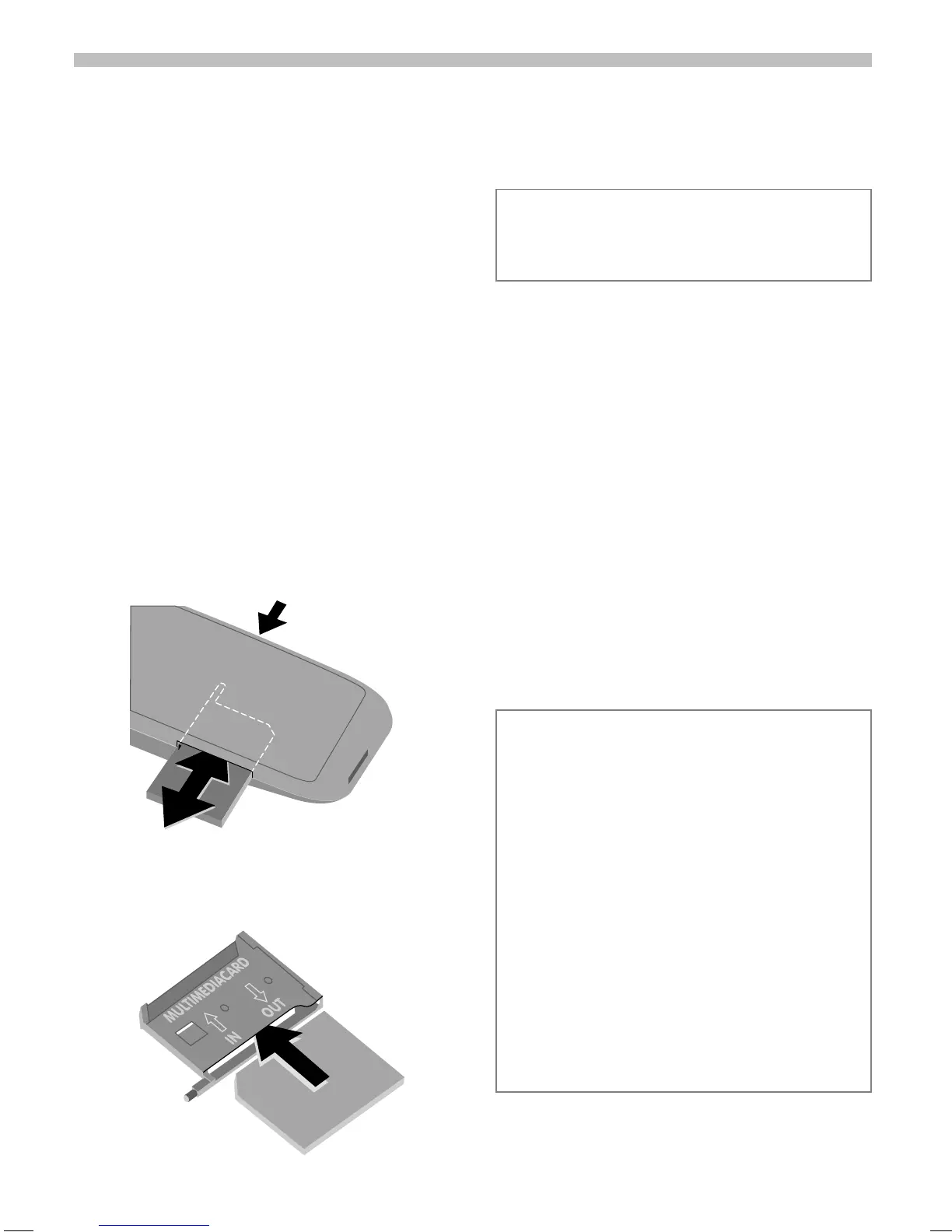
Change the MultiMedia-
Card™
• The MultiMediaCard™ is already
in the phone when it is shipped
from the factory.
• Push open the small button oppo-
site
n
(using a pen for example).
Remove the MultiMediaCard™
carrier from the phone
o
.
• Insert the MultiMediaCard™ into
the carrier
p
.
n
o
p
• Slide the carrier with the Multi-
MediaCard™ into the phone again
o
.
File management
The Card-Explorer is available in the
phone for organising your files (see
p. 67). In combination with a PC, you
can also use the Data Exchange
Software (see p. 70).
Note that the entries on the
MultiMediaCard™ are not
automatically linked with the entries
on the SIM card. For example,
entries that you make in the
Addressbook are only stored on the
MultiMediaCard™.
Please, treat the MultiMediaCard™
carefully. Do not bend it or expose it to
static electricity.
New MultiMediaCard™
1. Save the data of your old
MultiMediaCard™ on a PC using the
Data Exchange Software .
Save your Addressbook entries with the
Siemens QuickSync Software.
2. Format the new MultiMediaCard™ using
the Data Exchange Software.
3. Copy the data from the PC to the
new MultiMediaCard™ using the Data
Exchange Software. Copy the
Addressbook entries with Siemens
QuickSync.


 To Next Page