13 GB/IE/NI
Operation
NOTE: Screenshots are for reference only.
There may be slight deviations between iOS
and Android versions.
Customizing watch face
This function allows you to customise the watch
face of the smartwatch.
Smartwatch
Briefl y press the button
[1] to activate the
display
[2].
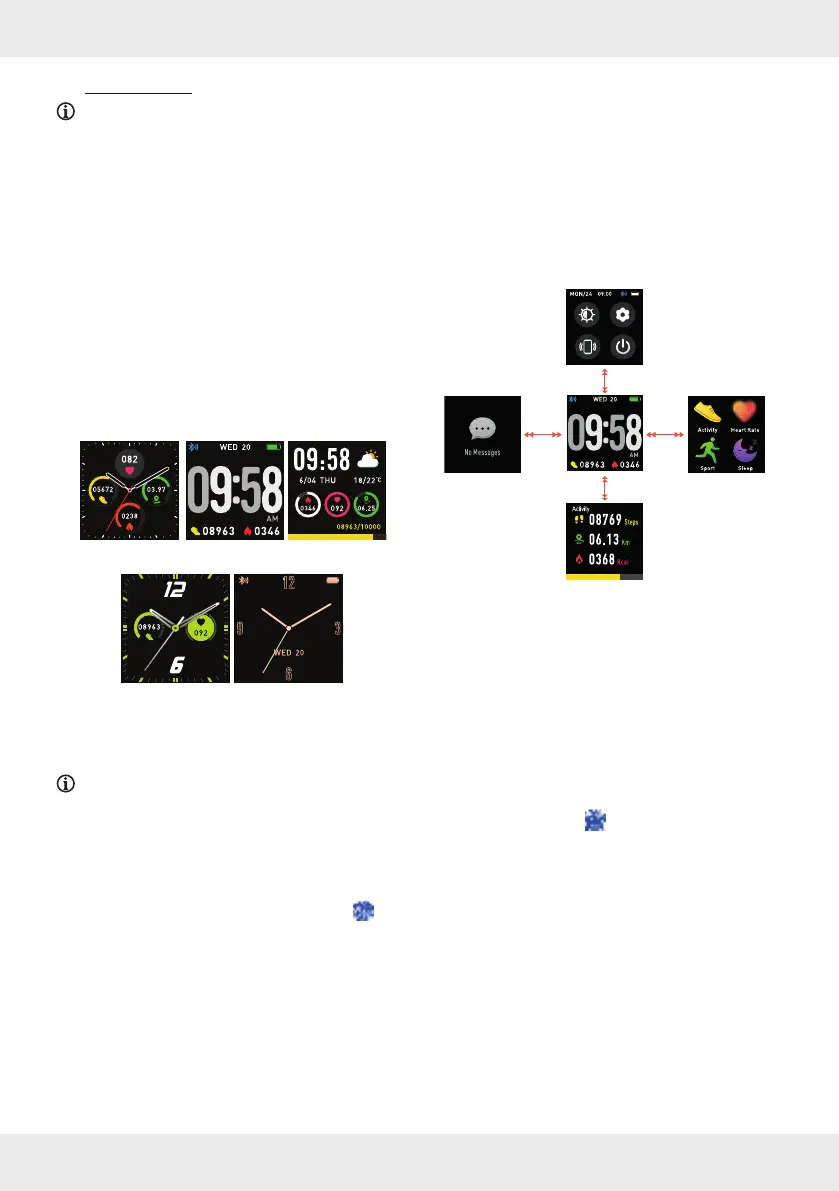
When in time mode, long tap and hold the
display
[2] to enter watch face selection mode.
Swipe left or right to switch to one of the
5 diff erent watch faces available.
Tap the display [2] briefl y to confi rm the
selection of your favourite watch face.
NOTE: You may also use photos taken directly
with the mobile device’s camera as a watch
face.
SilverCrest Watch App
Open the SilverCrest Watch app on your
mobile device and open the Settings
menu.
Tap Watch Face.
Once you have confi rmed the selection of the
watch face, the app automatically updates the
watch face of the product via Bluetooth.
The update takes about 1 minute.
Navigation
Smartwatch
Briefl y press the button [1] to activate the
display
[2].
Swipe across the display
[2] to navigate in the
diff erent menus.
You can swipe left, up, right or down to enter
diff erent areas. These areas are described in
detail below.
Synchronisation
Synchronise the smartwatch with the
SilverCrest Watch app and check your
data on the mobile device.
Synchronising the product manually
Make sure the product is connected to your
mobile device.
Open the SilverCrest Watch app.
Select the Home
tab.
Swipe down across the display to synchronise
the smartwatch data with the app.
Infl uences on measuring
accuracy
Wearing the product incorrectly causes
measurement errors.
Adjust the strap of the product so that the
product fi ts correctly around your wrist.



 To Next Page