Sinterit Lisa PRO USER MANUAL (short version) | 7
3. Printing – STANDARD MODE
1. Load the le for printing:
• save the le prepared using the Sinterit
STUDIO 2019 to a USB carrier (USB ash drive
recommended),
• connect the carrier to the printer’s USB port
,
with its power turned on.
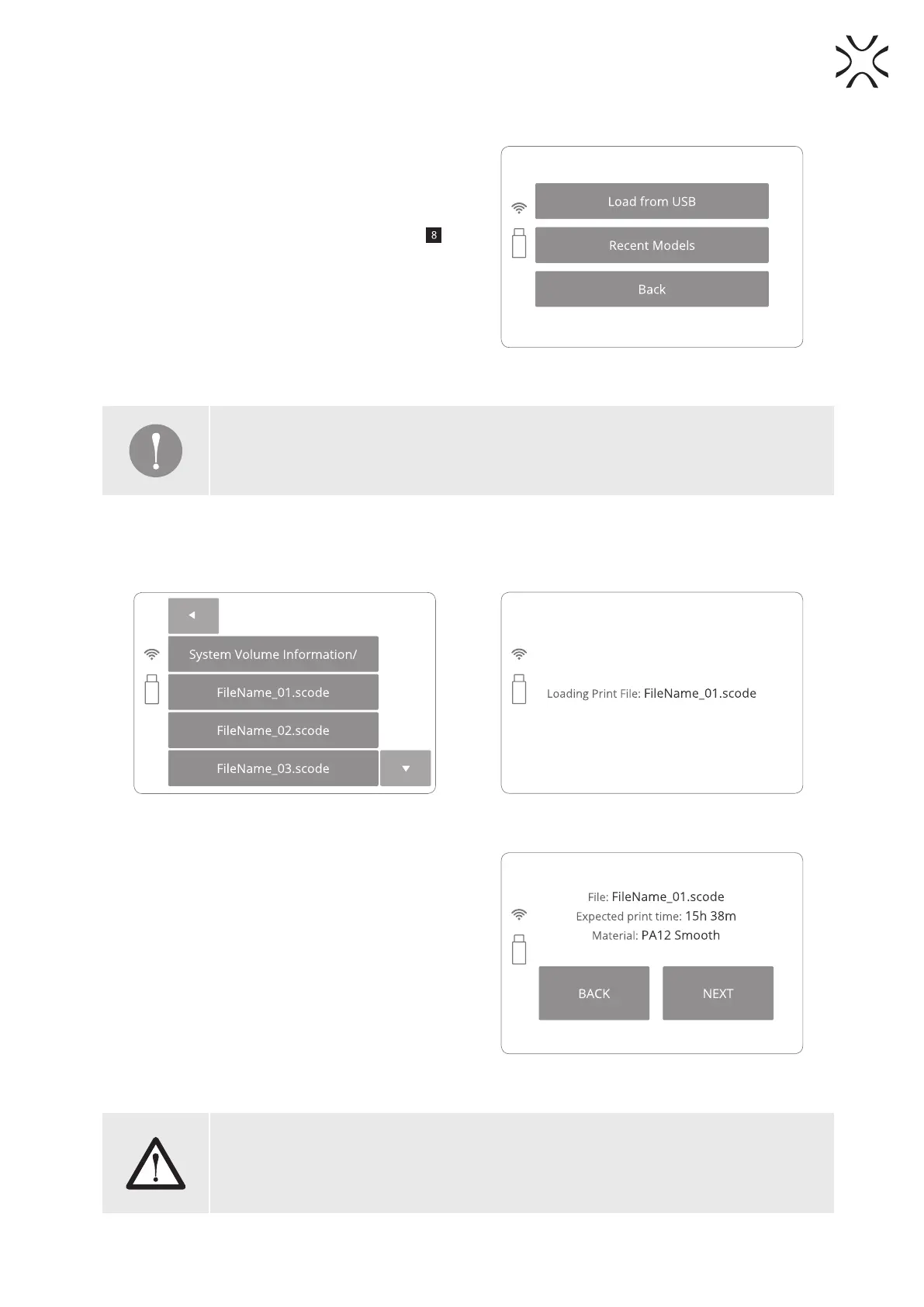
2. After mounting the ash drive into LISA PRO USB
port, LOAD FROM USB section will be displayed
and a ash drive icon will appear on the left side
of sections (Image 13).
Image 13. Connecting a USB ash drive to the LISA PRO
printer screen.
IMPORTANT!
After uploading the model on the printer’s internal storage, printed projects can be chosen
from RECENT MODELS.
3. Choose source. Titles of project les will be displayed. Displayed arrows will help to navigate through folders
and les.
4. After choosing a le, it will be loaded into the device’s memory.
Image 14. Loading the print le screens.
5. After loading the le, the display will show basic
informations such as: the le’s name, material and
expected printing time. The ash drive can be then
safely removed (Image 15).
6. The software will allow return to previous section
or proceed to the next. After choosing the next
section, Sinterit LISA PRO will check whether it is
ready to print.
Image 15. Basic information after loading the le to the
printer screen.
WARNING!
Carefully read all messages displayed on the screen while preparing the machine for
printing. Skipping the described operations may result in incorrect printing or machine
failure.


 To Next Page