12 / 17
Copyright (c) 2009-2017 RoboPeak Team
Copyright (c) 2013-2017 Shanghai Slamtec Co., Ltd.
Figure 3-2 RPLIDAR S2E Power Supply Specification
2)Find frame_grabber.exe and double-click it under the path of
\output\win32\Debug or.\output\win32\Release. If an error occurs, copy the
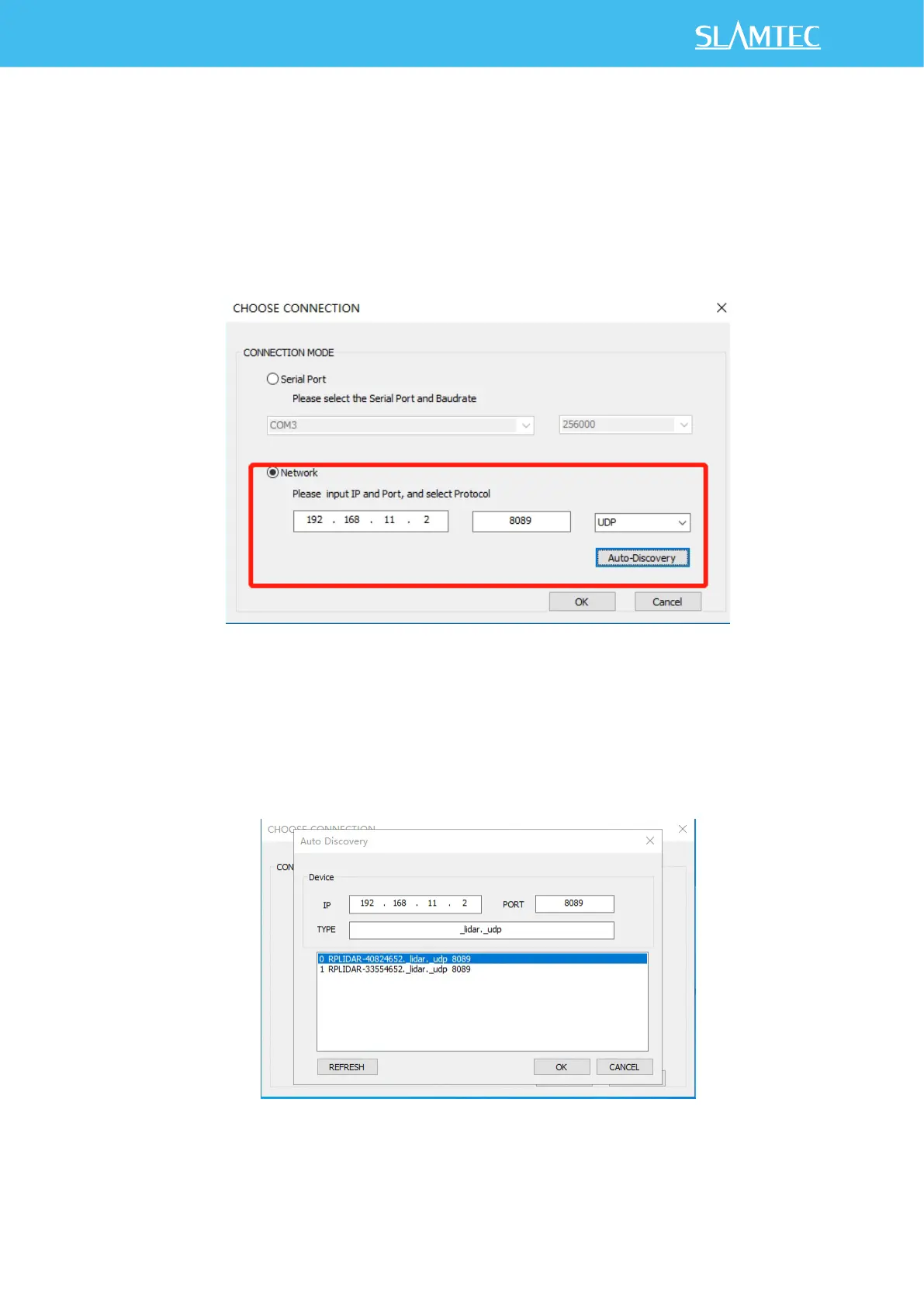
DLL from dL. rar to the directory, start the program, select Network, and
manually fill in the DLL according to the interface parameters of RPLIDAR
S2E.
Figure 3-3 Selection Interface of Lidar Connection
3)If Bonjour has been installed on Windows (the SDK directory contains the
installation package bonjour.rar), you can use the device Discovery function
of RPLIDAR S2E, click "Auto-Discovery", wait for 2 to 3 seconds, double-click
the corresponding lidar device as shown in the figure, and click "OK".
Figure 3-4 Lidar Equipment Detection Function


 To Next Page