-14-
Setting Pedestrian Mode
Pedestrian Mode allows the gate to open partially (or
only one leaf) to allow a person to enter without the need
to open the gate fully as for vehicular access (Factory
Default = Off).
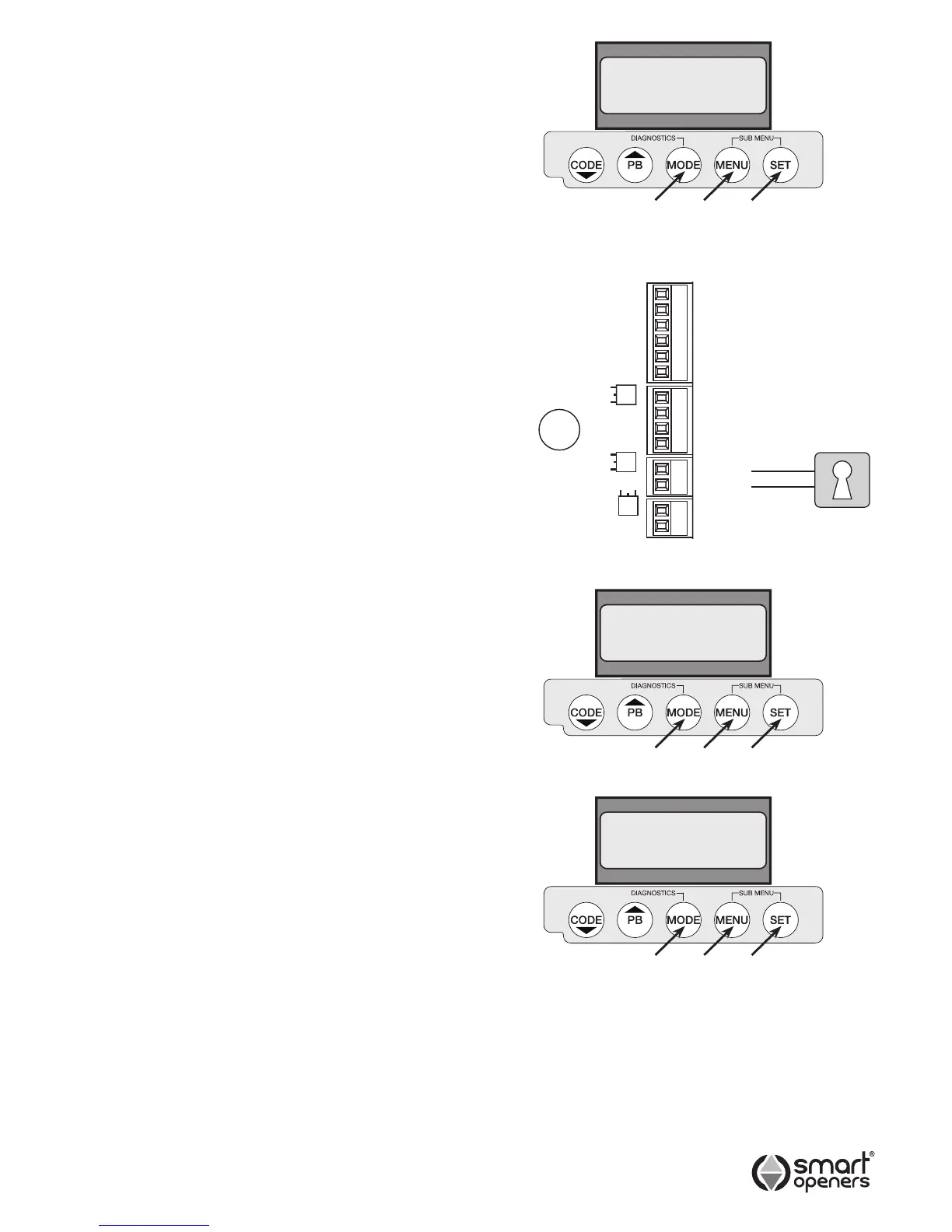
1. Press MENU for 3 secs then SET to cycle though to
Pedestrian Mode.
2. Press MENU to choose On or Off as required.
3. Press SET to conrm or MODE to save and exit.
Note: Pedestrian Mode is factory set to Transmitter
Button 2. If TX button allocation is set to ALL then
Pedestrian Mode will not function.
Setting Lock Mode
Lock Mode allows the gate to utilise to be locked with a
magnetic (hold) or pulse lock for added security. The gate
controller releases the lock momentarily before the gate
commences an open cycle (Factory Default = Pulse).
1. Connect lock to terminal block as per Fig. 24.
2. Press MENU for 3 secs then SET to cycle though to
Lock.
3. Press MENU to choose either Pulse or Hold as
required.
4. Press SET to conrm or MODE to save and exit.
Note: Pulse Mode output for 1 sec prior to motor start.
Hold Mode output 24V once motor has stopped.
Setting Obstruction Margin
The Obstruction Force Margin sensitivity is extremely
important for user safety. Make sure that where possible
the minimum (or default) force required to allow the
gate to travel without phantom reversing is used. Smart
Openers strongly recommend that the gate is properly
serviced rather than increasing the force margin to
compensate (Factory Default = 03).
1. Press MENU for 3 secs then SET to cycle though to
Obstruction Margin (Fig. 25).
2. Press MENU to cycle through from 00 – 09.
3. Press SET to conrm or MODE to save and exit.
Testing Obstruction Margin
1. Test the obstruction force margin sensitivity by placing
a piece of timber approximately 100mm thick between
the gate and the fence post.
2. Close the gate onto the timber. If the gate does not
reverse easily and attempts to continue to close
adjust the force margin as per procedure above.
© November 2011 Smart Openers Pty Ltd


 To Next Page