FireFly User Guide 13
13
FireLite User Guide
Mac OS Users
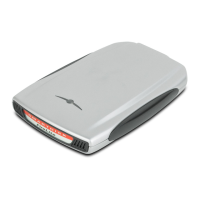
Connecting FireLite to a Macintosh Computer
1 Connect one end of the FireWire cable to an open FireWire port on your Macintosh.
2 Connect the other end of the cable to either one of the FireWire ports on FireLite. The
FireLite icon appears on the desktop.
Disconnecting FireLite from a Macintosh
Computer
1 Close all files and applications stored on FireLite.
2 Drag FireLite icon to the trash.
3 Wait until the yellow light stops flashing.
4 You can now safely unplug FireLite. Gently pull out the FireWire connector from the
computer.
Connecting and Disconnecting FireLite
3
Caution
Before connecting and using FireLite, put it on a stable surface.
Sudden movement during operation may cause data transfer errors
and may damage the hard disk.
Caution
Do not force the connection as damage may occur to the connector
or the FireWire port.
Caution
Do not unplug FireLite while it is mounted on the desktop. If you
unplug FireLite while accessing or copying files, data may be lost
or FireLite may be damaged. To disconnect FireLite, complete the
following steps.
Caution
The blue light may remain on at this point if you are using Mac OS X 10.0
-10.1. It is OK to unplug FireLite if the blue light remains on. However,
do not unplug FireLite if the yellow light is flashing.
Tip
You can also safely unplug FireLite by shutting down the computer.
Remember to ensure the lights are off before unplugging.


 To Next Page