Project Repositories
19
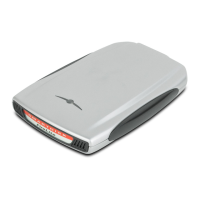
FireLite User Guide
Editing Files and Updating Data
Use the FireLite as the primary repository for all the files and data associated with the
project. This drive then becomes the
Project Drive
for the project. When you need to
work on the project, connect the
Project Drive
and ensure all changes to files and data
are saved to this drive.
You can still work on local drives or other high performance drives; just remember to
transfer all finished files to the
Project Drive
.
Visiting Clients
If you frequently travel to see clients, you can bring along all the relevant project files
and data by bringing the
Project Drive
. This means you do not have to:
•
Carry a laptop everywhere you go.
•
Copy files and data to your client’s computer (using up valuable hard disk
space and running the risk of running out of disk space).
•
Install licensed applications onto your client’s computer.
All you have to do is connect the
Project Drive
to your client’s computer. For example,
you can show a Power Point presentation on a client’s computer by connecting the
FireLite directly to their computer.
Backup Frequently
Periodically back up the contents of your FireLite to your desktop computer hard disk.
Or, backup to a CD-R or CD-RW using the SmartDisk FireWire Portable CD-R/W.
Note
In most cases when FireLite System Requirements are met, FireLite works
without software installation as described in Chapter 2. However, software
installation is strongly recommended to ensure optimum performance.
Software installation is absolutely required for Macintosh computers with
OS 8.6-9.1 that do not have FireWire version 2.8.3 or greater. Software
installation is also absolutely required for Windows 98SE users as
described on page 11.
Tip
Macintosh users can automate this process using the
CopyAgent
application found on the FireLite Software Installation CD.


 To Next Page