SMARTRG INC. PROPRIETARY AND CONFIDENTIAL. ALL RIGHTS RESERVED. COPYRIGHT © 2016
16
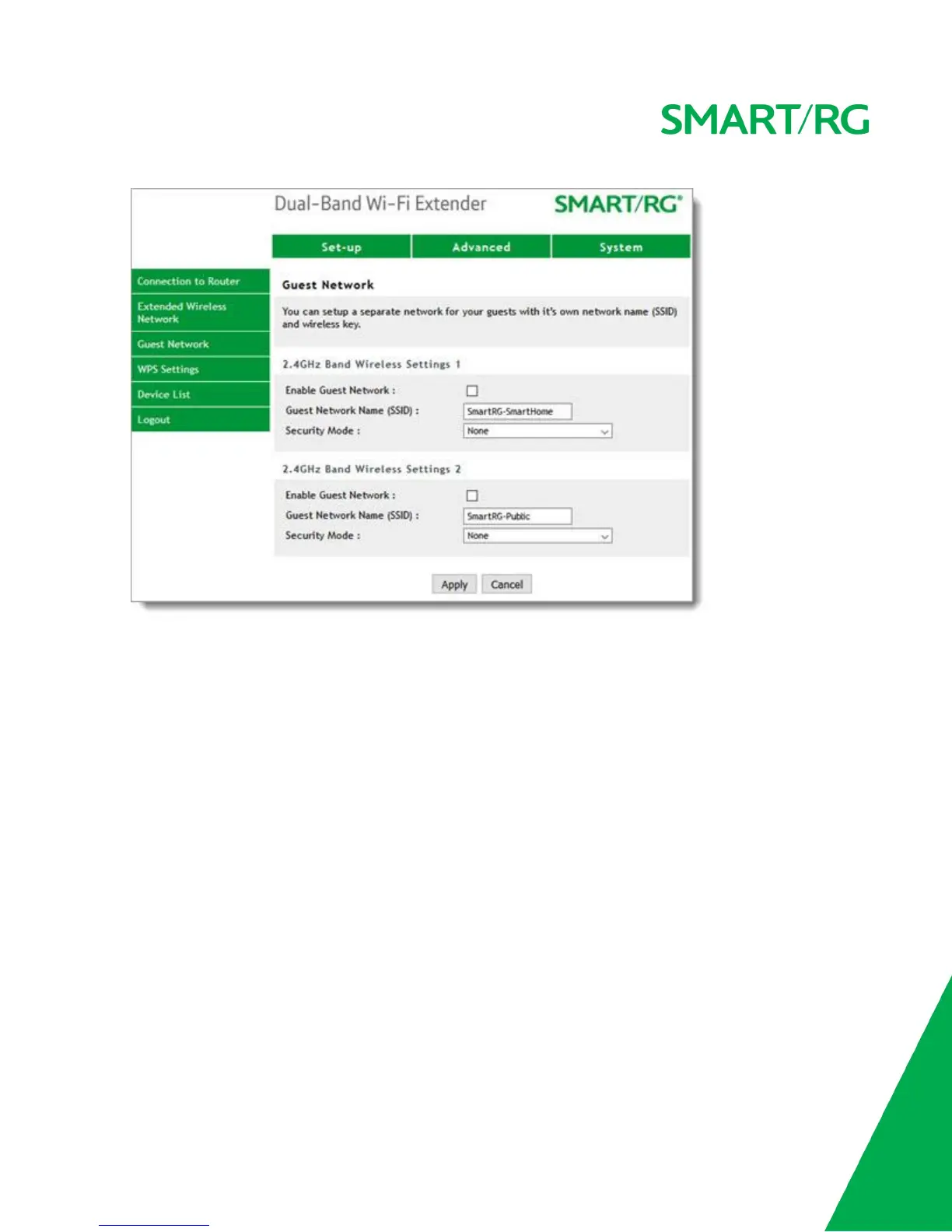
2. In the Guest Network Name (SSID) field, enter a name for this network that your guests can easily
identify.
3. In the Security Mode field, select the type of network authentication that you want applied. The default
is None, but using this option is not recommended. Options are WPA-PSK (TKIP), WPA2-PSK (AES), and
WPA-PSK (TKIP) + WPA2-PSK (AES).
4. To configure the second guest network, repeat Steps 2 and 3.
5. To activate a network. click the Enable Guest Network check box above its SSID field.
6. Click Apply to save your changes.
WPS Settings
On this page, you can enable or disable WPS. WPS is enabled by default.
1. In the top navigation bar, click Advanced and then click WPS Settings in the left menu. The WPS Settings
page appears.


 To Next Page