SMARTRG INC. PROPRIETARY AND CONFIDENTIAL. ALL RIGHTS RESERVED. COPYRIGHT © 2016
17
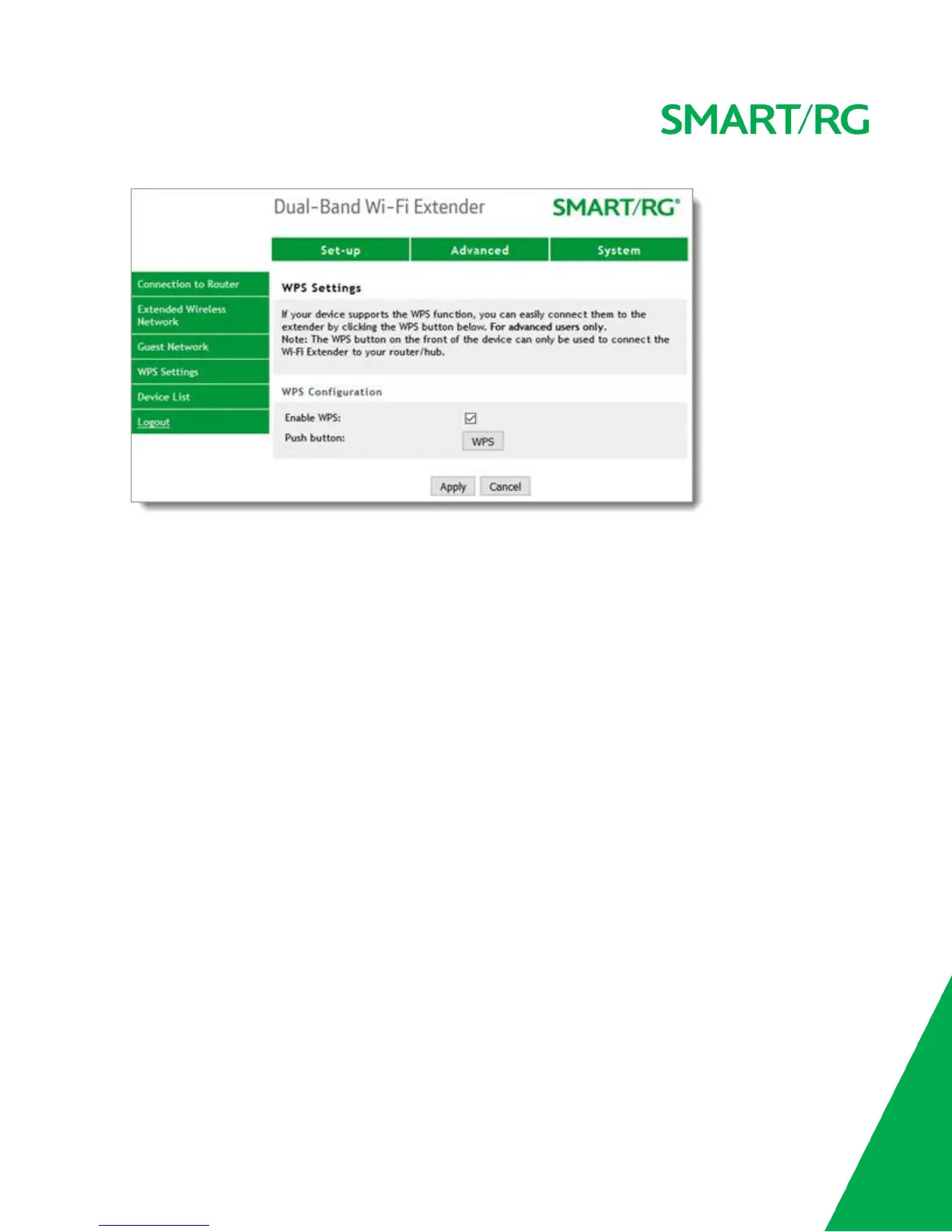
2. To activate WPS with the extender, click the WPS button.
3. To disable WPS, clear the Enable WPS checkbox.
4. Click Apply.
Connecting Devices
Now that setup is complete, you can connect your WiFi client devices (Smartphone, tablet, laptop, etc.) to the
new, extended network. Look for a network name with “ext” at the end.
For example, if your existing WiFi network is named "SmartRG-1234", the extended WiFi network name would be:
l SmartRG-1234-ext (on the 2.4GHz band), or
l SmartRG-1234-5Gext (on the 5GHZ band)
Log in with the same WiFi password that you use for your router. Your device connects to the extended network.
Device List
On this page, you can view statistics for the devices connected to the extender.
1. In the top navigation bar, click Advanced and then click Device List in the left menu. The Advanced >
Device List page appears, showing a list of the clients connected to your extender's wireless networks.


 To Next Page