SMARTRG INC. PROPRIETARY AND CONFIDENTIAL. ALL RIGHTS RESERVED. COPYRIGHT © 2016
12
9. Enter that IP address in the address field of your browser and log into the interface.
Note: If an error message appears, click OK to return to the Set-up > Connection Wizard page. Verify the
network and key and go through the connection steps again.
To see the WiFi status on the extender, click Set-up in the top navigation bar. Look at the Connection Status
field in the Wireless Connection to Router section of the Connection Wizard page.
It shows that the home gateway to which the WE65ac is attached is using the 2.4GHz to backhaul traffic to the
home gateway.
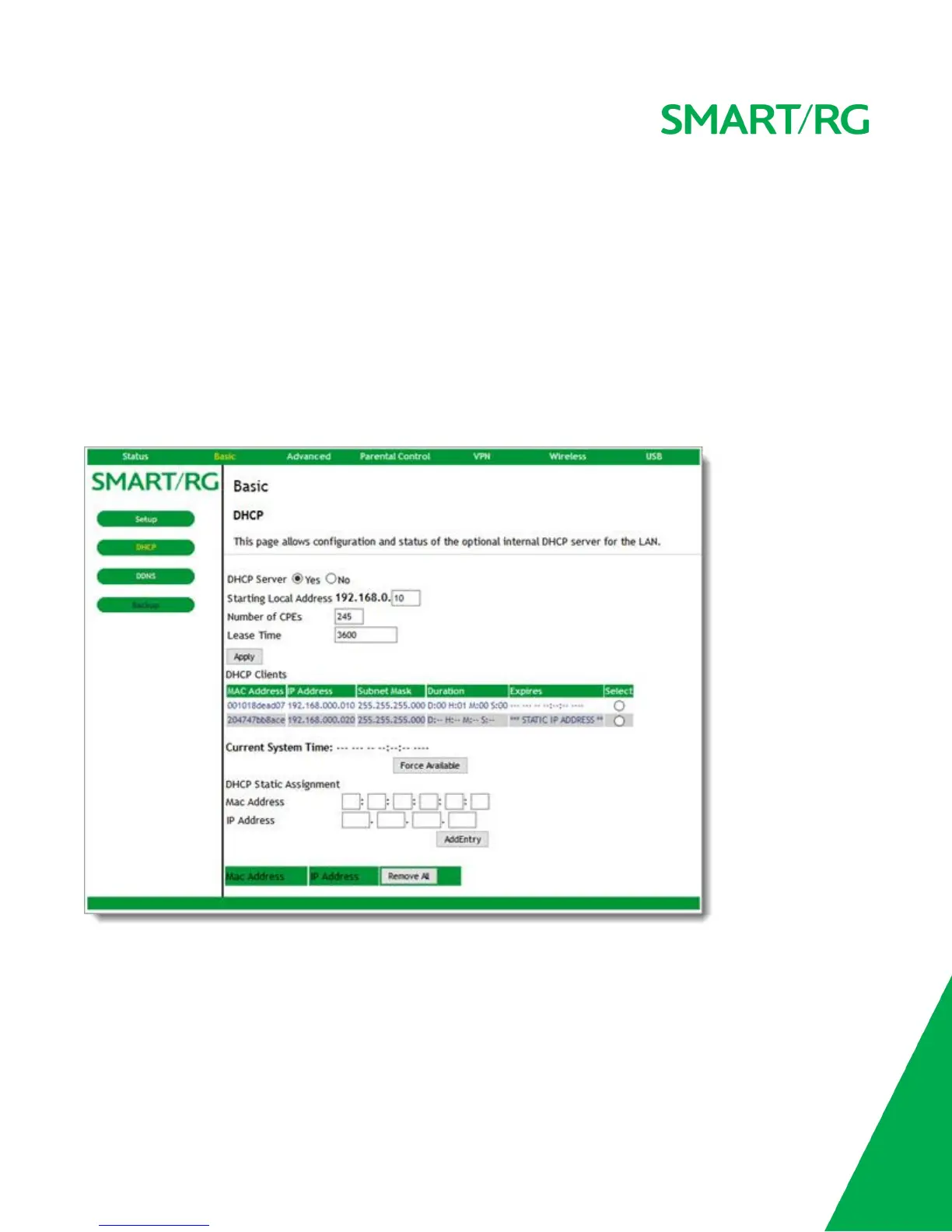
The WE65ac now has an IP address for managing connections from your gateway. You can find the management
IP address for the extender on the DHCP page of the gateway's GUI. In the example shown below for the SR804n
model, the IP address is 192.168.0.20.
Mode Settings
On this page, you can select the mode for your WE65ac extender.
Warning: When you change the mode, the extender reboots once you click Apply.


 To Next Page