SMARTRG INC. PROPRIETARY AND CONFIDENTIAL. ALL RIGHTS RESERVED. COPYRIGHT © 2016
7
5. Enter the Wireless Key for the network you selected and then click Finish.
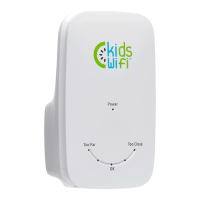
The extender searches for your wireless network. The lights scroll from TOO FAR to OK to TOO CLOSE and
back again. When the extender has found your router, a success message appears in the browser window.
6. Click OK. The Connection Wizard summary page appears.
Warning: Do not change the SSID of the extended network to the same SSID of your base network. Any
device placed between the base and the extender will not be able to identify which one to use. The device
keeps trying both and cannot create a proper connection to either SSID.
7. Disconnect the Ethernet cable from the extender and your PC, and then unplug the extender.
8. Plug the extender into a power outlet halfway between your router and the area where you wish to extend
WiFi coverage. The Power light glows white.
The extender searches for your network. The lights scroll from TOO FAR to TOO CLOSE and back again. When
one of the lights glows steadily, the extender has found your network.
If the extender is too far from your router, the TOO FAR light glows red. Plug the extender into an outlet closer
to the router.
If the extender is too close, the TOO CLOSE light glows red. Plug the extender into an outlet further from the
router.
When the OK light glows white, you’ve found a suitable location with a good signal.
Note: It is normal for the range lights to change occasionally. Wireless reception can vary according to the
number of wireless devices in use at the same time, type of structure, etc.


 To Next Page