EasyManua.ls Logo

Smartro SC31B - User Manual

Smartro SC31B
24 pages
Print Icon
To Next Page IconTo Next Page
Loading...
Instruction Manual
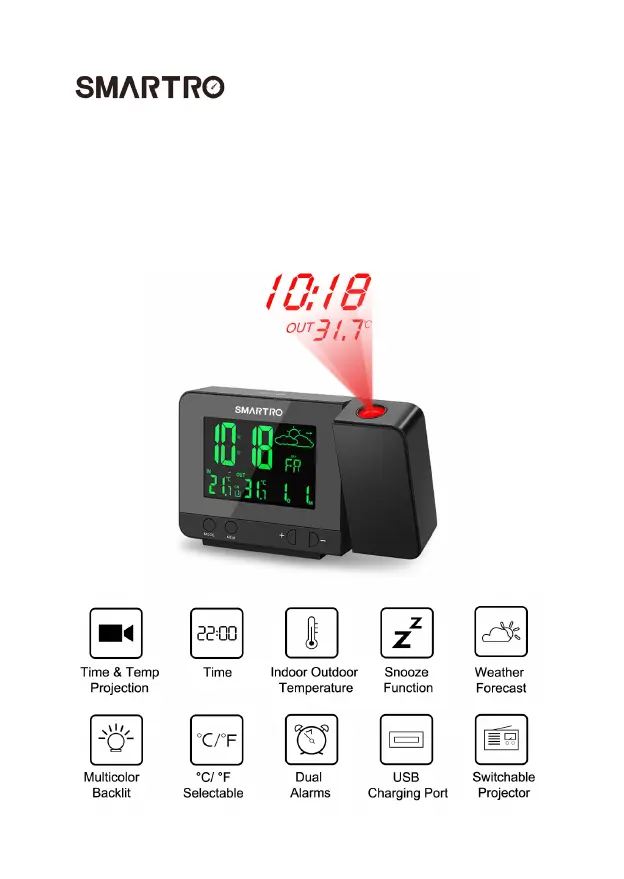
Time & Temperature Projection Alarm Clock
Model: SC31B

Questions and Answers

  • M
    Michelle WilliamsJul 29, 2025
    What to do if my Smartro SC31B can't receive the outdoor temperature?
    • D
      Dr. Andrew SaundersJul 29, 2025
      If your Smartro Alarm Clock isn't showing the outdoor temperature, try these steps: 1. Replace the battery in the outdoor remote sensor. 2. Ensure that the channels of the clock and the outdoor remote sensor are the same. 3. Long press the '+' button to manually receive the signals.
  • C
    Christopher WilliamsAug 3, 2025
    How to fix a Smartro SC31B with no projection?
    • J
      James LarsonAug 3, 2025
      If the projection feature on your Smartro Alarm Clock isn't working, make sure of the following: 1. The projection button on the back is switched to the ON position. 2. The clock is connected to a DC power adapter.
  • A
    Austin SpenceAug 8, 2025
    How to adjust the brightness of the backlit on a Smartro Alarm Clock?
    • M
      Matthew SmithAug 8, 2025
      To adjust the brightness of the backlight on your Smartro Alarm Clock, press the '-' button to cycle through four brightness levels: light, medium, low, and off.
  • K
    Kerri RobinsonAug 13, 2025
    Why is the projection on my Smartro SC31B not clear?
    • K
      Kristina HarrisAug 13, 2025
      If the projection on your Smartro Alarm Clock is blurry, consider the following: 1. Keep the projection distance between 5 and 13 feet (1.5 to 4 meters). 2. The projection is best viewed in a dark environment.
  • J
    Jacob RodriguezAug 18, 2025
    What to do if projection or backlit doesn't stay on continuously on Smartro SC31B Alarm Clock?
    • V
      Veronica JonesAug 18, 2025
      If the projection or backlight on your Smartro Alarm Clock does not stay on continuously, connect the clock to a DC power adapter.
  • T
    Timothy BrownAug 22, 2025
    How to flip the projection image on a Smartro SC31B Alarm Clock?
    • S
      Shelley FaulknerAug 23, 2025
      To correct an upside-down projection image on your Smartro Alarm Clock, long press the '-' button to adjust the angle by 180 degrees.

Summary

Know Your Device

Buttons

Identifies and describes all physical buttons on the alarm clock device.

Wireless Remote Sensor

Details the components and features of the wireless remote sensor.

Preparation

Manual Setting

Alarm Function Setting

Activate;Deactivate the Alarm Function

Describes how to enable or disable the alarm functions on the clock.

Manual Setting of the Alarm

Details the process for setting specific times for Alarm 1 and Alarm 2.

Projection Setting

Backlit

Wireless Remote Sensor Pairing

Temperature

Weather Forecast

Low Battery

USB Charger

Troubleshooting

After-sales Support

Smartro SC31B Specifications

General IconGeneral
BrandSmartro
ModelSC31B
CategoryAlarm Clock
LanguageEnglish

Related product manuals