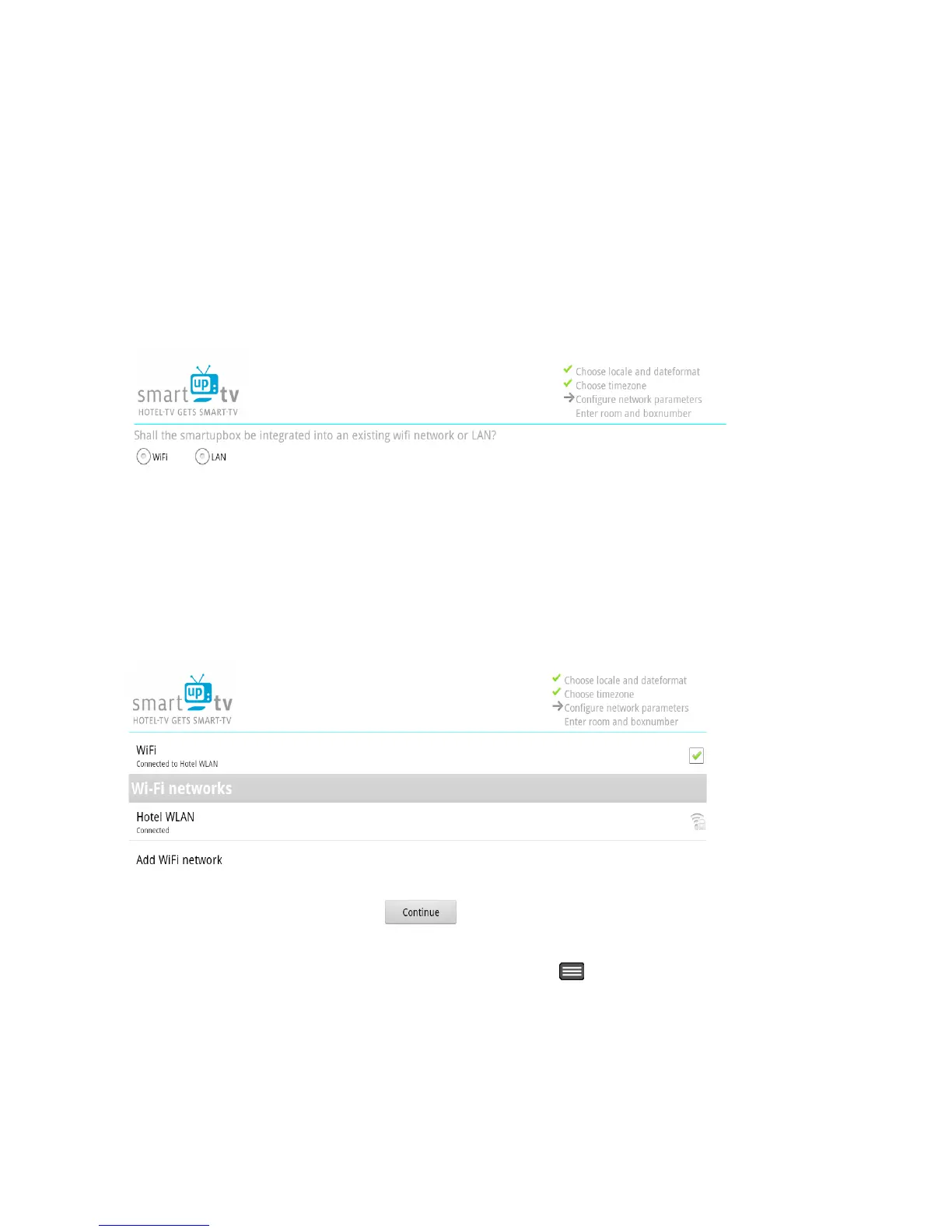
8.3 WiFi or LAN
You can choose whether your smartupbox should be connected to your network via
WiFi or LAN. Please consider, that your internet gateway allocates enough DHCP IP
adresses. When used as an access point, each guest device needs an IP adress, in WiFi
Mode, our smartupbox and each guest device needs an IP adress.
Please consider that for HotelMediaShare a DHCP lease should long between 6 and 8
hours
Image 35: Connection to network
8.3.1 WiFi
If you choose WiFi you get to the menu from image 36.
You can see a list of all available WiFi networks. Choose a network for your smartupbox and wait
until a connection is established. Now click on the button “continue” to get back to the previous
menu where now a new “continue” button has appeared. Click on it and proceed with 7.5.
If you want to configure a static IP address press the key to access the advanced
settings for WiFi.
There you may also search for your WiFi network again.



 To Next Page