38
|
3D Printing
3.3.1 Prepare the G-code File
1. Install the Software and Complete the Initial Setup
Download our software the Snapmaker Luban at https://www.snapmaker.com/download and install. Then
connect to a Wi-Fi network: Enter the Workspace -> Connection -> Select Wi-Fi -> Click -> Select your
machine -> Click Open -> Tap Yes on the Touchscreen.
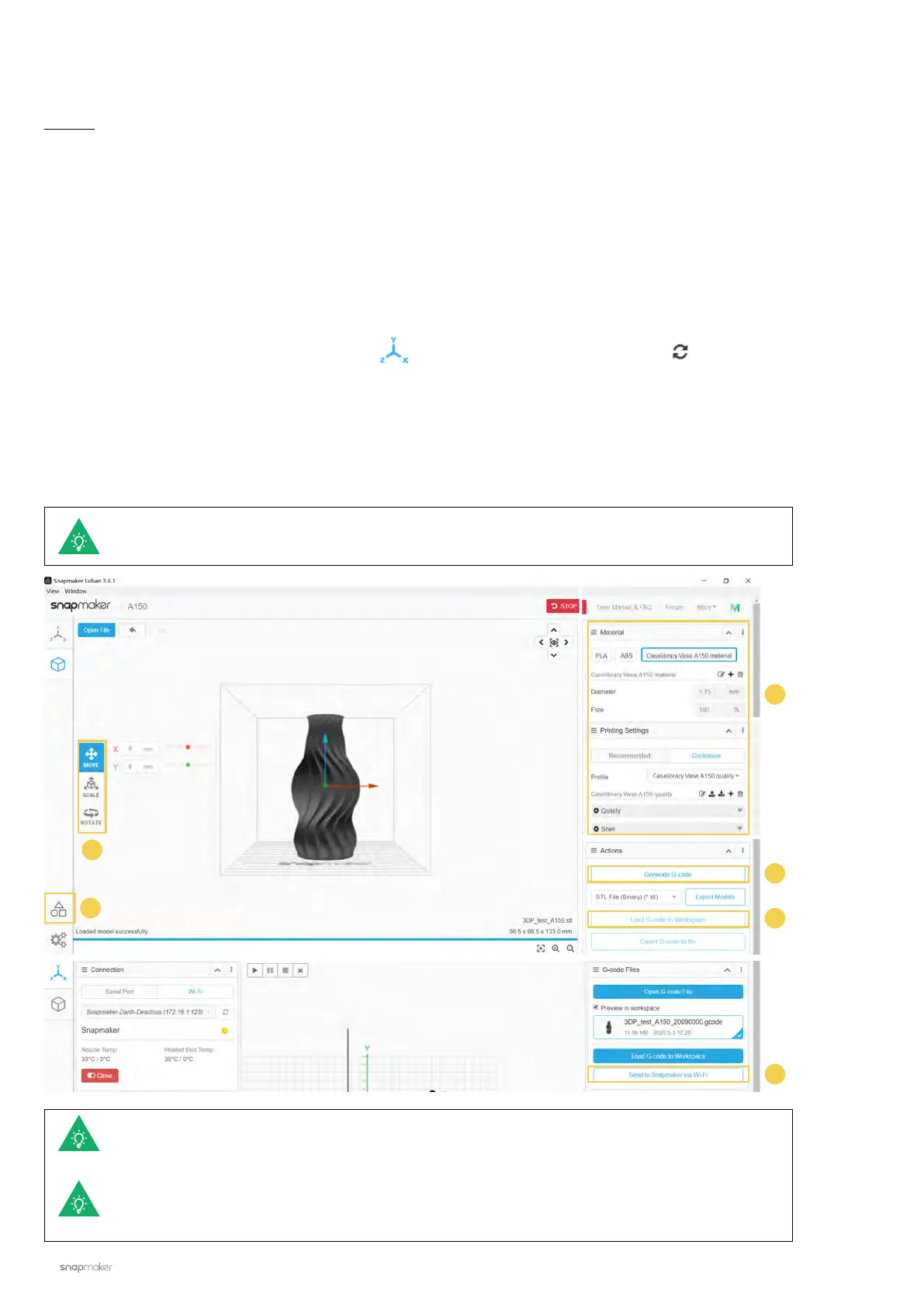
2. Generate the G-code File and Send It to the Machine
① Load the test le -> ② Use the default settings specically congured for the test le -> ③ Generate the
G-code le -> ④ Load G-code to Workspace -> ⑤ Send G-code to the machine via Wi-Fi.
Guides & Pictures / Snapmaker
Files sent by Wi-Fi can be found on the Touchscreen: Files > Local.
You can also send the G-code files to the machine via the USB disk. Click Export G-code to file
in the Snapmaker Luban and save it to the USB disk. Then insert the USB disk into the Controller
and select Files > USB on the Touchscreen.
You can also upload your own files by clicking Open File and configure the file settings. For
detailed instructions, refer to our online User Manual.
2
2
3
4
5
1



 To Next Page