25
• If you want to switch between calls again, you must use your cell phone’s call
application.
Note: When you have a call on your cell phone and come within range of the C520-
WiMi, the C520-WiMi can reconnect with your cell. The audio on your cell may
transfer to the C520-WiMi when the connection is reestablished.
Transferring Bluetooth calls from the C520-WiMi to your cell phone
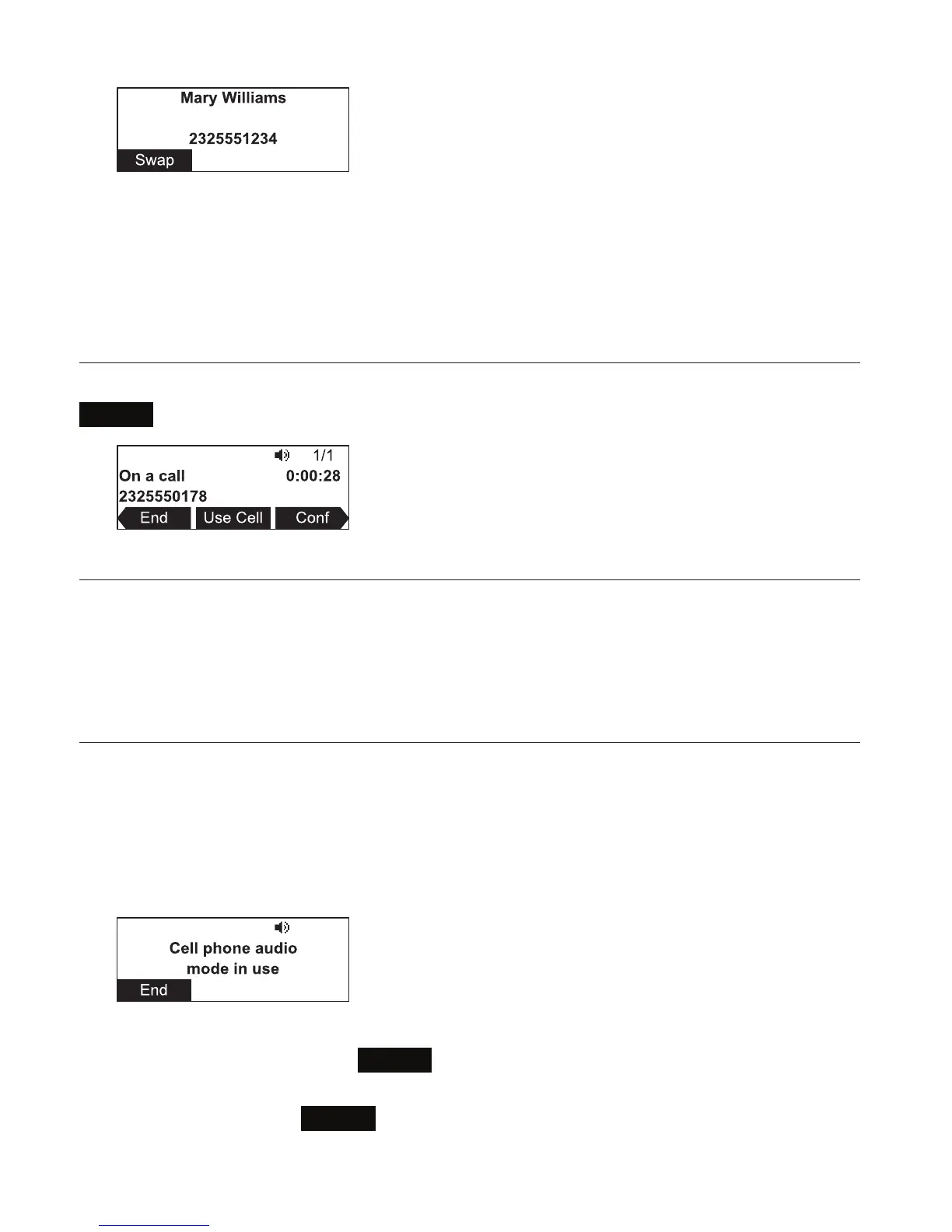
If you no longer want your call’s audio to be broadcast through the C520-WiMi, press
Use Cell
to transfer the audio to your cell phone.
Conference calls with a Bluetooth-connected cell phone
When you have an active cell phone call on the C520-WiMi, you can create a three-way
conference between you, the cell phone call, and another SIP account caller.
For more information about creating conference calls, see "Making a conference call" on
page 20 .
Playing audio with a Bluetooth-connected call phone
When a cell phone is connected to the C520-WiMi, any audio from the cell phone is
routed through the C520-WiMi and connected expansion speakerphone(s). This enables
you to play music, podcasts, audio from videos, and Internet-streaming media over the
speakerphone.
When you start playing audio over a connected cell phone, the C520-WiMi takes over
audio automatically and the screen below appears.
You can control the volume either through the cell phone or the C520-WiMi.
To stop cell phone audio, press
End
. Cell phone audio also stops when an incoming
or outgoing call or page is connected. Audio resumes after the call or page disconnects.
Note: After pressing
End
, pausing and resuming audio on the cell phone
resumes playback on the C520-WiMi.
Conference phone operation


 To Next Page