10
WINDOWS PC
Connect Windows PC in SPP Mode
Note: Make sure you have administ rat ive privileges.
1. Download t he l at est Socket Scan 10 sof t ware from Socket Mobile’s support
web page.
2. Follow t he on-screen inst ruct ions t o inst all t he soft ware.
3. In Socket Scan 10 Set t ings, sel ect an incoming Bluet oot h serial COM port .
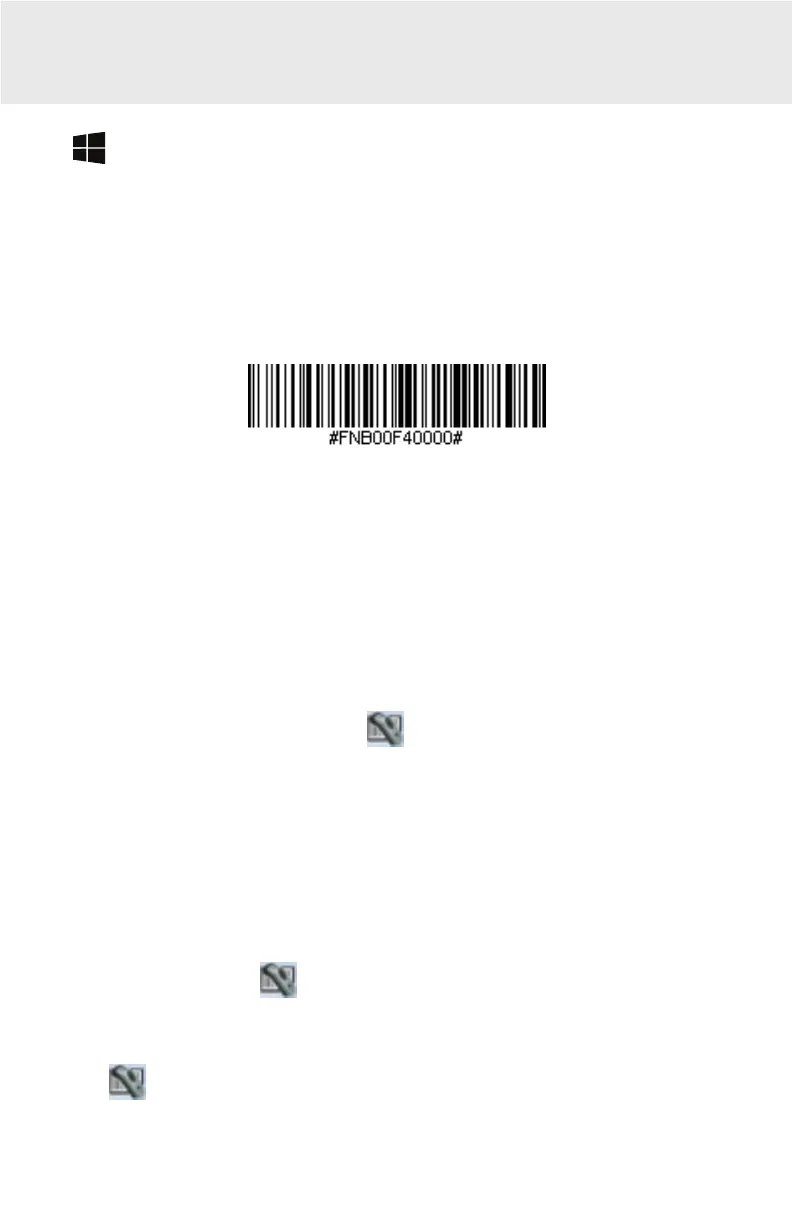
4. Power on t he CHS and scan t his barcode. The CHS will beep 3 t imes.
5. Use t he Bluet oot h soft ware on your comput er t o st art a device search.
6. Tap Socket CHS[xxxxxx]* in t he list of Devices found. If prompt ed f or a
passkey ent er 0000 (f our zeroes).
*The charact ers in bracket s are t he last 6 charact ers of t he Bluet oot h address.
See label in t he CHS bat t ery compart ment
Note: If prompt ed, please click Ports t o creat e a new incoming COM port in
Bluet oot h set t ings.
7. Fol l ow t he remaining screen inst ruct ions t o complet e t he process.
8. Click on t he Socket Scan 10 icon
in t he syst em t ray. In t he
pop-up menu, click Socket EZ Pair.
If t he icon does not appear, open Socket Scan 10 by clicking on t he deskt op
short cut .
9. Select 1D Scanner.
10. Select your CHS in t he list and click Pair.
11. Af t er t hey pair, t he comput er will connect t o t he CHS, indicat ed by a beep.
The CHS will t hen disconnect , indicat ed by t wo beeps. Click OK.
12. Af t er several seconds, t he CHS will reconnect t o t he comput er, indicat ed
by a beep and t he
icon will also appear in t he syst em t ray.
13. Click X t o close Socket EZ Pair. The CHS Regist rat ion screen will appear.
14. Make sure t he CHS is connect ed t o t he comput er, indicat ed by t he CHS
icon in t he syst em t ray.
Now you are ready t o scan barcodes!















 To Next Page