CHAPTER 3: SETUP FOR WINDOWS PC 15
OPTION 1: USING THE CHS IN HID MODE
To pair the CHS with your computer:
You only need to pair the CHS with your computer the first time you try to connect.
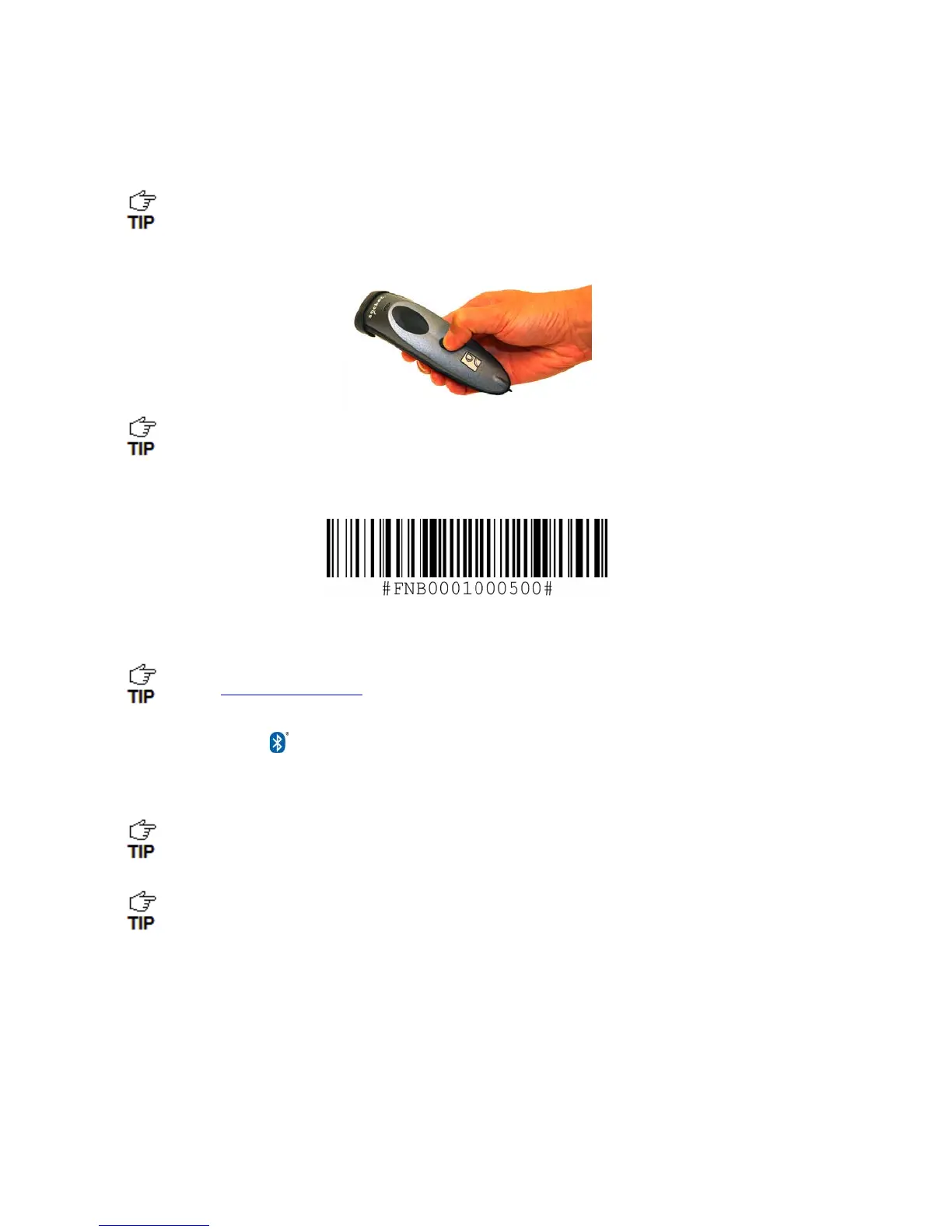
1. Power on the CHS. Press and hold the small power button until the LED turns blue and the
CHS beeps twice (low-high).
The LED blinks blue once per second to show that the Bluetooth radio is on but not
connected.
2. Scan this barcode to configure the CHS for HID mode for peripherals. Afterwards, the CHS will
beep 3 times.
IMPORTANT! Print out this page to scan the barcode. Do not scan it onscreen.
By default, the CHS is in HID Keyboard mode. If the CHS was changed to SPP mode, first
use the Command Barcodes
to change the CHS to HID mode before scanning the barcode
above.
3. Turn on Bluetooth on your computer. Refer to your computer’s documentation for
instructions.
4. Use you computer’s Bluetooth software to connect to the CHS (see instructions on next page).
In the device search, the CHS will appear as Socket CHS [xxxxxx]. The characters in
brackets are the last six characters of the CHS Bluetooth Device Address (BDA), which is
labeled inside the battery compartment.
To identify your type of Bluetooth stack, click Start. Right-click on My Computer and click
Properties | Hardware tab | Device Manager and identify the manufacturer of your
Bluetooth device.














 To Next Page