CHAPTER 3: SETUP FOR WINDOWS PC 17
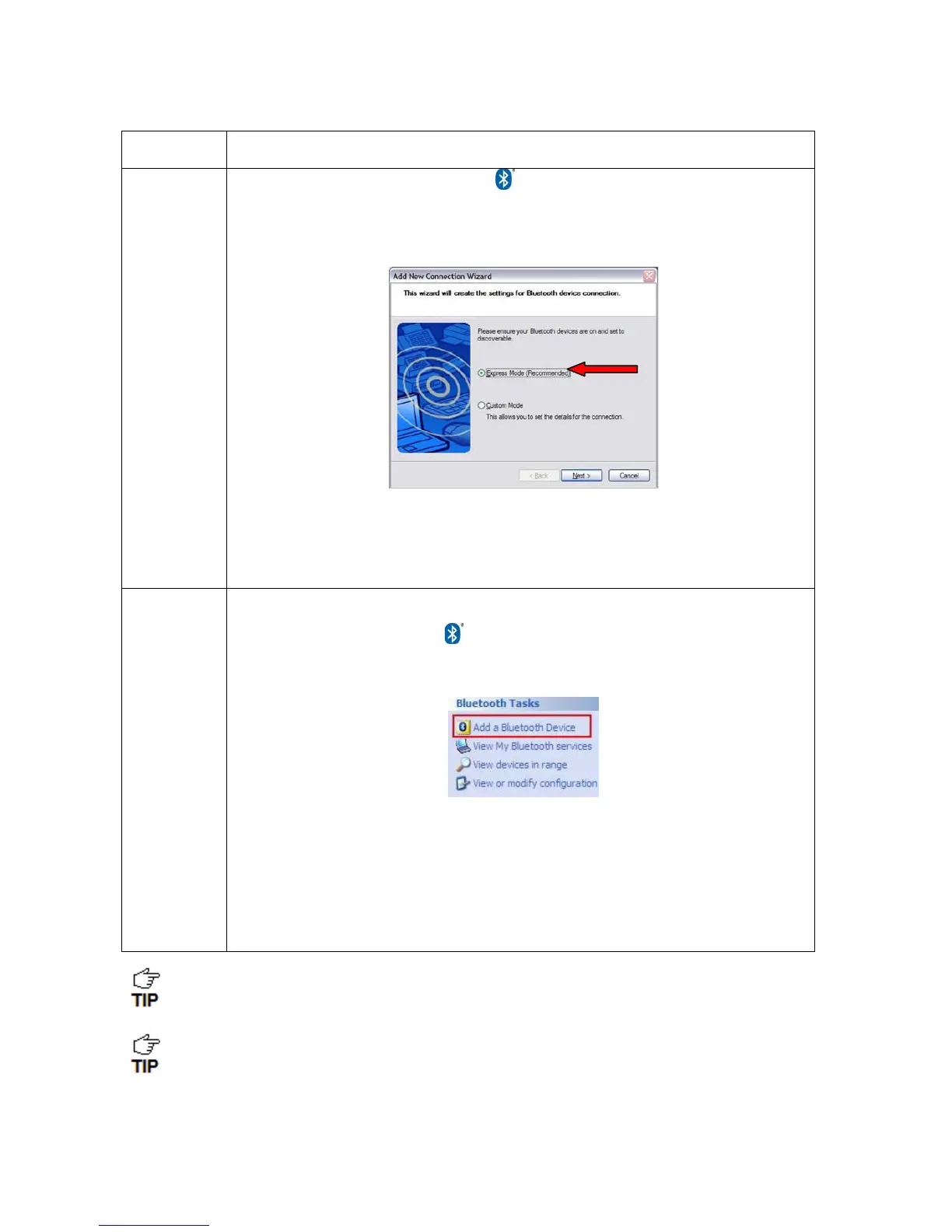
1. Double-click on the Bluetooth icon in the system tray (notification area).
2. In Bluetooth Settings, click New Connection.
3. In the connection wizard, select Express Mode. Click Next. A device search will
begin.
4. In the device list, select Socket CHS [xxxxxx]. Click Next.
5. If a passkey is requested, enter 0000 (four zeroes). Click OK.
6. Follow the remaining screens to complete the wizard.
(Widcomm)
1. Click on the Bluetooth icon in the system tray (notification area).
2. On the left side, under Bluetooth Tasks, click Add a Bluetooth Device.
search will begin.
3. In the device list, select Socket CHS [xxxxxx].
4. If a passkey is requested, enter 0000 (four zeroes). Click Pair Now.
5. If prompted to select a Bluetooth service, select the CHS. Click Finish.
Use Bluetooth v2.1 or later for best results. Do not use Quick Connect | Bluetooth
serial devices when the CHS is in HID mode.
Only computers running Bluetooth 2.0 will prompt for a passkey.
The CHS will beep once when it has connected and is ready to scan barcodes. The
LED will also blink blue once every 3 seconds.














 To Next Page