CHAPTER 3: SETUP FOR WINDOWS PC 21
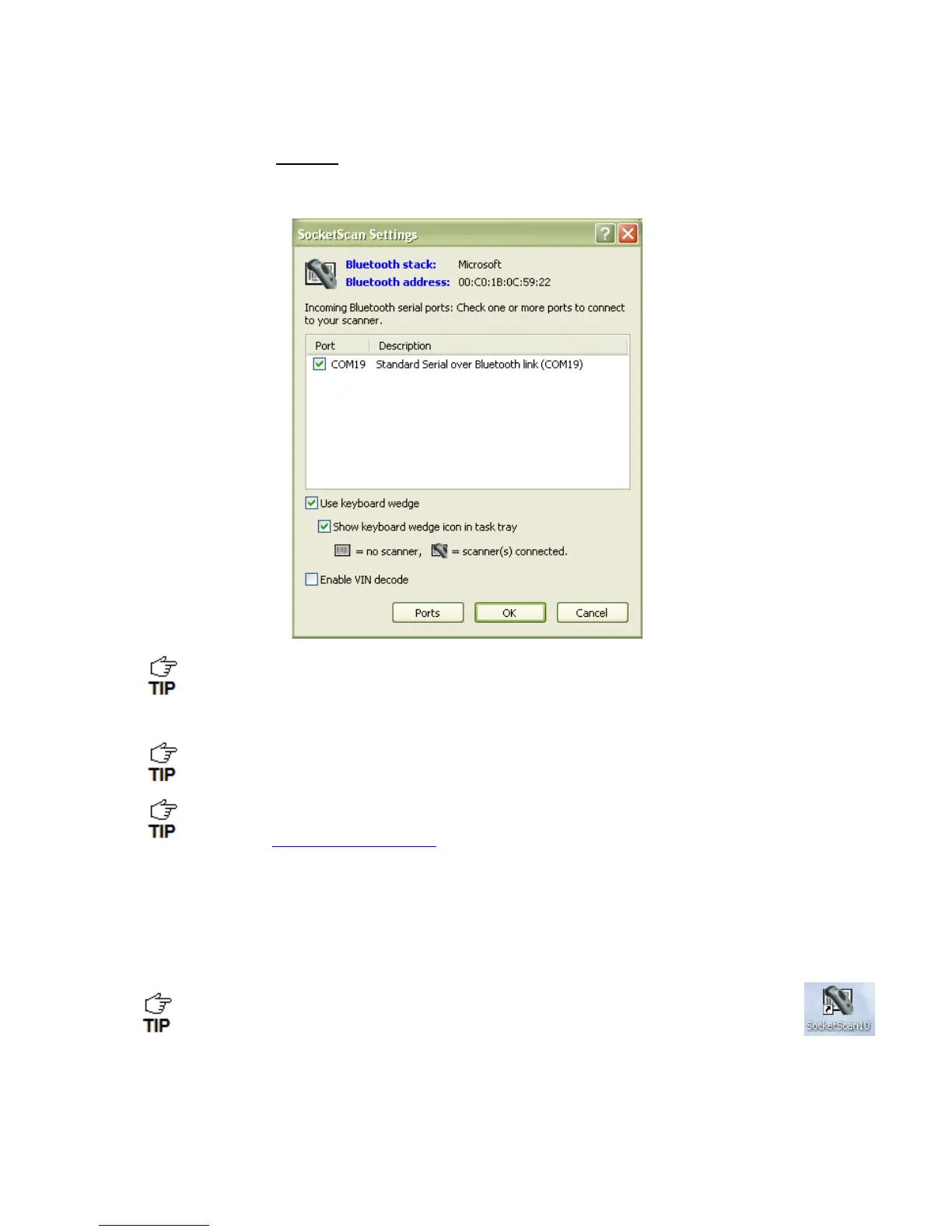
5. The SocketScan Settings screen will appear.
Select an available incoming COM port for SocketScan 10 to use.
Note the Bluetooth stack at the top of the screen.
Click Ports if a suitable incoming Bluetooth COM port is not listed and you would like to
add one. Also, if SocketScan Settings lists multiple COM ports, you can determine if any
are already paired to a Socket Bluetooth barcode scanner and/or which one is
incoming.
For the Toshiba Bluetooth stack, incoming COM ports are listed as LocalCOM-Server.
For most users, Use keyboard wedge and Show keyboard wedge icon in tray
should be selected. For more information on keyboard wedge and VIN decode options,
please see SocketScan 10 Settings
.
6. After making all your selections in SocketScan 10 Settings, click OK.
7. In the last screen of the software installation wizard, click Finish. If prompted, restart your
computer.
After installation, a SocketScan 10 shortcut will appear on your desktop. Click it to
quickly launch SocketScan 10.














 To Next Page