56
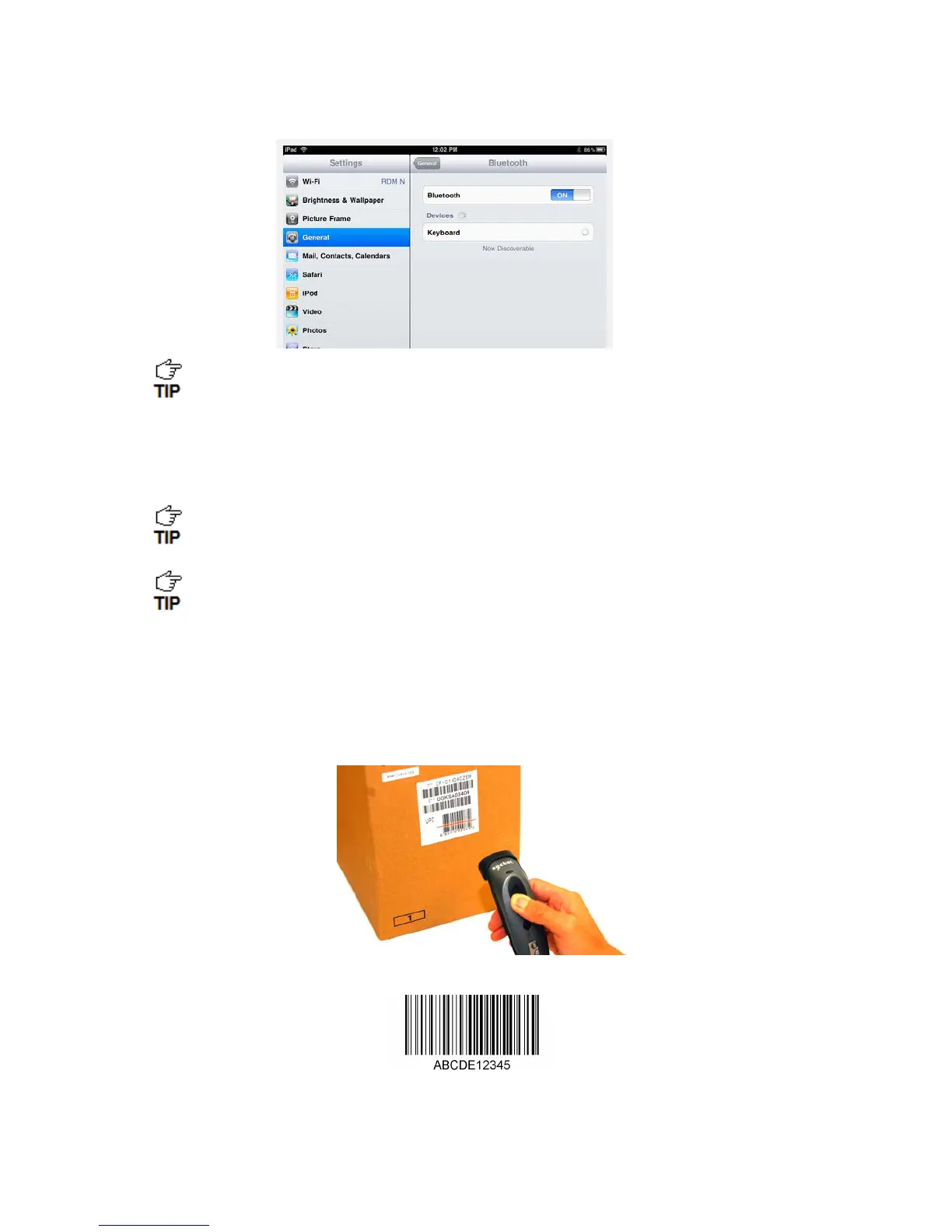
1. In the device list, tap Socket CHS (initially it will appear as Keyboard). Tap Pair.
In the device list, the CHS will appear as Keyboard, then as Socket CHS
[xxxxxx]. The characters in brackets are the last six characters of the CHS
Bluetooth Device Address (BDA), which is labeled inside the battery
compartment.
2. The CHS will connect to the Apple device. If prompted, enter the passkey 0000 (four
zeroes).
The CHS will beep once after it has connected and is ready to scan barcodes.
The LED will also blink blue once every 3 seconds.
For iOS, the soft keyboard will automatically disappear a few seconds after the
CHS connects, because the CHS is detected as a Bluetooth keyboard. To
make the onscreen keyboard appear while connected to the CHS, see
instructions on next page.
To scan barcodes:
1. Open your application. Place the cursor where you want to enter data.
2. Hold the CHS about 4 inches (10 cm) from the barcode and press and hold the trigger button.
An aiming beam will appear for 3 seconds. Keep your hand steady while scanning.
For example, try scanning the following barcode:
IMPORTANT! Print out this page to scan the barcode. Do not scan it onscreen.














 To Next Page