Application Mode (SPP) for Android for D740 Rev. B and below
(Auto Connect - No conguration required for Application pairing)
1. Power on the scanner. Make sure the scanner is discoverable
(unpaired). The Blue light should be blinking fast.
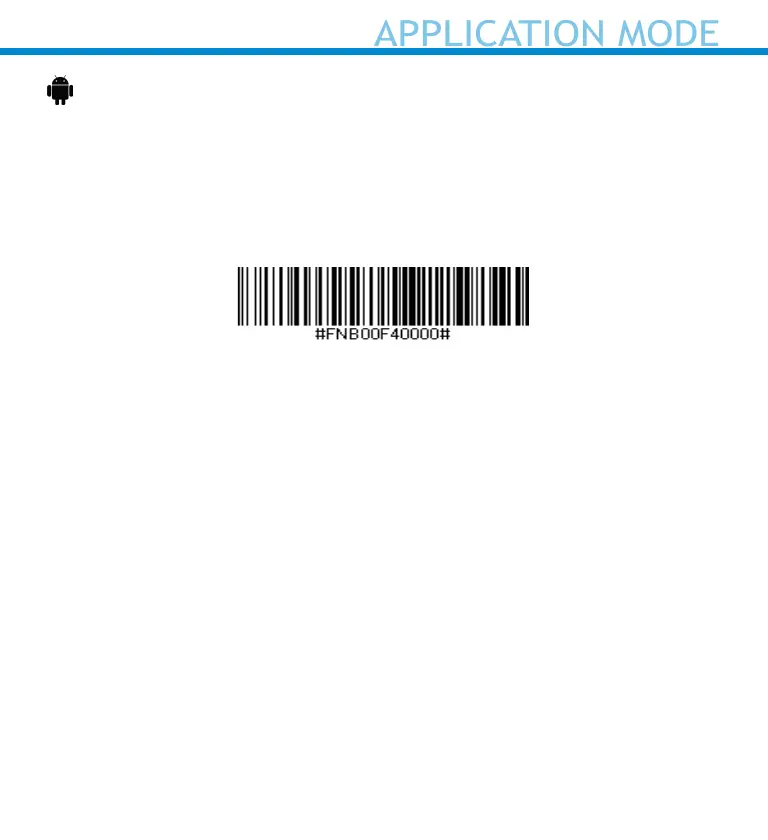
2. Scan the barcode to change the prole to Application Mode (SPP).
3. Turn on Bluetooth on the Android device. Go to Settings > Bluetooth.
A Bluetooth Devices search will begin.
4. Tap Socket D760[xxxxxx] in the list of other devices found. After a
few seconds the status will change to “Connected” and the LED will
stop blinking and turn solid blue.
Note: The characters in brackets are the last 6 characters of the
Bluetooth Address.
5. Launch your scanner-enabled Application. The scanner will beep once
indicating that it is connected to the appropriate application.
Now you are ready to scan barcodes!
18












 To Next Page